
ComfyUI FLUX.1 Kontext: Multi-Turn Editing and Character Consistency
"The Black Forest Labs FLUX.1 Kontext Dev model card documents the 12B model, successive editing, output uses, and Non-Commercial License boundary."
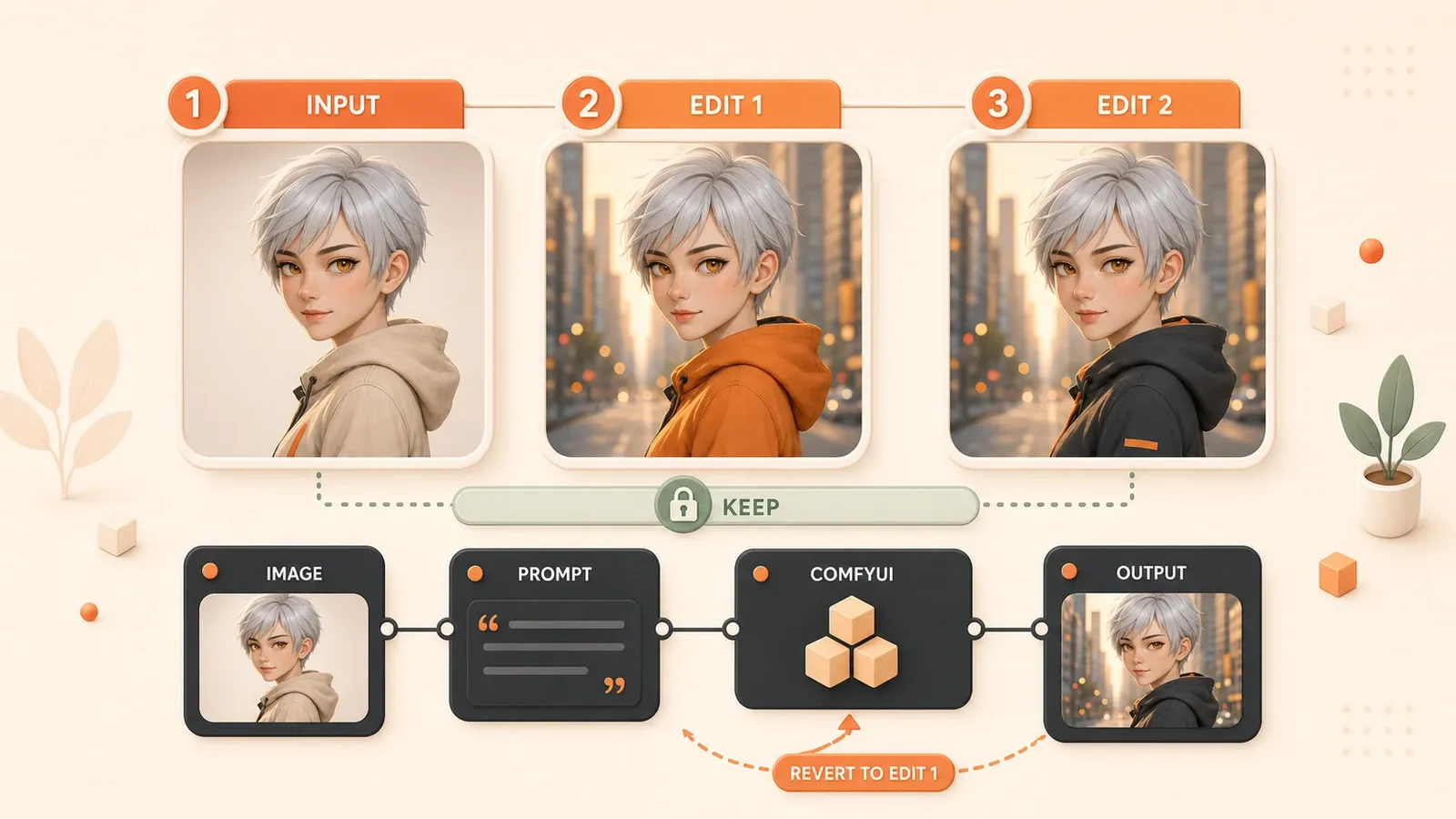
You already have a character portrait you like: short silver hair, amber eyes, and the right clothing details. You only ask for a city street instead of a stage, but the second image changes the face, hair color, and outfit at once. After another pose and expression edit, the third image starts to blur. FLUX.1 Kontext addresses this problem by treating the input image as context and letting the prompt separate what should change from what should stay fixed.
It is not a permanent identity lock. Black Forest Labs demonstrates multi-turn consistency, but it also shows a failure case with visible artifacts after six edits. The safer workflow is short iterative sessions, saved intermediate images, and one main variable per turn.
What FLUX.1 Kontext is and is not for
FLUX.1 Kontext Dev is a 12B image-editing model that accepts an image and a text instruction. It can change backgrounds or clothing, replace local details, transfer style, edit text, and continue editing a previous output.
| Goal | How Kontext handles it | Prompt invariants | Main risk |
|---|---|---|---|
| Change the background, keep the person | Edit the background alone | face, pose, scale, position | The face or framing changes with the scene |
| Change clothing, keep the face | Describe only material and color | facial features, hairstyle, expression | Clothing and body shape drift together |
| Move a product to another scene | Rewrite only the environment | shape, logo, material, proportions | The logo or package geometry is redrawn |
| Build a series through several turns | Change one dimension at a time | Repeat the required invariants | Small errors accumulate |
| Maintain a long-lived character asset | Use Kontext to explore directions | Keep a clean baseline | Training is more stable for repeated production |
Kontext solves a different problem from other controls. ControlNet is better for pose, depth, and outline constraints. LoRA is better for a character or style reused over time. IPAdapter injects reference-image conditions, while FaceID-style tools focus on facial identity.
Install Kontext Dev models in the right folders
The current official ComfyUI tutorial uses an FP8 scaled diffusion model, a VAE, and two text encoders. The model page may require accepting BFL terms before downloading files.

ComfyUI/models/
├── diffusion_models/
│   └── flux1-dev-kontext_fp8_scaled.safetensors
├── text_encoders/
│   ├── clip_l.safetensors
│   └── t5xxl_fp16.safetensors
└── vae/
    └── ae.safetensors
The official workflow also supports t5xxl_fp8_e4m3fn_scaled.safetensors instead of the FP16 T5 file. Refresh the model list after installation. If a loader still cannot find a file, verify the folder name and download integrity, then restart ComfyUI. For general import and missing-node problems, see the ComfyUI workflow reuse guide.
Open the native template
Update ComfyUI or ComfyUI Desktop and look for Flux.1 Kontext Dev in Workflow Templates. Menu names can change, so update the application before installing an unknown node pack to replace a missing template.
Run the first edit with the native node chain
The official Dev workflow follows this sequence:
- Select
flux1-dev-kontext_fp8_scaled.safetensorsinLoad Diffusion Model. - Select
clip_l.safetensorsand a T5 encoder inDualCLIP Load. - Select
ae.safetensorsinLoad VAE. - Load the source image in
Load Image(from output). - Enter an English instruction in
CLIP Text Encode. - Click
Queueor pressCtrl/Cmd + Enter.
The current ComfyUI page still states that this Kontext Dev workflow supports English prompts only. Do not rely on occasional success with another language. A short, explicit English instruction makes it easier to determine whether a failure comes from the model, prompt, or graph.
Change one object in the first turn
Test a background replacement before changing the scene, outfit, pose, age, and style together. A single-variable edit creates a clean baseline and reveals which instruction introduced drift.
Change the background to a city street at night.
Keep the person in the exact same position, scale, and pose.
Preserve the same facial features, hairstyle, expression, and clothing.
Write both the edit and the invariants
A Kontext prompt does not need a stack of generic quality terms. It needs an object, an action, and the parts that must remain fixed. Words such as beautiful, better, or make it different leave the edit boundary unclear. Verbs such as change, replace, keep, and preserve separate the editable region from the invariant one.
| Scenario | Too vague | More controllable instruction |
|---|---|---|
| Background replacement | Put her on a beach | Change the background to a beach while keeping the same face, pose, scale, and position |
| Clothing edit | Transform her into a Viking | Change only the clothing to Viking armor while preserving facial features and hairstyle |
| Product recolor | Create a new bottle design | Change only the bottle color to blue; preserve shape, logo placement, material, and proportions |
| Style transfer | Make it a sketch | Convert to a pencil sketch while maintaining the original composition and subject identity |
Preservation terms for people, products, and framing
| Target | Invariants to state | Failure signal |
|---|---|---|
| Character identity | facial features, hairstyle, expression, body shape | Eyes, face shape, hair, or apparent age changes |
| Product geometry | shape, logo placement, material, proportions | Logo spelling, package curve, or material changes |
| Composition | composition, camera angle, position, scale | Subject moves, crops, or changes perspective |
| Pose | pose, hand position, body orientation | Limbs and silhouette deviate |
If pose must be exact, adding more prose to the Kontext prompt is usually the wrong move. That requirement points toward ControlNet.
Save, inspect, and roll back multi-turn edits
Load Image(from output) uses the previous result as the next input. A practical order is background first, then clothing or accessories, then slight pose or expression changes, with lighting and style left until the end.

- Save the untouched baseline.
- Change only the background and save
round-01. - Change only clothing or accessories and save
round-02. - Make a small pose or expression adjustment.
- Apply style, color, or lighting last.
When to roll back
Return to the last clean intermediate image as soon as the face, eyes, logo, proportions, or sharpness clearly worsens. Do not keep adding instructions that ask a degraded image to restore the original face. Each new turn can redraw more areas and carry the mistake forward.
There is no fixed safe number of turns. BFL shows a six-edit failure with visible artifacts, but that does not mean five turns are always safe or the sixth always fails. The source image, edit scope, and instruction quality all matter.
Practical consistency recipes for characters and products
Describe visible character features instead of relying only on she or him:
Change only the background.
Keep the same woman with short silver hair and amber eyes.
Preserve her facial features, hairstyle, expression, body shape, pose, and scale.
For a product, list brand-sensitive details as invariants:
Place the same bottle on a marble counter.
Preserve the exact bottle shape, logo placement, label text, material, proportions, and camera angle.
Change only the environment and surrounding lighting.
These prompts reduce drift; they do not replace review. Check every commercial product image for logos, text, proportions, packaging claims, and materials. Use real-person images only when you own them or have permission.
Choose between Dev, Pro, Max, FP8, and GGUF
| Option | Access | Best fit | Important boundary |
|---|---|---|---|
| Kontext Dev | Local open weights | Research, customization, privacy, frequent tests | Weights use the Non-Commercial License |
| Kontext Pro | API or Partner Nodes | Commercial editing and quick iteration | Pricing and terms depend on the current service |
| Kontext Max | API or Partner Nodes | Stronger instruction following and text editing | It is not the local Dev weight |
| FP8 scaled | Official ComfyUI tutorial path | Fastest route to the native workflow | Memory needs still depend on resolution and environment |
| GGUF or Nunchaku | Community or specialized implementation | Lower memory use or acceleration | Nodes, quantization quality, and compatibility need testing |
Do not treat “12GB runs it” or “16GB is always smooth” as guarantees. Memory also depends on T5, resolution, VAE, previews, offload, and additional nodes. See ComfyUI low-VRAM optimization for that separate problem.
Start guidance testing from the example
The Hugging Face Diffusers example uses guidance_scale=2.5. It is a reasonable test value, not proof that a fixed range is optimal for every ComfyUI graph. Keep the input and seed fixed and change one parameter at a time.
Troubleshoot common failures in order
| Symptom | Check first | Next action |
|---|---|---|
| The model is missing from a loader | Folder, filename, download integrity | Refresh models and restart |
| The prompt has little effect | English wording and a specific target | State the edit with change or replace |
| The face changes with the background | Too many dimensions changed at once | Add face, hair, and pose invariants |
| Each turn looks blurrier | A degraded output is still being reused | Return to the last clean intermediate image |
| The product logo changes | Logo and label were not declared invariant | Narrow the edit and review manually |
| Composition or pose drifts | The task needs structural control | Switch to or combine ControlNet |
| VRAM is insufficient | FP8, T5, resolution, extra nodes | Evaluate GGUF, offload, or an API |
Keep the source image and seed fixed during troubleshooting. Replacing the model, quantization, resolution, and prompt together makes the result impossible to diagnose.
Licensing, responsible use, and the final tool choice
FLUX.1 Kontext Dev weights are currently governed by the FLUX.1 dev Non-Commercial License. The model card says generated outputs may be used for personal, scientific, and commercial purposes, but that does not grant permission to place the Dev weights in a paid service. Check current BFL licensing for commercial deployment. Pro and Max are API products whose terms depend on the provider.
Choose by the result you need:
- Use Kontext for short-term background, clothing, local, and concept edits.
- Use LoRA for a character or style reused in long-term production.
- Evaluate FaceID-style tools when the main requirement is the same face, with proper portrait consent.
- Use ControlNet when pose, outline, or composition must be constrained precisely.
- Evaluate IPAdapter when the task is to inject style or subject conditions from a reference image.
After the first successful run, keep the baseline and proceed through background, clothing, slight motion, then lighting or style. Kontext’s advantage is not perfect permanence. It gives each edit explicit context and lets you return to the most recent clean version when drift appears.
Create a reversible Kontext edit sequence in ComfyUI
Start with the official Dev template, edit one variable per turn, and state the invariants for the character, product, and composition.
- 1
Step 1: Update ComfyUI and open the template
Update ComfyUI, then locate Flux.1 Kontext Dev in Workflow Templates. If it is missing, check the installed version first. - 2
Step 2: Place the model files
Install the diffusion model, VAE, and CLIP/T5 text encoders in their respective folders, then refresh or restart ComfyUI. - 3
Step 3: Load a baseline image
Load an authorized or self-owned image in Load Image(from output), and keep a copy of this untouched baseline. - 4
Step 4: Make one focused edit
In CLIP Text Encode, write the change in English and list the face, pose, proportions, or composition that must remain unchanged. - 5
Step 5: Save the first output
Check the face, hair, logo, material, position, and sharpness before using the result as the next input. - 6
Step 6: Add changes turn by turn
Proceed through background, clothing or accessories, slight motion, then lighting or style, with one main change per turn. - 7
Step 7: Roll back when drift appears
If identity, product proportions, logo, or sharpness worsens, return to the last clean output and retry with a narrower edit. - 8
Step 8: Decide whether to switch tools
For long-term reuse, strict face identity, or precise poses, evaluate LoRA, FaceID-style tools, or ControlNet.
FAQ
How does FLUX.1 Kontext differ from LoRA?
Where do the Kontext Dev model files go in ComfyUI?
How can FLUX Kontext reduce face drift?
Can I use a non-English prompt with Kontext Dev?
Why do iterative edits become blurry?
Can FLUX.1 Kontext Dev be used commercially?
9 min read · Published on: Aug 21, 2026 · Modified on: Aug 21, 2026

ComfyUI & Stable Diffusion: Setup, Models, and Workflows
If you landed here from search, the fastest way to build context is to jump to the previous or next post in this same series.
Previous
ComfyUI IPAdapter: Reference Image Style, Composition, and Model Pairing
Pair IPAdapter with the right CLIP Vision model, tune weight and weight_type, control style and composition, and troubleshoot SD1.5, SDXL, and FLUX workflows.
Part 7 of 16
Next
ComfyUI Face Consistency: InstantID vs FaceID vs ReActor
Compare InstantID, IPAdapter FaceID, and ReActor by workflow stage and model setup, with reference checks, tuning, troubleshooting, and licensing limits.
Part 9 of 16


Comments
Sign in with GitHub to leave a comment