
Generating Cocos Scene Documentation with AI: Making Code Assistants Truly Understand Your Game
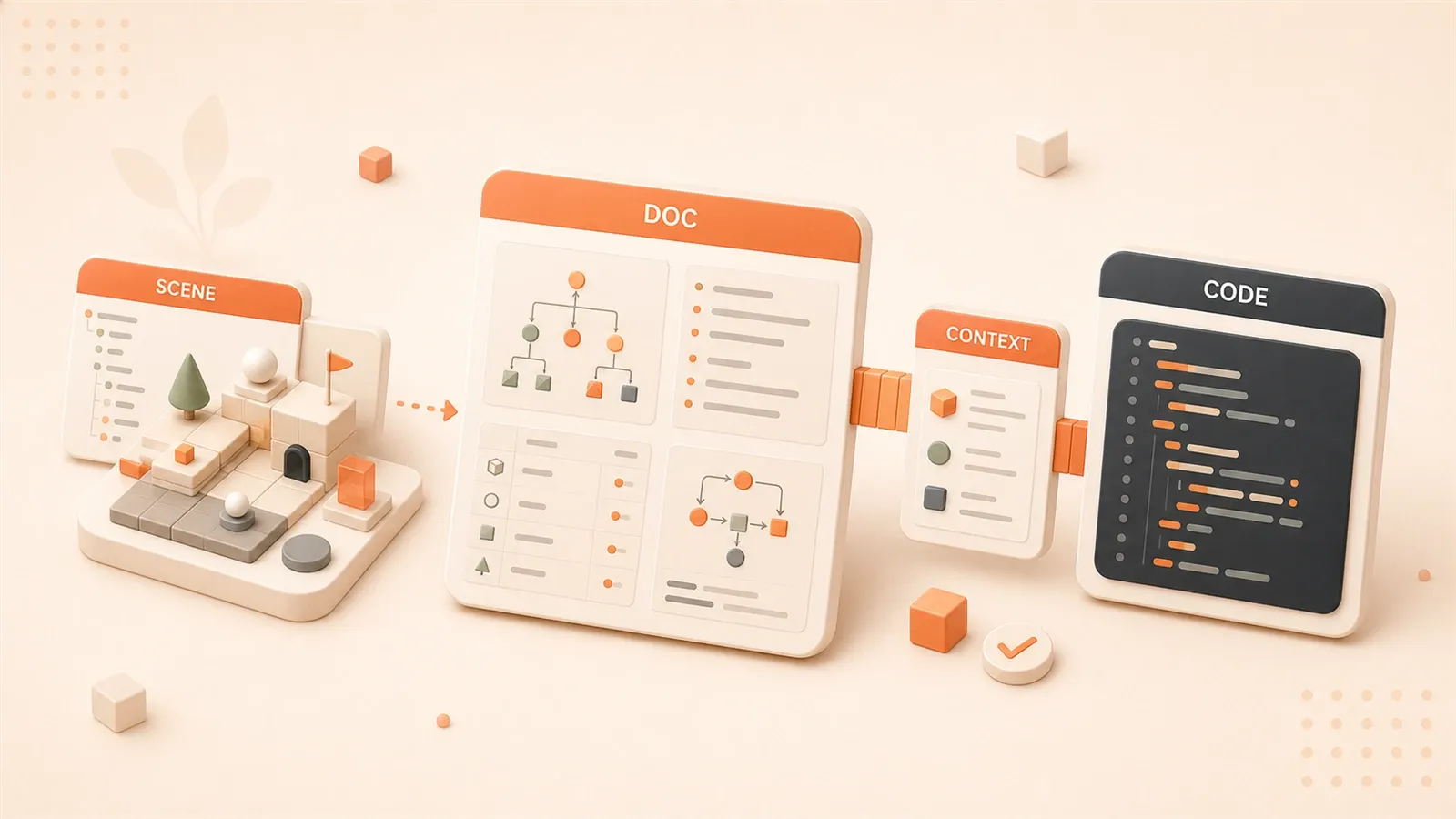
Ask Claude for a new component—it references node names that do not exist. Ask Cursor for a feature—it misses prefabs you already have. Explain the project structure today; repeat it again two days later.
With Cocos Creator this is routine. AI is fine on typical web repos; in games it “feels wrong” because it cannot see scene hierarchy, nodes, or component wiring.
Core issue: AI and the engine are separate. AI reads code files; Cocos lives in .scene and .prefab JSON that models do not parse natively.
This article shares a practical fix: CLAUDE.md plus scene docs so AI understands your project, with prompt templates to generate those docs yourself.
1. Why AI Can’t Understand Your Game Project
1.1 The “Wall” Between AI and Engine
Summer Engine has an excellent blog post explaining this: AI and engines are separate tools. AI has no awareness of scene hierarchies, existing scripts, or project structures. When you ask it to write code, it can only infer based on the context you provide. The problem is, the context you provide is often insufficient.
This is different from web development. In web projects, the code structure is mostly in files - AI can understand it after reading through once. But game projects? A huge amount of critical information is hidden in the editor - scene hierarchies, node positions, component parameters. These aren’t things code files can express.
1.2 The Unique Nature of Cocos Creator Projects
Cocos Creator’s Scene is a logical organizational structure, not a code file. When you open a .scene file, you might see a bunch of JSON, but AI won’t parse that stuff. The node hierarchy (Hierarchy) is what you create by dragging in the editor. Prefabs are even more special - they’re essentially resource files.
This creates an awkward situation: you ask AI “help me modify ScoreLabel under GameRoot,” and AI has no idea what GameRoot is or which node ScoreLabel is on. You have to manually describe the entire scene structure - exhausting.
1.3 Limitations of Existing Solutions
CLAUDE.md files are an approach, but they require manual writing with high maintenance costs. Every time you change the scene structure, you need to update synchronously, otherwise the information becomes outdated. MCP Server solutions have an even higher barrier, requiring extra WebSocket service development and a bunch of configuration. Unity has Bezi, a real-time indexing tool that automatically feeds scripts, assets, and scenes to AI, but Cocos doesn’t have anything similar yet.
So the most practical solution is still documentation - writing down what AI can’t see so it can read it.
2. CLAUDE.md File: Making AI Remember Your Project
2.1 What is CLAUDE.md?
CLAUDE.md is Claude Code’s project-level context file, placed in the project root directory. Similar files exist for other tools: Cursor’s .cursorrules, GitHub Copilot’s .github/copilot-instructions.md. The purpose is simple: providing AI with context it can’t infer from code.
For example, if you have a component called ScoreManager, AI can understand what it does by reading the code. But AI doesn’t know which node this component is mounted on or which nodes it interacts with. That’s the information CLAUDE.md should contain.

2.2 What Should a Game Project’s CLAUDE.md Contain?
Mr. Phil Games’ blog suggests writing these types of information:
Project Basic Information: Engine version, target platform, game type. This lets AI know whether you’re using Cocos 3.8 or 2.x, whether it’s a WeChat mini-game or an App.
Scene Structure Overview: What Boot scene, Game scene, and result page each do. AI needs to know this to understand what you mean by “load resources in Boot scene.”
Core Node Naming Conventions: Top-level nodes like Canvas, GameRoot, UIRoot. AI will automatically use these names when generating code.
Component List: Implemented core components and their responsibilities. Avoids AI reinventing the wheel.
2.3 CLAUDE.md Example for Cocos Creator Projects
Here’s a CLAUDE.md from one of my casual game projects for reference:
# Project Context - Mini Game Demo

## Basic Information
- Engine: Cocos Creator 3.8
- Type: Casual Mini Game
- Platform: WeChat Mini Game

## Scene Structure
- Boot.scene: Startup loading scene, mounts GameManager
- Game.scene: Main game scene, contains GameRoot + UIRoot
- Result.scene: Result page, displays score and buttons

## Core Nodes
- Canvas: UI root node
- GameRoot: Game content node, mounts GameLogic component
- UIRoot: UI layer node, contains ScoreLabel, PauseButton

## Implemented Components
- GameManager: Game lifecycle management
- ScoreManager: Score calculation and storage
- AudioManager: Sound effect playback

## Code Standards
- All UI nodes under Canvas
- Game logic nodes under GameRoot
- Component names ending with Manager indicate management classes
With this file, AI won’t ask you “what is GameManager” or “where is GameRoot” anymore.
3. Scene Documentation: Practical Methods for Automatic Generation
3.1 Why Scene Documentation is Needed
CLAUDE.md is a project-level overview, not detailed enough. Each scene’s node hierarchy and component configuration need separate documentation. Let AI know “what nodes this scene has, what components each node has mounted.”
I once made a mistake: I asked AI to write a pause function, and it generated code looking for a PauseButton node. But my node was actually at UIRoot/PauseLayer/PauseButton, two levels deeper. AI didn’t know, and I forgot to mention it - the code threw errors when running.
Scene documentation prevents this kind of issue. Write each scene’s structure clearly, and AI can accurately locate things when checking code.
3.2 Using Prompts to Automatically Generate Scene Documentation
Writing documentation manually is too tedious, so I use AI to generate it. Here’s a Prompt template you can copy directly:
I have a Cocos Creator 3.8 game project. Please help me generate scene documentation.

Project Information:
- Game Type: Casual Mini Game
- Engine Version: Cocos Creator 3.8

Please generate documentation based on the following information:
1. Scene Name: {scene_name}
2. Scene Purpose: {scene_purpose}
3. Main Node Hierarchy (please describe):
   - {node_structure}

Output Format Requirements:
- Scene Overview (one sentence explaining the scene's purpose)
- Node Hierarchy Tree (displayed as a tree structure, marking components)
- Component Responsibility Description (what each component does)
- Code Reference Notes (potential pitfalls)
When using, just replace {scene_name}, {scene_purpose}, and {node_structure} with your actual content.
3.3 Practical Example: Generating Game.scene Documentation
I used this Prompt to generate documentation for Game.scene. Here’s the input:
1. Scene Name: Game.scene
2. Scene Purpose: Main game scene, contains game logic layer and UI layer
3. Main Node Hierarchy:
   - Canvas (UI root node)
     - UIRoot (UI layer container)
       - ScoreLabel (score display, mounts Label component)
       - PauseButton (pause button, mounts Button component)
   - GameRoot (game logic layer)
     - PlayerNode (player character, mounts PlayerController)
     - EnemyRoot (enemy container)
AI output documentation:
# Game.scene Scene Documentation

## Scene Overview
Main game scene,承载ing game core logic and UI display.

## Node Hierarchy Tree
Canvas (UI root node)
├── UIRoot (UI layer container)
│   ├── ScoreLabel [Label] - Score display
│   └── PauseButton [Button] - Pause button
└── GameRoot (game logic layer)
    ├── PlayerNode [PlayerController] - Player character
    └── EnemyRoot - Enemy container

## Component Responsibility Description
| Component | Mounted Node | Responsibility |
|-----------|--------------|----------------|
| PlayerController | PlayerNode | Handle player input and movement logic |
| Label | ScoreLabel | Display score text |
| Button | PauseButton | Pause button interaction |

## Code Reference Notes
1. When finding UI nodes, start from Canvas: `this.node.getChildByName('Canvas').getChildByName('UIRoot')`
2. ScoreLabel is under UIRoot, not directly under Canvas
3. PlayerNode is under GameRoot, at the same level as Canvas
Place this document in the project’s docs/ directory, and add a reference in CLAUDE.md: For detailed scene structure, see docs/Game.scene.md.
3.4 Documentation Update and Maintenance Strategy
Documentation isn’t a one-time thing. When scene structure changes, documentation needs to change too. My current approach:
After modifying scene structure, I update the documentation on the spot. Takes about 5 minutes - much less effort than re-explaining everything to AI.
Some teams add documentation generation to their CI/CD workflow for automatic triggering. But for small teams, I think manual updates are more practical - after all, scene structure doesn’t change drastically every day.
4. MCP Server Solution: Letting AI Directly Interact with the Engine
4.1 What is MCP Server?
MCP (Model Context Protocol) is a protocol that lets AI interact with external tools through JSON-RPC interfaces. Skywork AI created a Cocos Creator MCP Server where AI can directly communicate with the editor.
Simply put: AI doesn’t need you to manually tell it the scene structure - it can ask the editor itself.
4.2 What Can MCP Server Do?
According to Skywork AI’s blog, Cocos MCP Server supports these features:
- AI fetches scene information through tool calls
- AI directly creates nodes in the editor
- AI reads prefab content
- AI queries component configurations
This is much more powerful than CLAUDE.md because information is real-time. When you change a scene, AI knows immediately - no need to sync documentation.
4.3 Barriers and Limitations of MCP Server
But MCP Server isn’t without barriers:
Complex Configuration: Need to start WebSocket service, configure ports and permissions. Might take half a day to figure out.
Limited AI Support: Currently only Claude Code supports MCP protocol - Cursor and Copilot don’t yet.
Sparse Documentation: Cocos MCP Server documentation and community resources are limited, making troubleshooting difficult.
So if you’re an individual developer wanting to solve problems quickly, the CLAUDE.md + scene documentation approach is more suitable. MCP is better for teams with technical capabilities making long-term investments.
4.4 Using MCP and CLAUDE.md Together
Actually, these two solutions aren’t replacements - they’re complementary:
- CLAUDE.md provides static context: project overview, naming conventions, design philosophy
- MCP provides dynamic interaction: real-time scene information fetching, node creation
If you configure MCP, CLAUDE.md is still useful. MCP can only answer “what exists now” but can’t tell AI “why it’s designed this way” or “what the naming conventions are.” That still needs to be written in CLAUDE.md.
5. Practical Summary and Action Recommendations
5.1 Minimum Viable Solution (Start Today)
If you just want AI to understand your project without any advanced configuration, three steps:
First Step: Create a CLAUDE.md file with basic project information. Engine version, game type, scene structure overview.
Second Step: Use the Prompt template from Chapter 3 of this article to generate documentation for 3 core scenes. Boot, Game, Result - that’s enough.

Third Step: Place scene documentation in the docs/ directory and add references in CLAUDE.md.
Done in half an hour. After that, when AI asks about project structure, just point it to the documentation.
5.2 Advanced Solution (For Teams with Development Capabilities)
If you’re willing to invest more, you can:
Configure Cocos MCP Server: Skywork AI’s open-source implementation with relatively clear documentation. Once configured, AI can fetch scene information in real-time.
Develop Scene Export Scripts: Write a Cocos extension to automatically export scene structure to JSON or Markdown. More accurate than manual descriptions.
Automated Updates: Add export scripts to the build process, automatically updating CLAUDE.md with each build.
This solution requires some development work, suitable for medium to large teams.
5.3 Long-term Goals
The ideal state: AI truly understands game projects, just like it understands web projects. Deep integration between editors and AI, game development documentation becoming an industry standard.
Unity already has real-time indexing tools like Bezi, and Cocos will likely follow. But until then, documentation is the most reliable approach.
Conclusion
There’s a fundamental barrier in AI-assisted game development: AI can’t see what’s in the editor. Scene hierarchies, node structures, component configurations - AI doesn’t know any of this. The solution is documentation - writing down what AI can’t see.
CLAUDE.md is project-level context; scene documentation is granular detail. Together, AI can accurately locate nodes and understand component responsibilities. If you have development capabilities, you can also configure MCP Server to let AI fetch scene information in real-time.
Try it today: create a CLAUDE.md file and use the Prompt from this article to generate your first scene documentation. If you have other practical insights, feel free to share in the comments.
Complete Process for Generating Cocos Scene Documentation with AI
Configure CLAUDE.md from scratch, generate scene documentation, and let AI understand your game project.
⏱️ Estimated time: 30 min
- 1
Step 1: Create CLAUDE.md File
Create CLAUDE.md in the project root directory, writing basic information such as engine version, game type, scene structure overview, core node naming conventions, and list of implemented components. - 2
Step 2: Generate Scene Documentation
Use the Prompt template provided in this article to generate documentation for core scenes like Boot, Game, and Result, including node hierarchy trees, component responsibilities, and code reference notes. - 3
Step 3: Organize Documentation Directory
Place scene documentation in the docs/ directory and add references in CLAUDE.md, for example: For detailed scene structure, see docs/Game.scene.md. - 4
Step 4: Maintain and Update
Update documentation synchronously after each scene structure modification, or configure MCP Server for automatic synchronization. Manual maintenance takes about 5 minutes for small teams.
FAQ
Where should the CLAUDE.md file be placed?
Do I have to write scene documentation manually?
What's the difference between MCP Server and CLAUDE.md?
Can AI directly read Cocos Creator's .scene files?
How frequently should documentation be updated?
10 min read · Published on: May 19, 2026 · Modified on: Jul 14, 2026

AI-Assisted Cocos Mini Game Development
If you landed here from search, the fastest way to build context is to jump to the previous or next post in this same series.
Previous
Turn Your Game Idea into PRD and Task List with AI
Learn how to use AI to transform your game idea into a complete PRD and development task list in 30 minutes. Includes Prompt templates, game-specific PRD structure, and real-world examples. Perfect for indie developers and small teams.
Part 5 of 21
Next
Cocos Creator AI Art Asset Organization: Complete Workflow from Generation to Import
A practical guide for indie developers on organizing AI-generated art assets: Cocos Creator resource directory structure standards, naming conventions, atlas creation, and Draw Call optimization. A replicable, standardized workflow from SOON platform generation to engine import.
Part 7 of 21


Comments
Sign in with GitHub to leave a comment