
GA4 Advanced Configuration Guide: Event Tracking and Conversion Funnels
On July 1, 2023, Google completely shut down Universal Analytics data collection. That morning, when I opened the dashboard and saw the data line abruptly stop in UA reports, only one thought crossed my mind: How on earth do I actually use GA4?
If you’re like me—after migrating from UA, you only set up basic tracking code and find yourself staring at the GA4 interface in confusion—don’t panic, you’re not alone. Many site owners are essentially “running naked”: page views are tracked, but valuable data like what buttons users clicked, how much of an article they read, and where they dropped off in the process—none of it is captured.
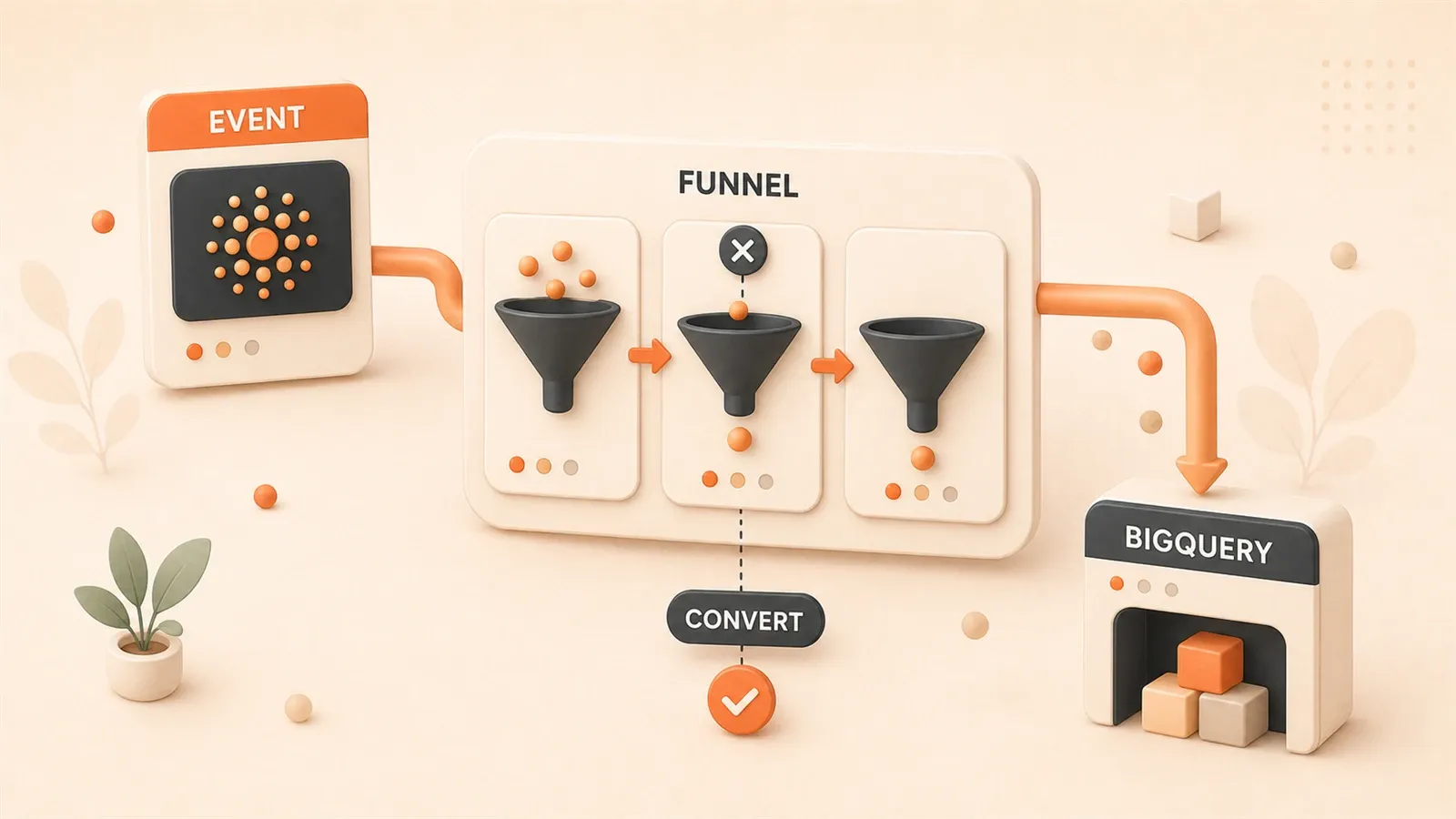
This article isn’t about what GA4 is. Let’s get practical: how to use event tracking to understand user behavior, how to use conversion funnels to find drop-off points, and—if you have deep analysis needs—how to export data to BigQuery and write your own SQL queries. Let’s start with the three types of events.
I. Three Types of GA4 Event Tracking
The core logic of GA4 is completely different from UA. UA was a “session + page view” model; GA4 is “everything is an event.”
You’ve probably heard this many times, but what does it actually mean? Simply put: page views are events, button clicks are events, video plays are events, scrolling to the bottom of a page is also an event. All user behaviors are independent “event” records in GA4.
But you can’t just create events randomly. Google categorizes events into three types, each with its own usage and limitations.
1. Automatic Events (Enhanced Measurement): Ready to Use Out of the Box
This is GA4’s “free lunch.” When you create a data stream, Enhanced Measurement is enabled by default, automatically tracking 7 types of interactions:
- Page views (page_view)
- Scrolling (scroll)—but only tracks 90% scroll depth
- Outbound clicks (click)
- Site search (search)
- Video interactions (video_start, video_progress, video_complete)
- File downloads (file_download)
- Form interactions (form_start, form_submit)
Sounds pretty comprehensive, right? But there’s a catch: scroll tracking only records when users scroll to 90% of the page. If you want to know how many people finished reading an article, or want to track reading progress at 50% or 75% points, Enhanced Measurement can’t do it—you need to configure it yourself with GTM.
My advice: Keep Enhanced Measurement enabled, but don’t rely on it too heavily. It gives you basic data; for truly valuable user behavior, you still need to do the work yourself.
2. Recommended Events: Follow Google’s Script
Google has predefined a set of “recommended events” for different industries. For example, e-commerce has add_to_cart, begin_checkout, purchase, while content sites have sign_up, login, share.
The advantage of recommended events is that when you use the correct event names and parameters, GA4 automatically generates corresponding reports. For instance, if you use the purchase event, GA4 can automatically generate the corresponding report.
But note: recommended events don’t trigger automatically. You still need to add code to your site (or configure with GTM), but the event names and parameters must strictly follow Google’s specifications.
For example, common recommended events for blog sites:
| Event Name | Trigger Scenario | Key Parameters |
|---|---|---|
sign_up | User successfully registers | method (registration method) |
login | User successfully logs in | method (login method) |
share | User shares content | content_type, item_id |
I configured sign_up event tracking for subscription behavior on my blog. At first, I wrote the event name as signUp (camelCase), and GA4 didn’t recognize it at all—recommended events must use snake_case, not a single letter can be wrong.
3. Custom Events: Track Whatever You Want, But There’s a Cost
When the tracking behavior you need isn’t in Google’s recommended list, you need to define events yourself. For example, I wanted to track “users finished reading an article,” so I defined the article_read_complete event.
Custom events offer high flexibility, but there are several limitations:
-
Parameter limit: Each event can have up to 25 custom parameters. Simo Ahava (an authority in the GA4 field) tested this in practice—data exceeding 25 parameters can still be exported to BigQuery, but will be ignored in GA4 native reports.
-
Naming conventions: Only letters, numbers, and underscores are allowed, must start with a letter. Recommend using snake_case to stay consistent with recommended events.
-
Reporting delay: After configuring custom events, it may take 24-48 hours for reports to appear in GA4. Don’t assume you configured it wrong—wait first.
Configuration Priority: A Simple Decision Tree
If you’re not sure which event type to use, follow this order:
- First check if Enhanced Measurement has it—out of the box, save effort where possible
- Then check the recommended events list—follow specifications, reports generate automatically
- Only use custom events as last resort—high flexibility, but also high maintenance cost
Honestly, most blog sites can get by with Enhanced Measurement + a few recommended events. Custom events are for those with deep analysis needs.
II. Event Tracking Configuration in Practice
Understanding the differences between the three event types, the next step is hands-on configuration.
There are two mainstream ways to configure GA4 events: use Google Tag Manager (GTM), or write gtag.js code directly in your pages. I recommend using GTM—although the learning curve is steeper, maintenance is much easier later on. Changing a trigger condition doesn’t require redeploying code.
Configuring GA4 Events with GTM: Four Steps
Suppose you want to track the “blog article reading completed” behavior. Here’s the complete process:
Step 1: Create a GA4 Event Tag
Open GTM, create a new Tag, select type Google Analytics: GA4 Event. Enter your Measurement ID, and for event name, enter article_read_complete.
Step 2: Configure Trigger

This step tells GTM: “When should this event trigger?”
For “reading completed,” I usually use scroll trigger: when user scrolls to 90% of the page. Create a new Trigger, select type Scroll Depth, set Vertical Scroll Depths to 90%.
But here’s a detail: if your blog has a “reading progress bar” feature, it might conflict with GTM’s scroll tracking. I stepped into this pit before—there was a progress bar at the top of the page, and scroll events kept triggering like crazy, the data was all noise. The solution is to add a limit: trigger only once per user per article.
Step 3: Add Event Parameters
Parameters are the “soul” of events. Just knowing someone finished reading an article isn’t enough; you need to know which article, what category, who the author is.
Add Event Parameters in the Tag configuration:
| Parameter Name | Value | Description |
|---|---|---|
article_title | {{Page Title}} | Article title |
article_category | {{Custom JS Variable}} | Article category (need to write JS to extract) |
reading_time | {{Custom JS Variable}} | Estimated reading time |
Keep parameter value types consistent. If reading_time is a number, it should always be a number; don’t use 5 sometimes and "5 minutes" other times—GA4 will treat these as different parameters.
Step 4: Debug and Verify
Don’t publish immediately after configuration. Test with GTM’s Preview mode: open your blog page, scroll to 90%, and check if the event appears in GA4 DebugView.
DebugView is enabled in GA4 backend under Configure > DebugView. If you don’t see the event, check if the Trigger conditions are wrong; if the event is received but parameters have no values, check the Variable configuration.
Don’t Want to Use GTM? Configure Directly with gtag.js
If your blog uses a static generator (like Astro, Hugo) and you don’t want the complexity of GTM, writing gtag.js code directly works too.
// Execute after page loads
window.addEventListener('load', function() {
  // Trigger when scrolled to 90%
  window.addEventListener('scroll', function() {
    var scrollPercent = (window.scrollY / (document.body.scrollHeight - window.innerHeight)) * 100;
    if (scrollPercent >= 90 && !window.articleReadTracked) {
      window.articleReadTracked = true;
      gtag('event', 'article_read_complete', {
        'article_title': document.title,
        'article_category': document.querySelector('meta[name="category"]')?.content || 'unknown',
        'reading_time': parseInt(document.querySelector('meta[name="reading-time"]')?.content || 0)
      });
    }
  });
});
This code does the same thing as the GTM configuration: sends article_read_complete event when scrolled to 90%. The difference is, the code is hardcoded in the page, and changing it later requires redeployment.
Common Pitfalls (All From Personal Experience)
Pitfall 1: Non-standard Event Naming
articleReadComplete, article-read-complete, article_read_complete—these are three different events in GA4. Recommend using snake_case consistently to match Google’s official style.
Pitfall 2: Inconsistent Parameter Value Types
Today you send reading_time: 5, tomorrow reading_time: "5 minutes", the day after reading_time: true. GA4 will treat these as three different parameters, and reports will be a mess.
Pitfall 3: Events Filtered by Consent Mode v2
If your site targets EU users and has Google Consent Mode v2 enabled, some events may not be sent if users reject cookies. This isn’t an error, but report data will “shrink”—don’t assume something is configured wrong.
Pitfall 4: Using Reserved Words for Event Names and Parameter Names
page_view, session_start, first_visit are GA4 reserved event names, don’t use them as custom events. Parameter names also have a reserved word list—check the official documentation before configuring.
Practical Examples for Blog Sites
For blog scenarios, here are several common event configurations:
| Behavior | Event Name | Key Parameters |
|---|---|---|
| Article reading completed | article_read_complete | article_title, category, author |
| Comment submitted | comment_submit | article_title, comment_length |
| Subscribe button clicked | newsletter_click | button_location, article_title |
| Table of contents clicked | toc_click | section_title, article_title |
Once these events are configured, you can see real user behavior on your blog in GA4. Next up: analyzing this behavior data—this requires conversion funnels.
III. Conversion Funnel Configuration and Analysis
Event tracking is configured. Now comes a core question: from “first visit” to “completing your target action,” how many people drop off along the way?
This is the problem conversion funnels solve.
GA4’s Funnel Exploration report is much stronger than UA’s. UA’s funnel reports were rigid and fixed; GA4 lets you customize each step, add segment comparisons, and analyze drop-off timing—basically bringing paid tool features into the free version.
Creating Your First Conversion Funnel
Open GA4, go to Explore > Funnel Exploration. You’ll see an empty funnel template.
The first step is defining “funnel steps.” You can define up to 10 steps, but in practice, 4-5 steps are usually enough for blog sites.
Here’s an example of a blog subscription funnel:
- Step 1: Article page view (event:
page_view, condition:page_locationcontains/posts/) - Step 2: Visit subscription page (event:
page_view, condition:page_locationcontains/subscribe) - Step 3: Submit subscription form (event:
newsletter_signup) - Step 4: Confirmation email opened (event:
email_opened)—this requires email system integration for tracking
When defining steps, here’s a tip: keep each step’s conditions as simple and clear as possible. Complex condition combinations make funnel data hard to interpret.
Funnel Analysis: Finding Drop-off Points
Once the funnel is configured, you’ll see conversion rates and drop-off numbers for each step.
Suppose my blog subscription funnel data looks like this:
| Step | Users | Conversion Rate (from previous step) |
|---|---|---|
| Article page view | 10000 | - |
| Visit subscription page | 800 | 8% |
| Submit subscription form | 240 | 30% |
| Confirmation email opened | 180 | 75% |
You can tell at a glance: the first drop-off point is “article page → subscription page,” only 8% of users go to the subscription page. This suggests the subscription entrance isn’t prominent enough, or the subscription page entrance is in the wrong position.
The second drop-off point is “subscription page → submit form,” with a 30% conversion rate. This might be because the form is too long, or the subscription value isn’t clear enough.
After finding drop-off points, the next step is to compare segment data and see if there’s a pattern to the drop-offs.
Segment Comparison: Finding “Who” is Dropping Off
Funnel Exploration supports adding segments to compare conversion differences between different user groups.
Common segment dimensions:

- New users vs returning users: New users typically have lower conversion rates because they don’t know your content’s value yet
- Mobile vs desktop: Mobile form filling experience is often worse
- Traffic source: Users from search engines vs users from social media
For example, I compared subscription funnels for new users vs returning users:
| Step | New User Conversion Rate | Returning User Conversion Rate |
|---|---|---|
| Article page → Subscription page | 5% | 15% |
| Subscription page → Submit form | 25% | 40% |
Returning users have higher conversion rates at every step—this is normal, they already recognize your content. But new users’ “article page → subscription page” is only 5%, showing that new users didn’t notice the subscription entrance at all.
Based on this finding, I added a prominent subscription card at the end of articles, and new user conversion rate increased from 5% to 12%.
Open Funnel: Analyzing User Path Diversity
Funnel Exploration defaults to a “linear funnel”: users must complete each step in order to be counted as converted.
But actual user behavior isn’t that orderly. Some users might skip the subscription page and submit directly from the article bottom; some users might open the confirmation email, then go back to the article page to read it again.
GA4 provides an “Open Funnel” mode: it doesn’t enforce order, as long as users complete a certain step, they’re counted as entering that step.
Open Funnel helps you discover “atypical paths.” 15% of subscription users submitted directly from the article bottom, never visiting the dedicated subscription page. This shows that the article bottom subscription entrance is more effective than the dedicated subscription page—I should spend more effort optimizing the article bottom subscription experience, not the subscription page.
Common Misconceptions in Funnel Analysis
Misconception 1: Only Looking at Final Conversion Rate
The “total conversion rate” from first to last step is important, but the drop-off points in intermediate steps are the key to improvement. Don’t just stare at “1.8% of users completed subscription”—look at “which step lost 92% of users.”
Misconception 2: Ignoring Time Dimension
Funnel Exploration can set “conversion time”—how long it took users to go from the first step to completing the last step. If your funnel is “read → order → pay,” and users took 7 days from reading to paying, it shows a long decision cycle. You might need to strengthen trust-building or add follow-up touchpoints.
Misconception 3: Analyzing with Too Little Data
Funnel analysis needs sufficient data volume. If a step only has a few dozen users, conversion rate fluctuations will be large, and conclusions may not be reliable. Recommend having at least several hundred data points before doing deep analysis.
IV. BigQuery Data Export in Practice
Everything discussed so far operates within the GA4 interface. But GA4 native reports have a limitation: when data volume is large, it samples. For example, if your blog has 500,000 monthly active users, GA4 reports might be generated based on only 10% of the data sample.
Sampling isn’t bad—it improves report loading speed. But if you want precise conversion rate analysis, or want to combine a dozen dimensions to look at data, sampling results aren’t reliable.
At this point, BigQuery export is your savior.
BigQuery Export Configuration: Three Steps to Get It Done
BigQuery is Google’s data warehouse service. Exporting GA4 data to BigQuery lets you query full data with SQL, free from sampling limits.
Configuration steps are simple:
Step 1: Create a BigQuery Project
In Google Cloud Console, create a project and enable the BigQuery API. New users get free quota: 10GB storage per month, 1TB query processing volume—more than enough for blog sites.
Step 2: Configure Export in GA4
Open GA4 Admin, find BigQuery Linking. Click Link, select your BigQuery project, then choose export frequency:
- Daily: Export yesterday’s data once per day
- Streaming: Real-time export (you can see today’s data within a few hours)
I recommend enabling both. Daily export has more stable data structure, suitable for long-term analysis; Streaming export is good for seeing today’s real-time data.
Step 3: Wait for Data to Start Flowing
After configuration, GA4 will start exporting data within 24 hours. But there’s a catch: BigQuery export has no historical backfill. Configure today, you only get data starting from today—two years of past GA4 data won’t automatically pour in.
So if you have deep analysis needs, configure BigQuery export early. Don’t wait until you need historical data to discover—it’s already too late.
BigQuery Data Structure: Understand at a Glance
GA4 data exported to BigQuery has one table per day, with table name format events_YYYYMMDD. For example, events_20260429 stores event data for April 29, 2026.
Each record is one event, with fields including:
| Field | Description |
|---|---|
event_name | Event name (like page_view, article_read_complete) |
event_timestamp | Event occurrence time (microsecond-level Unix timestamp) |
user_pseudo_id | User anonymous ID (cross-device identification for same user) |
event_params | Event parameters (nested structure, needs SQL to expand) |
geo | Geographic location (country, city) |
device | Device information (browser, operating system, device category) |
Here’s where beginners often get stuck: event_params is a nested field, not a simple column. To query parameter values, you need to expand it with UNNEST.
Several Practical SQL Queries
Query user count for a specific event:
SELECT
  COUNT(DISTINCT user_pseudo_id) as unique_users
FROM `your-project.analytics_123456789.events_*`
WHERE event_name = 'article_read_complete'
  AND _TABLE_SUFFIX BETWEEN '20260401' AND '20260429'
This SQL calculates: how many unique users completed article reading in April.
Query distribution of a specific event parameter:
SELECT
  param.value.string_value as article_category,
  COUNT(DISTINCT user_pseudo_id) as users
FROM `your-project.analytics_123456789.events_*`,
UNNEST(event_params) as param
WHERE event_name = 'article_read_complete'
  AND param.key = 'article_category'
  AND _TABLE_SUFFIX BETWEEN '20260401' AND '20260429'
GROUP BY article_category
ORDER BY users DESC
This SQL expands event_params and counts users who completed reading by article category.

BigQuery vs GA4 Native Reports: When to Use Which?
| Scenario | Use GA4 Native Reports | Use BigQuery |
|---|---|---|
| Quick daily traffic check | Yes | - |
| View conversion funnels | Yes | - |
| Combine more than 4 dimensions for analysis | - | Yes |
| Precise conversion rate calculation (no sampling) | - | Yes |
| Export data to other tools (Looker, Python) | - | Yes |
| Real-time monitoring (same-day data) | Yes (Streaming) | Yes (Streaming) |
Simply put: use GA4 interface for daily reports, use BigQuery for deep analysis.
BigQuery Cost Control
BigQuery charges based on the amount of data processed by queries. Blog site data volume is small, costs are usually manageable, but there are still some saving tips:
- Use
_TABLE_SUFFIXto limit date range: Don’t query the full table, only query the dates you need - Use
WHEREconditions to filter: The earlier you filter, the less data you process - Create materialized views: Frequently queried data can be pre-aggregated
My blog has about 1GB of data per month, query volume doesn’t exceed 100GB/month—completely within free quota. Large sites may need to pay attention to costs, but small and medium blogs don’t need to worry.
V. GA4 vs UA: Differences Migrants Must Know
If you’re an old site owner migrating from UA, this chapter is specifically for you.
The differences between GA4 and UA aren’t just a new interface—the underlying logic has completely changed. Many “taken for granted” concepts either don’t exist in GA4 or have changed definitions.
Event Model vs Session Model
UA’s core was “session”: a user came, browsed around, left—this is one session. One session might have multiple page views, multiple events.
GA4’s core is “event”: every user action is an independent atomic unit. Sessions become collections of events, not the starting point for analysis.
What does this mean?
In UA, you’re used to looking at “session count,” “page views per session.” In GA4, these concepts are replaced by “event count,” “user count.”
GA4 still has the concept of “session,” but it no longer emphasizes sessions; instead, it emphasizes “user journey.” A user might open your blog in the morning and come back in the afternoon—in UA this is two sessions, in GA4 this is just one user with multiple visits.
Engagement Rate vs Bounce Rate
UA’s “Bounce Rate” was an obsession for many site owners: the lower the bounce rate, the better—it means users stayed.
But in GA4, bounce rate is gone. Replaced by “Engagement Rate.”
Why? Because UA’s bounce rate definition was problematic: if a user only viewed one page then left, it counted as a “bounce.” But if a user only viewed one page, read for 10 minutes, and carefully finished the article—UA still counted this as a “bounce.”
GA4’s engagement rate definition is more reasonable: if a user stays on your site for more than 10 seconds, or has at least one conversion event, or views more than 2 pages, it counts as “engaged.” Engagement rate = engaged sessions / total sessions.
So don’t directly compare GA4’s engagement rate with UA’s bounce rate. They’re not opposite concepts; they’re different measurement standards.
Data Streams vs Views
UA had the concept of “Views”: you could create multiple views, each with different filters. For example, one view only shows domestic traffic, another view excludes internal IPs.
GA4 doesn’t have views anymore. Instead, there are “Data Streams”: Web, iOS App, Android App each have one data stream.
What about filtering? GA4 uses “Property Filters” instead—but the functionality is much weaker than UA’s view filtering. It can only filter internal traffic and spam traffic, can’t create multiple “view different data” views like UA.
If you’re used to using UA views for multi-dimensional data isolation, after migrating to GA4, you need to re-plan your data architecture. Either use BigQuery export and filter yourself, or use Looker Studio to create multiple report views.
UA Goals Need Remapping
UA’s “Goals” become “Conversion Events” in GA4.
The configuration method also changed. UA Goals could be “visit a certain page,” “stay more than X minutes,” “trigger a certain event.” GA4 conversion events can only be “a certain event occurred”—if you want to track page visits as conversions, you need to first configure a page_view event, then mark page_view as a conversion.
During migration, list out UA Goals one by one and remap them to GA4 conversion events. This process is tedious but necessary—otherwise, historical conversion data can’t be continued.
Final Thoughts
After all this, it really comes down to four things:
- Event Tracking: Understand the three types (automatic, recommended, custom), configure by priority
- Conversion Funnels: Find drop-off points, compare segment data, use Open Funnel to discover atypical paths
- BigQuery Export: Configure early if you have deep analysis needs, historical data can’t be backfilled
- Migration Mindset: Don’t force UA metrics onto GA4, adapt to the new logic
If you can do one thing immediately after reading this article, I suggest: open GA4, check if Enhanced Measurement is enabled, then create a 3-4 step conversion funnel and analyze your blog subscription process.
Data won’t tell you the answer itself, but it will tell you where the problem is. The rest is up to you to solve the problem.
References
- Set up events | Google Analytics | Google for Developers — GA4 official event configuration documentation
- Recommended events - Analytics Help — Recommended events list
- Enhanced measurement events - Analytics Help — Automatic events explanation
- Funnel Exploration Report in GA4 - Analytics Mania — Funnel report detailed explanation
- GA4 BigQuery Export Schema Tutorial - Optimize Smart — BigQuery export tutorial
Configure GA4 Event Tracking and Conversion Funnels
Configure GA4 event tracking from scratch, create conversion funnels to analyze user behavior
⏱️ Estimated time: 60 min
- 1
Step 1: Enable Enhanced Measurement automatic events
In GA4 backend, go to Admin > Data Streams > select your data stream, ensure Enhanced Measurement is enabled. By default tracks 7 types of interactions: page views, scrolling, outbound clicks, site search, video interactions, file downloads, form interactions. - 2
Step 2: Configure recommended or custom events
Choose event type based on tracking needs:
- Recommended: Blogs use sign_up, login, share and other recommended events
- Custom: article_read_complete, newsletter_click and other custom events
- Naming convention: Use snake_case consistently, avoid camelCase or hyphens - 3
Step 3: Configure event triggers with GTM
In GTM:
1. Create GA4 Event Tag, fill in Measurement ID
2. Configure Trigger (like Scroll Depth 90%)
3. Add Event Parameters (article_title, category, etc.)
4. Test and verify with Preview mode - 4
Step 4: Create conversion funnel
In GA4 go to Explore > Funnel Exploration:
- Define 4-5 funnel steps
- Keep each step's conditions simple and clear
- Use segments to compare new users vs returning users
- Enable Open Funnel to discover atypical paths - 5
Step 5: Configure BigQuery export (optional)
In GA4 Admin > BigQuery Linking:
- Link BigQuery project
- Enable Daily and Streaming export
- Wait 24 hours for data to start flowing
- Note: Historical data cannot be backfilled
FAQ
What's the difference between the three types of GA4 event tracking?
What's the difference between GA4's engagement rate and UA's bounce rate?
How much data do I need for reliable funnel analysis?
Does BigQuery export cost money? What about costs for blog sites?
How long after GA4 configuration can I see data?
What are the naming conventions for event parameters?
What needs to be reconfigured when migrating from UA to GA4?
19 min read · Published on: Apr 29, 2026 · Modified on: Jul 14, 2026

SEO Analytics Tools Guide
You are reading the opening post of this series. Continue to the next post or open the full series hub to scan the whole path.
Previous
You are at the beginning of this series.
Next
GA4 Report Configuration in Practice: 12 Key Metrics Every Creator Must Know
A complete guide from GA4 report configuration to metric interpretation. Streamline to 5 core reports, monitor 12 key metrics, establish a weekly data review workflow, and use data to guide content optimization.
Part 2 of 3


Comments
Sign in with GitHub to leave a comment