
Docker Network Mode Selection in Practice: A Decision Guide for Bridge, Host, and Overlay
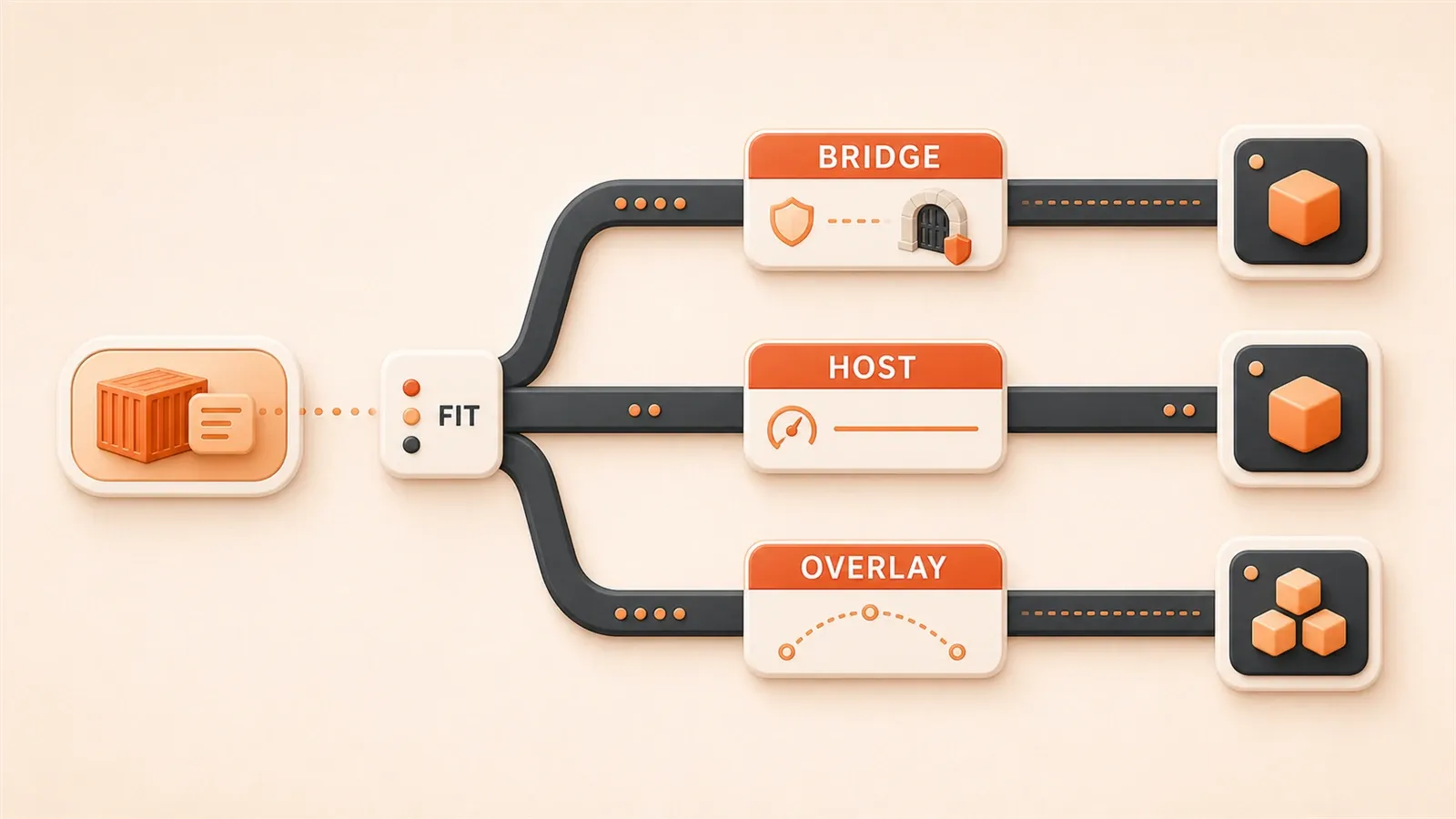
"Docker provides multiple network drivers including bridge, host, overlay, macvlan, etc., each suitable for different scenarios."
"Overlay networks are based on VXLAN tunneling technology, requiring Swarm cluster or external KV store support, suitable for cross-host container communication."
"72-hour production environment stress test shows: Host latency 32μs, Bridge 128μs, with packet loss rates of 0% and 0.012% respectively."
Starting with a Real Incident
At 2 AM, the production API service suddenly started timing out.
The containers were running fine—docker ps showed “running,” the firewall was disabled, port mapping was configured correctly, and container logs showed no errors. After half an hour of troubleshooting, I was nearly at my breaking point. Finally, I discovered the issue: we were using the default bridge mode, but the service needed to access a database on another node. Bridge only supports single-host communication—it can’t span across hosts.
This case exposed a common problem: many developers know Docker has three network modes—bridge, host, and overlay—but aren’t clear on when to use which. Honestly, I made this mistake myself when I started.
After reading this article, you’ll have a complete decision flowchart and performance benchmark comparison for all three network modes. Next time you encounter a network issue, just ask yourself “single-host or cross-host?” and you won’t waste time like I did.
Bridge: The Default Choice, King of Single-Host Communication
Bridge is Docker’s default network mode.
When you run docker run without specifying --network, the container automatically uses this mode. The core principle is simple: Docker creates a virtual bridge called docker0 on the host, and each container gets an independent IP (usually 172.17.x.x), connected to the bridge through a veth pair (virtual Ethernet pair).
Sounds abstract? Think of it as treating each container like an independent virtual machine, giving it a private IP, and letting it communicate with the outside through NAT (port mapping).
Use Cases
For single-host multi-container deployments, Bridge is the first choice.
Development environments, testing environments, even some production scenarios that don’t require cross-host communication—Bridge handles them all. Simple, secure, no extra configuration needed.
Configuration Example
Default is Bridge, so you don’t even need to specify it:
# Default bridge, auto-assigned IP, requires -p for port mapping
docker run -d -p 8080:80 nginx
But there’s a catch: in default bridge mode, containers can only communicate via IP, not container names. If you start two containers and want them to talk to each other, you have to manually look up the IP—pretty tedious.
How? Use docker inspect:
# Start two containers
docker run -d --name web nginx
docker run -d --name db redis

# Check web container's IP
docker inspect web | grep IPAddress
# Output: 172.17.0.2

# Ping web from db container (IP only)
docker exec db ping 172.17.0.2
See, you have to check the IP every time. And if the container restarts, the IP might change—making it even more troublesome.
The recommended approach is to create a custom bridge:
# Create custom network
docker network create --subnet=192.168.100.0/24 my-net

# Start containers, attach to custom network
docker run -d --network my-net --name web nginx
docker run -d --network my-net --name db redis

# web container can ping db directly (DNS auto-resolution)
docker exec web ping db
Now container names work like domain names—much more convenient. Honestly, this pleasantly surprised me—I thought I’d have to configure DNS manually, but Docker handles it out of the box.
Host: Best Performance, Weakest Isolation
Host mode is somewhat “brutal”—the container directly uses the host’s network stack.
No independent IP, no NAT translation, no veth pair. The network interface inside the container IS the host’s network interface. Performance is near-native with almost zero overhead.
You might think: “So direct means best performance?” Exactly—but the trade-off is no isolation.
Use Cases
For network performance-sensitive scenarios, Host is the optimal choice.
Gaming servers, real-time communication (WebSocket, video streaming), high-frequency trading systems—these applications care about every microsecond of latency. Host mode eliminates that overhead.

It’s also useful for network debugging. Running tcpdump inside a container directly captures host traffic—no extra configuration needed, making troubleshooting easier.
Configuration Example
Even simpler—no -p needed:
# Host mode, container directly uses host's port 80
docker run -d --network host nginx
After starting, accessing the host’s port 80 goes directly to the nginx in the container.
Risk Warnings
But there are pitfalls to watch out for.
Port conflicts: If you’re already running nginx on the host (occupying port 80) and try to start another host-mode container also wanting port 80, it will error and fail to start.
Error message looks like:
docker: Error response from daemon: driver failed programming external connectivity on endpoint xxx: Bind for 0.0.0.0:80 failed: port is already allocated.The troubleshooting method is simple—check host port usage:
# Check port usage
netstat -tuln | grep :80
# or
ss -tuln | grep :80

# Check processes
lsof -i :80
If a process is using it, either stop it or change the container port. For Host mode, you can’t use -p to change ports—you have to modify the application configuration inside the container (e.g., configure nginx to listen on 8080).
Security: The container can see all the host’s network interfaces—internal network, external network, even VPN connections. If the container is compromised, attackers can access all the host’s network resources. This requires careful consideration in production environments.
Honestly, Host mode is rarely used—Bridge is sufficient for most scenarios. But when you hit performance bottlenecks or truly need low latency, Host is worth considering, provided you accept the isolation trade-offs.
Overlay: The Right Solution for Cross-Host Communication
Bridge only handles single-host communication; Host has good performance but also can’t span hosts. So how do containers on different servers communicate with each other? This is where Overlay comes in.
Overlay networks are based on VXLAN tunneling technology, pulling containers distributed across different hosts into a virtual LAN—as if they’re all on the same machine.
Core Principle
VXLAN is the key to Overlay.
It wraps a layer of encapsulation around container traffic, sends it through a “tunnel” to another host, then decapsulates it and delivers it to the target container. This encapsulation/decapsulation process is handled by VTEP (VXLAN Tunnel Endpoint), automatically managed in Docker Swarm.
Think of it like this: you’re sending a package from Beijing to Shanghai. The courier company puts your package in a big box, ships it through their logistics network to Shanghai, then opens the box and delivers the package to the recipient. VXLAN is that “big box,” your container traffic is the “package,” and VTEP is the courier’s packing/unpacking process.
The benefit of VXLAN: regardless of how the underlying physical network is connected, containers see the same virtual LAN with unified IPs and simple communication.
There’s one requirement: Overlay networks need a Swarm cluster, or an external KV store (like Consul). Single-machine Docker can’t do it—you need multi-node coordination.
Why Swarm? Because Overlay networks need to manage container IPs, VTEP connections, and routing information across multiple hosts. This requires a centralized coordinator—Swarm does exactly that. If you don’t use Swarm, you can use Consul or Etcd as a KV store, but the configuration is more complex.
Use Cases
For Docker Swarm clusters, Overlay is the only choice.
Cross-host microservice deployments—for example, web service on node A, database on node B—and they need to communicate. Overlay pulls them into a virtual network where containers can communicate by name without configuring IPs.
Kubernetes has a similar concept (CNI networks), though with different configuration. If you primarily use K8s, the Overlay concepts in this article will help you understand K8s networking principles too.
Configuration Example (Complete Process)
Overlay configuration is more complex than Bridge or Host—you need to initialize Swarm first:
# 1. Initialize Swarm on the first host
docker swarm init --advertise-addr 192.168.1.10

# This outputs a join token, something like:
# docker swarm join --token SWMTKN-xxx 192.168.1.10:2377

# 2. Join Swarm on other hosts (copy the command above)
docker swarm join --token SWMTKN-xxx 192.168.1.10:2377

# 3. Create Overlay network
docker network create --driver overlay --subnet=10.0.1.0/24 my-overlay

# 4. Start containers on different hosts, joining the same Overlay
# On node A
docker run -d --network my-overlay --name web nginx

# On node B
docker run -d --network my-overlay --name db redis

# 5. Test communication (web can ping db, cross-host!)
docker exec web ping db
The first time I configured Overlay, I hit a pitfall: I forgot to initialize Swarm and tried to create an overlay network directly. It errored with “This node is not a swarm manager.” I later realized Overlay absolutely requires Swarm.
One more detail: --subnet=10.0.1.0/24. I recommend using a /24 subnet block (256 IPs) to avoid conflicts with other networks. For larger clusters, you can use /16, but remember to plan your IP ranges well.
Performance Benchmarks: Let the Data Speak
How significant are the performance differences between the three network modes? I’ve compiled several real-world test datasets to give you a clear comparison.
Core Data (72-Hour Stress Test)
According to a CSDN production environment test report, here’s how the three modes performed under stress testing:
Key Findings
Several numbers are quite interesting:
Host is significantly faster than Bridge. Average latency drops from 128μs to 32μs—a 96μs difference, about 14% performance improvement. For throughput, Host is near-native, while Bridge is about 80%. If your application handles thousands of requests per second, this gap becomes very noticeable.
Bridge’s NAT overhead is substantial. CPU usage jumps from 0.9 cores to 1.8 cores—nearly double. Because every external request goes through NAT translation, adding an extra processing layer.

Overlay’s VXLAN encapsulation is even heavier. Cross-host communication requires encapsulation and decapsulation, making latency even higher than Bridge, with greater CPU usage. Suitable for distributed scenarios, not for high-performance single-machine setups.
Practical Impact
These numbers seem abstract, but in real scenarios the differences are significant.
For high-frequency trading systems, every microsecond matters. Host mode’s 32μs vs Bridge’s 128μs could mean the difference between getting an order or not. For typical web applications with user round-trip latency already in hundreds of milliseconds, tens of microseconds difference is almost imperceptible.
So don’t just look at the numbers—consider your scenario. Performance-sensitive? Prioritize Host. Security-first? Default Bridge. Cross-host required? Overlay, accepting the performance cost.
How to Test Your Environment
If you want to test performance differences in your own environment, here are some simple methods:
Latency testing: Use ping or iperf3
# Ping container B from container A (bridge mode)
docker exec container-a ping container-b

# Test throughput with iperf3 (install iperf3 first)
docker exec container-a iperf3 -c container-b
CPU usage monitoring: Use docker stats
# View container CPU usage
docker stats --no-stream
Network traffic monitoring: Use tcpdump for packet capture analysis
# Capture host network traffic (host mode captures directly)
docker exec -it container-host tcpdump -i eth0

# Capture bridge network traffic (specify the bridge)
tcpdump -i docker0
I recommend running a stress test before production deployment to see if your chosen network mode can handle the traffic. Don’t wait until after deployment to discover problems.
Decision Flowchart: From Scenario to Mode Selection
With all this information, how do you actually choose? Here’s a simple decision logic.
Three-Step Decision Process
When configuring networking, follow this process:
Step 1: Is cross-host communication needed?
If multiple containers are distributed across different servers and need to communicate (e.g., web on node A, database on node B), then cross-host is required.
- YES → Step 2
- NO → Step 3
Step 2: Are you using Swarm?
Cross-host communication has two approaches: Docker Swarm (using Overlay) or manual routing configuration (using Host + iptables).
- YES → Overlay network (simplest, Swarm auto-manages)
- NO → Consider Macvlan or Host + routing config (complex, for special scenarios)
Step 3: Is network performance sensitive?
If the application is sensitive to latency and throughput (high-frequency trading, real-time communication, gaming), prioritize performance.
- YES → Host mode (but evaluate security risks)
- NO → Bridge mode (default secure choice)
Scenario Recommendation Table
More intuitively, here are recommendations for common scenarios:
| Scenario | Recommended Mode | Reason |
|---|---|---|
| Single-host web application | Bridge | Secure, simple, sufficient by default |
| High-frequency trading service | Host | Latency-sensitive, best performance |
| Swarm microservice cluster | Overlay | Required for cross-host communication |
| Development/debugging environment | Bridge (custom) | DNS support, container name communication |
| Fully isolated testing | None | No network, complete isolation |
A Small Suggestion
Don’t agonize over “which mode is optimal” from the start.
For most scenarios, Bridge is sufficient. Adjust when you encounter problems:
- Service discovery troublesome → Switch to custom Bridge
- Performance truly insufficient → Consider Host, but evaluate security trade-offs
- Cross-host needed → Overlay, accepting VXLAN’s performance overhead
I’ve seen many teams start with Host mode, then deal with port conflicts and security vulnerabilities. Actually, Bridge solves 90% of scenarios by default—no need to over-optimize.
Production Environment Best Practices
Each of the three modes has pros and cons. How do you use them safely in production? Here are some practical lessons learned.
Bridge: Custom Network + DNS
Default bridge has a big problem: containers can only communicate via IP, not by name.
For production environments, I recommend creating a custom bridge:
# Create custom network, specify subnet (avoid conflicts)
docker network create --subnet=192.168.100.0/24 --name my-app-net

# Start services, attach to custom network
docker run -d --network my-app-net --name web-server nginx
docker run -d --network my-app-net --name redis-cache redis

# web-server can access redis-cache directly (DNS auto-resolution)
docker exec web-server ping redis-cache
This way, service discovery doesn’t need manual IP configuration—container names work as domain names, much more convenient.
One more point: plan subnets reasonably. Don’t use the default 172.17.x.x—it easily conflicts with corporate internal networks. I recommend 192.168.100.0/24 or 10.10.10.0/24, coordinating IP ranges with ops in advance.

Host: Security Hardening Is Essential
Host mode has good performance but poor security. Containers can see all the host’s network interfaces—internal network, external network, VPN.
For production use of Host, do at least two things:
First: Limit container privileges. Use --cap-drop to remove unnecessary Linux capabilities, like CAP_NET_RAW (prevents containers from arbitrary packet capture):
docker run -d --network host --cap-drop NET_RAW nginxSecond: Monitor anomalous traffic. Container network behavior needs monitoring—sudden large outbound connections, access to sensitive internal network interfaces should trigger alerts. Use Prometheus + Grafana for monitoring, or specialized network security tools.
Honestly, Host mode is rarely used in production unless performance is truly a bottleneck. For most scenarios, Bridge + custom network is sufficient.
Overlay: Subnet Sizing + Swarm Stability
Overlay networks rely on VXLAN encapsulation, which has significant overhead.
Several optimization points:
Control subnet size: Recommend /24 (256 IPs); for larger clusters use /16 (about 60,000 IPs), but plan in advance to avoid conflicts.
# Recommended: /24 subnet block
docker network create --driver overlay --subnet=10.0.1.0/24 my-overlay
Monitor CPU usage: VXLAN encapsulation increases CPU overhead, especially in high-traffic scenarios. Monitor with docker stats or Prometheus—if CPU gets too high, optimize by adjusting MTU or reducing cross-host communication.
Prioritize Swarm inter-node network stability: Overlay depends on Swarm; if inter-node networking is unstable, Overlay will have issues. In production using Overlay, ensure low latency and low packet loss between Swarm nodes—internal dedicated lines are best.
Summary: Remember Three Core Principles
After all this discussion, it comes down to three key points:
1. Single-host defaults to Bridge
For 90% of scenarios, Bridge is sufficient. Secure, simple, works out of the box—no need to overthink. If service discovery is troublesome, switch to custom Bridge—container names work for communication.
2. Performance-sensitive uses Host
For latency-sensitive, throughput-critical scenarios, Host is the optimal choice. But remember: best performance, weakest isolation. Using Host in production requires security hardening.
3. Cross-host requires Overlay
When containers on multiple servers need to communicate, Overlay is the only correct solution. Requires a Swarm cluster; configuration is more complex than Bridge and Host, but essential for cross-host communication.
Practical Advice
Next time you encounter a Docker network issue, ask yourself one question: Single-host or cross-host?
Single-host? Default Bridge. Performance insufficient? Consider Host, but evaluate security trade-offs. Cross-host? Overlay, accepting VXLAN’s performance overhead.
Don’t agonize from the start over “which mode is optimal”—start with Bridge, adjust when problems arise. I did it backwards—I configured Overlay first, then realized single-host scenarios didn’t need it at all. Wasted effort.
If you’re not yet familiar with the basic principles of bridge/host/none/container, I recommend reading the 11th article in this series, “Docker Network Modes Explained,” to get the fundamentals clear before diving into this advanced content.
References
"Docker provides multiple network drivers including bridge, host, overlay, macvlan, etc., each suitable for different scenarios. The official documentation details configuration methods and use cases for each mode."
"Overlay networks are based on VXLAN tunneling technology, requiring Swarm cluster or external KV store support, suitable for cross-host container communication. The official documentation provides complete configuration workflows."
"Swarm network management guide, including how to create overlay networks, manage service networks, and best practices for cross-host communication."
"Docker Network Configuration Best Practices (Production Zero Packet Loss Test Report), providing 72-hour stress test data including latency, throughput, and packet loss comparisons for Host, Bridge, and Overlay modes."
"Docker Network Tests under Host/Bridge Mode, detailed comparison of performance differences between Host and Bridge modes, providing latency testing methods and experimental data."
Docker Network Mode Selection and Configuration
Choose and configure the appropriate Docker network mode based on your scenario
⏱️ Estimated time: 15 min
- 1
Step 1: Determine deployment scenario
Clarify container deployment requirements: single-host multi-container, single-host high-performance, or cross-host cluster communication. Single-host scenarios prioritize Bridge or Host; cross-host requires Overlay. - 2
Step 2: Evaluate performance and security requirements
Performance-sensitive (high-frequency trading, real-time communication) choose Host, accepting security trade-offs; security-first choose Bridge, accepting NAT overhead; cross-host required choose Overlay, accepting VXLAN encapsulation overhead. - 3
Step 3: Configure network mode
Bridge: create custom network with docker network create --subnet=192.168.100.0/24 my-net. Host: docker run --network host. Overlay: first docker swarm init, then create overlay network. - 4
Step 4: Test and monitor
Use ping and iperf3 to test latency and throughput, use docker stats to monitor CPU usage, use tcpdump to capture and analyze network traffic.
FAQ
What's the difference between default Bridge and custom Bridge?
What if Host mode has port conflicts?
Can I create Overlay network without Swarm?
How significant are the performance differences between the three modes?
Which mode is recommended for production?
14 min read · Published on: May 14, 2026 · Modified on: Jul 14, 2026

Docker: Setup, Networking, Errors, and Production
If you landed here from search, the fastest way to build context is to jump to the previous or next post in this same series.
Previous
"host.docker.internal:host-gateway" Guide: Docker Container Host Access on Linux, Mac, and Windows
Need Docker access host setup? Learn host.docker.internal Linux support, host-gateway mapping, and practical cross-platform fixes for container-to-host database and API connections.
Part 21 of 38
Next
Best Docker Registry Mirror China 2026: Fix Pull Timeout in 5 Minutes
Updated 2026 Docker mirror China guide: configure daemon.json, test registry mirrors, handle corporate proxy, and tell a Docker Hub rate limit (429) apart from a dead mirror to fix docker pull timeout fast.
Part 23 of 38


Comments
Sign in with GitHub to leave a comment