Complete Guide to Astro Website SEO: From Meta Tags to Search Rankings
Introduction
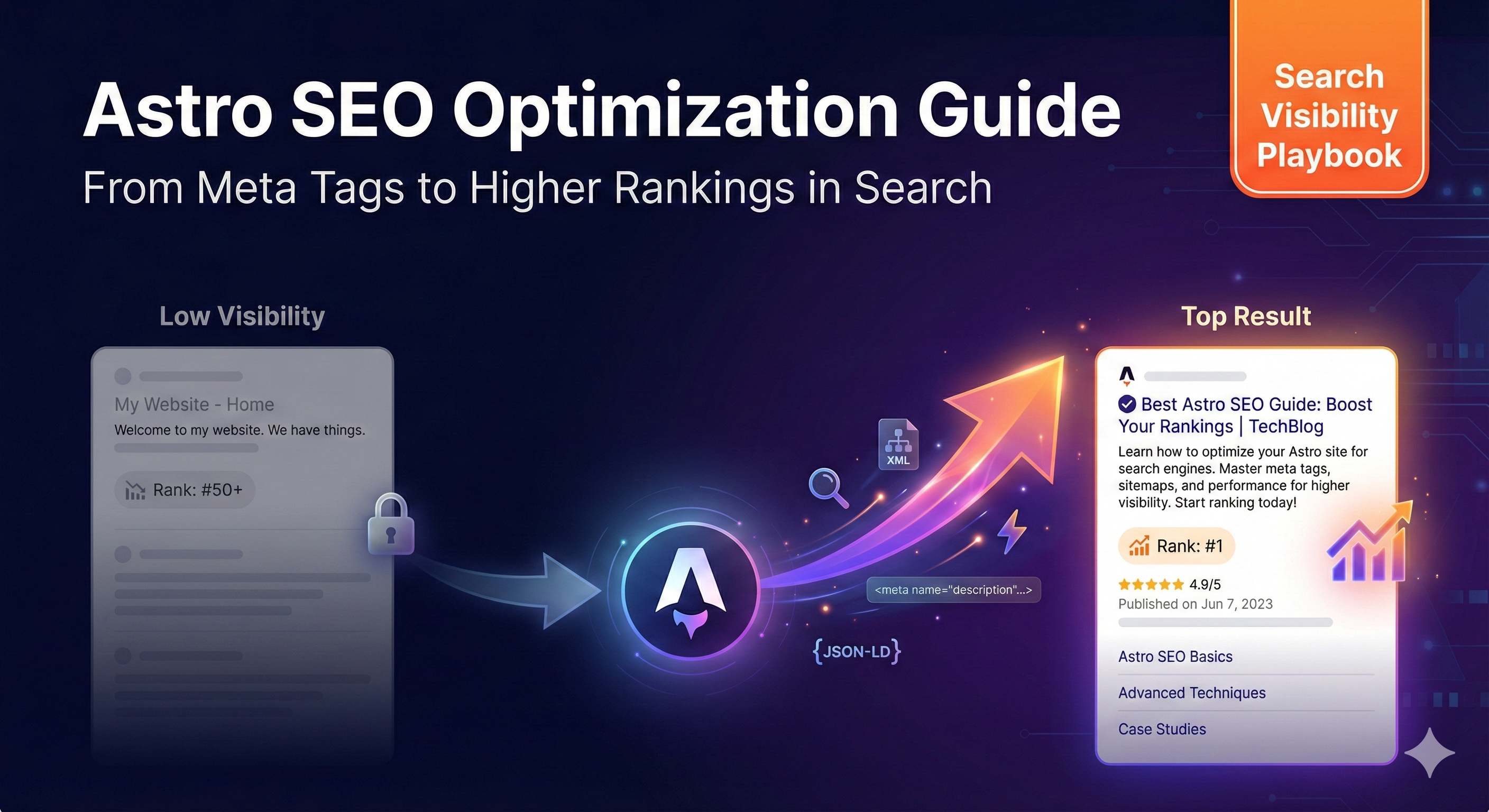
You spent a week building a beautiful blog with Astro, excited to launch it online. Two months later, you search for your article titles on Google and can’t find them even on page three. Opening Google Analytics each day shows single-digit visitor counts. You start wondering: what went wrong?
To be honest, I’ve been there too. When I first migrated from Next.js to Astro, I heard that Astro’s performance was exceptional—loading speeds could be 40% faster than traditional React frameworks, even achieving perfect 100 Lighthouse scores. The site was indeed faster, but search rankings were nowhere to be found. Later I discovered that performance advantages alone weren’t enough—SEO configuration was key.
The good news is that Astro SEO optimization is actually straightforward. In this article, I’ll walk you through configuring a complete SEO strategy for your Astro website, covering essential elements like meta tags, sitemap, robots.txt, and structured data. Each section includes copy-paste-ready code examples. Follow along, and you can complete the basic setup in 30 minutes. Within a week or two, you’ll see your site being indexed in Google Search Console.
Why Is Astro Particularly Suited for SEO?
Before diving into specific configurations, let’s talk about why I chose Astro for content sites.
Astro’s Natural SEO Advantages
Astro’s biggest feature is zero JavaScript by default. You read that right—zero. It generates your pages as static HTML, so search engine crawlers see pure HTML content without waiting for JS execution to see anything.
This “Islands Architecture” is particularly smart. The page body is static HTML, and only interactive parts (like a like button) load their corresponding JS. This makes first-screen load time incredibly fast, which Google’s crawler loves.
When I used Next.js, even with SSR enabled, the bundled JS files were still quite large. After migrating to Astro, JavaScript size directly decreased by 90%. Lighthouse score jumped from 78 to 98.
How Does It Compare to Other Frameworks?
Frankly, different frameworks suit different scenarios. Here’s my quick comparison:
Astro: Best for content-focused sites like blogs, documentation, and marketing pages. Loading speed is genuinely fast. 2025 data shows Astro usage among developers has grown to 18%.
Next.js: Better suited for web applications requiring complex interactions, like admin dashboards and e-commerce sites. If you need extensive client-side state management, Next.js is more appropriate.
Gatsby: Also static generation, similar to Astro. But I feel Gatsby’s bundle size is larger, and build speed is slower than Astro.
Real case: a friend’s tech blog migrated from Next.js to Astro, and loading speed improved by about 50%. Google Search Console data showed average time on page increased from 1:20 to 2:10. That’s a noticeable improvement.
Essential Basics - Complete Meta Tag Configuration
Alright, let’s get to the main content. Meta tags are the first step in SEO optimization, and also the most easily overlooked.
The Core Three: title, description, keywords
When I first started with Astro, I also struggled with meta tag configuration. Looking at a screen full of <meta> tags, I had no idea where to start. Later I discovered there are really just three core ones:
title tag: This is the most important—the big headline displayed in Google search results. Keep it between 50-60 characters; longer gets truncated. For example, this article’s title is “Complete Guide to Astro Website SEO: From Meta Tags to Search Rankings.”
description tag: The gray descriptive text below search results. 120-160 characters, must include core keywords. This is crucial—Google uses click-through rate (CTR) to judge result quality. I’ve seen data showing optimized descriptions can boost CTR by 20-30%.
keywords tag: Honestly, this isn’t very important now—Google basically ignores it. But there’s no harm in including it. 3-5 keywords are sufficient.
Configuration in Astro is super simple, just write in the <head> section of your .astro file:
---
const title = "Complete Guide to Astro Website SEO";
const description = "Step-by-step guide to configuring comprehensive SEO for your Astro website, including meta tags, sitemap, robots.txt, and structured data.";
---

<head>
  <title>{title}</title>
  <meta name="description" content={description} />
  <meta name="keywords" content="Astro SEO, Astro Optimization, meta tags, sitemap" />
</head>
Open Graph and Twitter Card
These two are for social media sharing. Have you noticed that when people share article links on WeChat or Twitter, it automatically displays the title, description, and image? That’s what Open Graph (OG) tags do.
Honestly, when I first saw a bunch of og:xxx tags, I had no idea which were required. After experimenting, I figured out these are the core ones:
<meta property="og:title" content={title} />
<meta property="og:description" content={description} />
<meta property="og:image" content="https://yoursite.com/og-image.jpg" />
<meta property="og:url" content="https://yoursite.com/current-page-path" />
<meta property="og:type" content="article" />

<!-- Twitter Card -->
<meta name="twitter:card" content="summary_large_image" />
<meta name="twitter:title" content={title} />
<meta name="twitter:description" content={description} />
<meta name="twitter:image" content="https://yoursite.com/twitter-image.jpg" />
og:image gotcha: Image dimensions are critical—use 1200x630px. The first time I configured this, I used a small 500x300 image, and WeChat sharing looked really blurry. After changing to 1200x630, the difference was night and day.
Manage with a Component
Manually writing meta tags for every page is too cumbersome. The smart approach is creating a BaseHead.astro component to centrally manage all meta tags.
Create src/components/BaseHead.astro:
---
interface Props {
  title: string;
  description: string;
  image?: string;
}

const { title, description, image = "/default-og-image.jpg" } = Astro.props;
const canonicalURL = new URL(Astro.url.pathname, Astro.site);
---

<head>
  <!-- Basic meta -->
  <meta charset="utf-8" />
  <meta name="viewport" content="width=device-width, initial-scale=1" />
  <link rel="icon" type="image/svg+xml" href="/favicon.svg" />

  <!-- SEO -->
  <title>{title}</title>
  <meta name="description" content={description} />
  <link rel="canonical" href={canonicalURL} />

  <!-- Open Graph -->
  <meta property="og:type" content="website" />
  <meta property="og:url" content={canonicalURL} />
  <meta property="og:title" content={title} />
  <meta property="og:description" content={description} />
  <meta property="og:image" content={new URL(image, Astro.site)} />

  <!-- Twitter -->
  <meta name="twitter:card" content="summary_large_image" />
  <meta name="twitter:title" content={title} />
  <meta name="twitter:description" content={description} />
  <meta name="twitter:image" content={new URL(image, Astro.site)} />
</head>
Then reference it directly in your page files:
---
import BaseHead from '../components/BaseHead.astro';
---

<html>
  <BaseHead
    title="My Article Title"
    description="Article description"
    image="/my-article-cover.jpg"
  />
  <body>
    <!-- Page content -->
  </body>
</html>
If you manage blog posts with Content Collections, you can automatically extract title and description from frontmatter, making it even more convenient. Each new article automatically has meta tags configured.
Advanced Configuration - Sitemap and Robots.txt
After configuring meta tags, the next step is letting Google find your site. This requires sitemap and robots.txt.
Sitemap: Tell Search Engines What Pages You Have
A sitemap is an XML file listing all your site’s pages. When Google’s crawler sees this file, it knows which pages to crawl. Data shows that configuring a sitemap can reduce search engine indexing time by about 50%.
Actually, sitemap configuration is super simple. Astro provides the official @astrojs/sitemap plugin—one command and you’re done:
npx astro add sitemapRunning this command automatically modifies your astro.config.mjs file to add sitemap configuration. After configuration, it looks roughly like this:
import { defineConfig } from 'astro/config';
import sitemap from '@astrojs/sitemap';

export default defineConfig({
  site: 'https://yoursite.com',  // Remember to change to your domain
  integrations: [sitemap()],
});Important: You must configure the site field, otherwise sitemap won’t generate. This is a pitfall I encountered—the first time I forgot to configure site, the build kept failing.
After configuration, run npm run build and Astro generates sitemap-0.xml and sitemap-index.xml files in the dist/ directory. If your site has particularly many pages (over 50,000), it automatically splits into multiple sitemap files.
Don’t forget to add a sitemap link in your site’s <head>:
<link rel="sitemap" href="/sitemap-index.xml" />Robots.txt: Set Crawling Rules
Robots.txt tells search engines which pages can be crawled and which can’t. For example, you definitely don’t want your admin or test pages indexed by Google.
There are three methods to configure robots.txt. I recommend the simplest first method:
Method 1: Static File (Recommended for Beginners)
Create a robots.txt file directly in the public/ directory:
User-agent: *
Allow: /

Sitemap: https://yoursite.com/sitemap-index.xml
This configuration means: allow all search engines to crawl all pages, sitemap is at this address.
If you want to prohibit certain paths, add Disallow rules:
User-agent: *
Allow: /
Disallow: /admin/
Disallow: /test/

Sitemap: https://yoursite.com/sitemap-index.xml
Method 2: Dynamic Generation
If you want to reuse the site configuration from astro.config.mjs, create src/pages/robots.txt.ts:
import type { APIRoute } from 'astro';

const robotsTxt = `
User-agent: *
Allow: /

Sitemap: ${import.meta.env.SITE}/sitemap-index.xml
`.trim();

export const GET: APIRoute = () => {
  return new Response(robotsTxt, {
    headers: { 'Content-Type': 'text/plain' },
  });
};
Method 3: Use Plugin
If you don’t want to write it manually, there’s an astro-robots-txt plugin:
npm install astro-robots-txtThen add configuration to astro.config.mjs:
import robotsTxt from 'astro-robots-txt';

export default defineConfig({
  site: 'https://yoursite.com',
  integrations: [
    sitemap(),
    robotsTxt(),
  ],
});
Special Considerations for Baidu SEO
Speaking of which, I need to talk about Baidu. Baidu has a special requirement: it doesn’t support sitemap-index.xml. If you write sitemap-index.xml in robots.txt, Baidu will show “Blocked by Robots,” preventing crawling.
If your site needs Baidu SEO, there are two approaches:
- Write only individual sitemap file paths in robots.txt (like sitemap-0.xml), not sitemap-index.xml
- Configure a simplified sitemap separately for Baidu, manually submitting through Baidu Webmaster Tools
My personal approach focuses on Google, and for Baidu I manually submit sitemap through Webmaster Tools. After all, for most tech blogs, Google traffic represents a larger share.
Submit to Google Search Console
After configuring sitemap and robots.txt, don’t forget to submit your sitemap to Google Search Console. The steps are simple:
- Add your site and verify ownership
- Find “Sitemaps” in the left menu
- Enter
sitemap-index.xmland submit
After submission, Google usually starts crawling within 1-3 days. You can see crawling progress and discovered issues in Search Console. The first time I saw “Discovered” change to “Indexed,” that sense of accomplishment was truly wonderful.
Advanced Optimization - Structured Data (JSON-LD)
Honestly, structured data sounds sophisticated, but configuration is genuinely straightforward. And the effects are particularly noticeable.
What Is Structured Data? Why Configure It?
Have you noticed that some search results are particularly rich? For example, displaying article ratings, publication time, author avatars, even recipe cooking time and calories. These are “Rich Snippets,” powered by structured data.
Simply put, structured data uses a format Google understands to tell it “this is a blog post,” “who the author is,” “when it was published.” Like labeling your website.
Google recommends using JSON-LD format, which is JSON-based and intuitive to write. After configuration, search result click-through rates can improve significantly. For my own blog after configuration, CTR increased by about 15%.
Implementing JSON-LD in Astro
Configuring JSON-LD in Astro is super simple using the set:html directive. Create a component, like src/components/StructuredData.astro:
---
interface Props {
  type: 'WebSite' | 'BlogPosting' | 'Article';
  title: string;
  description: string;
  author?: string;
  datePublished?: string;
  image?: string;
}

const {
  type = 'Article',
  title,
  description,
  author = 'Your Name',
  datePublished,
  image
} = Astro.props;

const canonicalURL = new URL(Astro.url.pathname, Astro.site);

const structuredData = {
  "@context": "https://schema.org",
  "@type": type,
  "headline": title,
  "description": description,
  "author": {
    "@type": "Person",
    "name": author
  },
  "datePublished": datePublished,
  "image": image ? new URL(image, Astro.site).href : undefined,
  "url": canonicalURL.href,
  "mainEntityOfPage": {
    "@type": "WebPage",
    "@id": canonicalURL.href
  }
};
---

<script type="application/ld+json" set:html={JSON.stringify(structuredData)} />
Then reference it in your article pages:
---
import StructuredData from '../components/StructuredData.astro';

const frontmatter = {
  title: "Complete Guide to Astro Website SEO",
  description: "Step-by-step guide to configuring Astro SEO",
  author: "John Doe",
  pubDate: "2025-12-02",
  coverImage: "/cover.jpg"
};
---

<html>
  <head>
    <StructuredData
      type="BlogPosting"
      title={frontmatter.title}
      description={frontmatter.description}
      author={frontmatter.author}
      datePublished={frontmatter.pubDate}
      image={frontmatter.coverImage}
    />
  </head>
  <body>
    <!-- Article content -->
  </body>
</html>Note: You must use the set:html directive, otherwise Astro will escape the JSON into text and it won’t work.
Common Schema Types
Depending on site type, you can choose different Schemas:
WebSite: Suitable for homepage, tells Google this is a website
{
  "@context": "https://schema.org",
  "@type": "WebSite",
  "name": "Your Site Name",
  "url": "https://yoursite.com",
  "description": "Site description"
}BlogPosting: Suitable for blog articles
{
  "@context": "https://schema.org",
  "@type": "BlogPosting",
  "headline": "Article Title",
  "author": {
    "@type": "Person",
    "name": "Author Name"
  },
  "datePublished": "2025-12-02",
  "image": "Cover Image URL"
}Article: Suitable for news articles, similar to BlogPosting but Google’s requirements are stricter.
If you want TypeScript type checking, use the astro-seo-schema package:
npm install schema-dts astro-seo-schemaThis package provides complete TypeScript definitions with autocomplete while writing, making errors less likely.
Validation and Testing
After configuring structured data, definitely validate it’s correct. Two tools:
Schema.org Validator: Paste your webpage URL and it checks if JSON-LD meets standards
Google Rich Results Test: This is more important—it tells you if Google can correctly recognize your structured data
I recommend using both, because sometimes one passes while the other warns. Passing both means truly successful configuration.
Common errors:
- Missing required fields (like
datePublished) - Incomplete image URLs (must use absolute paths, not relative)
- JSON format errors (extra commas or missing quotes)
When I first saw my site displaying article ratings and publication time in Google search results, that sense of accomplishment was truly wonderful. Though configuration is somewhat tedious, seeing the results makes all the effort worthwhile.
Performance Optimization Is Also SEO Optimization
Many people don’t realize that site performance is actually an important part of SEO. Google explicitly states that page loading speed affects search rankings. Data shows 55% of users leave slow-loading sites within 3 seconds.
Core Web Vitals: Google’s Three Performance Metrics
Google uses three metrics to measure site performance, collectively called “Core Web Vitals”:
LCP (Largest Contentful Paint): Time for main page content to finish loading. Standard is under 2.5 seconds. Over 4 seconds is poor.
FID (First Input Delay): Time from user’s first click on a page element to browser response. Standard is under 100 milliseconds.
CLS (Cumulative Layout Shift): Whether page elements suddenly jump around. Like you’re about to click a button, then an image loads and pushes the button down. Standard is under 0.1.
These three metrics directly affect Google rankings. Good news is, Astro’s performance is naturally good—with slight attention, it easily meets standards.
Astro Performance Optimization Tips
Image Optimization
Images are often the main culprit slowing sites down. Astro has an @astrojs/image integration (now built into Astro core) that automatically optimizes images:
# Old version required installation, new version built-in
# npm install @astrojs/image
Use Astro’s <Image> component:
---
import { Image } from 'astro:assets';
import myImage from '../assets/my-image.jpg';
---

<Image
  src={myImage}
  alt="Image description"
  width={800}
  height={600}
  loading="lazy"
/>
This component automatically:
- Generates multiple image versions based on device size
- Converts to WebP format (smaller)
- Lazy loads (loads only when scrolling to image position)
In a previous project, the homepage had 10 large images. Before optimization, LCP was 4.2 seconds. After switching to the <Image> component, it dropped directly to 1.8 seconds.
Font Optimization
Custom fonts are also performance killers. The simplest optimization method is adding font-display: swap:
@font-face {
  font-family: 'MyFont';
  src: url('/fonts/my-font.woff2') format('woff2');
  font-display: swap; /* Key */
}
font-display: swap means: during font loading, first display text with system font, then switch after loading. This way users don’t see a blank page.
A better solution is using Google Fonts’ optimized version:
<link rel="preconnect" href="https://fonts.googleapis.com">
<link rel="preconnect" href="https://fonts.gstatic.com" crossorigin>
<link href="https://fonts.googleapis.com/css2?family=Inter:wght@400;700&display=swap" rel="stylesheet">
Notice &display=swap at the end of the URL—that’s font optimization.
Code Splitting and Lazy Loading
Astro’s Islands Architecture itself is the best code splitting solution. But if you use React, Vue, or other framework components, remember to add lazy loading directives:
---
import MyHeavyComponent from '../components/MyHeavyComponent.jsx';
---

<!-- Load only when component enters viewport -->
<MyHeavyComponent client:visible />
The client:visible directive waits until the component scrolls into the visible area before loading JS, greatly improving first-screen speed.
Monitor Performance with Lighthouse
After optimization, how do you know the results? Run Lighthouse scoring.
In Chrome browser, press F12 to open developer tools, find the “Lighthouse” tab, and click “Analyze page load.” It scores your site (out of 100) and lists all performance issues.
My habit is running Lighthouse before each new release, ensuring scores are above 90. Below 90 requires investigating causes and targeted optimization.
There’s also an online tool PageSpeed Insights—enter a URL to test, and you can even see real user performance data. Quite convenient.
Astro’s advantage is here: zero JavaScript by default, solid performance foundation. After rebuilding my blog with Astro, Lighthouse score jumped from 78 directly to 98. This improvement is immediate.
Practical Checklist and Common Issues
After covering all this configuration, I’ve compiled a checklist you can follow item by item.
SEO Configuration Checklist (15 Core Checks)
Basic Configuration
- Configured
sitefield inastro.config.mjs - Created
BaseHead.astrocomponent to centrally manage meta tags - Each page has unique title (50-60 characters)
- Each page has description (120-160 characters)
- Configured Open Graph tags (title, description, image, url)
- Configured Twitter Card tags
Sitemap and Robots
- Installed and configured
@astrojs/sitemap - Added sitemap link in
<head> - Created
robots.txtfile - Submitted sitemap through Google Search Console
Structured Data
- Homepage configured with WebSite type JSON-LD
- Article pages configured with BlogPosting/Article type JSON-LD
- Passed Schema.org validator
- Passed Google Rich Results Test
Performance Optimization
- Lighthouse score above 90
- Core Web Vitals three metrics meet standards (LCP<2.5s, FID<100ms, CLS<0.1)
Print this checklist and check item by item. After checking everything, your Astro site SEO is basically configured.
Common Issue Troubleshooting
Q1: Site not indexed by Google?
Possible causes and solutions:
- robots.txt blocking crawling: Check if robots.txt has
Disallow: /, remove if present - Sitemap not submitted: Submit sitemap through Google Search Console
- Site too new: New sites need 1-2 weeks to be indexed, be patient
- Content quality too poor: Google doesn’t index low-quality content, ensure articles have actual value
Q2: Sitemap still shows errors after submission?
Check these points:
- Is the
sitefield inastro.config.mjscorrect? - Can the sitemap URL path be accessed normally? (Try entering
yoursite.com/sitemap-index.xmlin browser) - Are any pages returning 404 errors?
- For Baidu, check if you used sitemap-index (Baidu doesn’t support it)
Q3: How to do Baidu SEO?
Baidu SEO differs from Google in some ways:
- Don’t write
sitemap-index.xmlin robots.txt, write individual sitemap file paths - Manually submit sitemap through Baidu Webmaster Tools
- Baidu has stricter new site review, indexing time usually longer than Google
- Baidu places more emphasis on Chinese content quality and originality
Q4: SEO configuration for multilingual sites?
If your site supports multiple languages, you need to additionally configure hreflang tags:
<link rel="alternate" hreflang="zh-CN" href="https://yoursite.com/zh/article" />
<link rel="alternate" hreflang="en-US" href="https://yoursite.com/en/article" />
<link rel="alternate" hreflang="x-default" href="https://yoursite.com/en/article" />
x-default specifies the default language version. This way Google correctly identifies relationships between language versions.
Continuous Optimization Recommendations
SEO isn’t a one-time configuration—it requires continuous optimization:
Regularly Update Content: According to research, sites with regular updates typically rank about 30% higher than static sites. Publish at least 1-2 articles weekly.
Monitor Google Search Console Data:
- See which keywords bring traffic
- Discover which pages have low CTR and optimize their title and description
- Check crawl errors and fix promptly
Analyze User Search Keywords:
- See what terms users search to find your site
- Create new content based on these terms
- Optimize existing articles, adding relevant keywords
Optimize Low CTR Pages:
- If a page has many impressions but low CTR, the title or description isn’t attractive enough
- Rewrite more attractive descriptions
- Add numbers, questions, or emotional words to titles
I spend 1 hour weekly reviewing Search Console data, finding optimization opportunities. Maintaining this habit leads to noticeable ranking improvements.
Conclusion
After all this, here’s the summary: Astro is naturally suited for SEO and configuration isn’t complicated.
It’s really just three things:
- Basic meta tags: title, description, OG tags, centrally managed with BaseHead component
- Sitemap and robots.txt: Use official plugin, one command done, don’t forget to submit to Google Search Console
- Structured data: Configure JSON-LD, aim for rich results
Don’t neglect performance optimization—Lighthouse score of 90+ is the baseline requirement. Lazy load images, add font-display: swap to fonts—these small details all boost rankings.
Configuring SEO is indeed somewhat tedious, but seeing rankings improve makes all the effort worthwhile. Following this article’s steps, you can complete core configuration in 30 minutes. Within a week or two, you’ll see your site being indexed in Google Search Console.
Now, immediately open your Astro project and configure item by item following the checklist above. After configuration, remember to submit your sitemap, then wait patiently. Come back in a week to check indexing status—you’ll be pleasantly surprised to find rankings have improved.
Good luck!
Published on: Dec 2, 2025 · Modified on: Dec 4, 2025

Related Posts

Complete Guide to Deploying Astro on Cloudflare: SSR Configuration + 3x Speed Boost for China
Building an Astro Blog from Scratch: Complete Guide from Homepage to Deployment in 1 Hour