Complete Guide to Deploying Frontend Apps on Cloudflare Pages: React/Vue/Next.js Configuration + Error Solutions
Introduction
Last weekend, I spent two hours building a React project. When I finished, I was so excited to deploy it online and show my friends. I opened the Cloudflare Pages configuration page, stared at the “Build Command” and “Build Output Directory” input fields, and froze for half an hour.
What exactly should I put in the Build Command? npm run build or npm build? Should the Output Directory be build or dist? How do I set up environment variables? How do I separate development and production environments?
I wonder if you’ve ever had a similar experience. Your code runs perfectly locally, but when it comes to deployment, you’re completely lost. You try reading the official docs, but they’re all in English and pretty abstract. You look for Chinese tutorials, but they’re either outdated or only cover half the story.
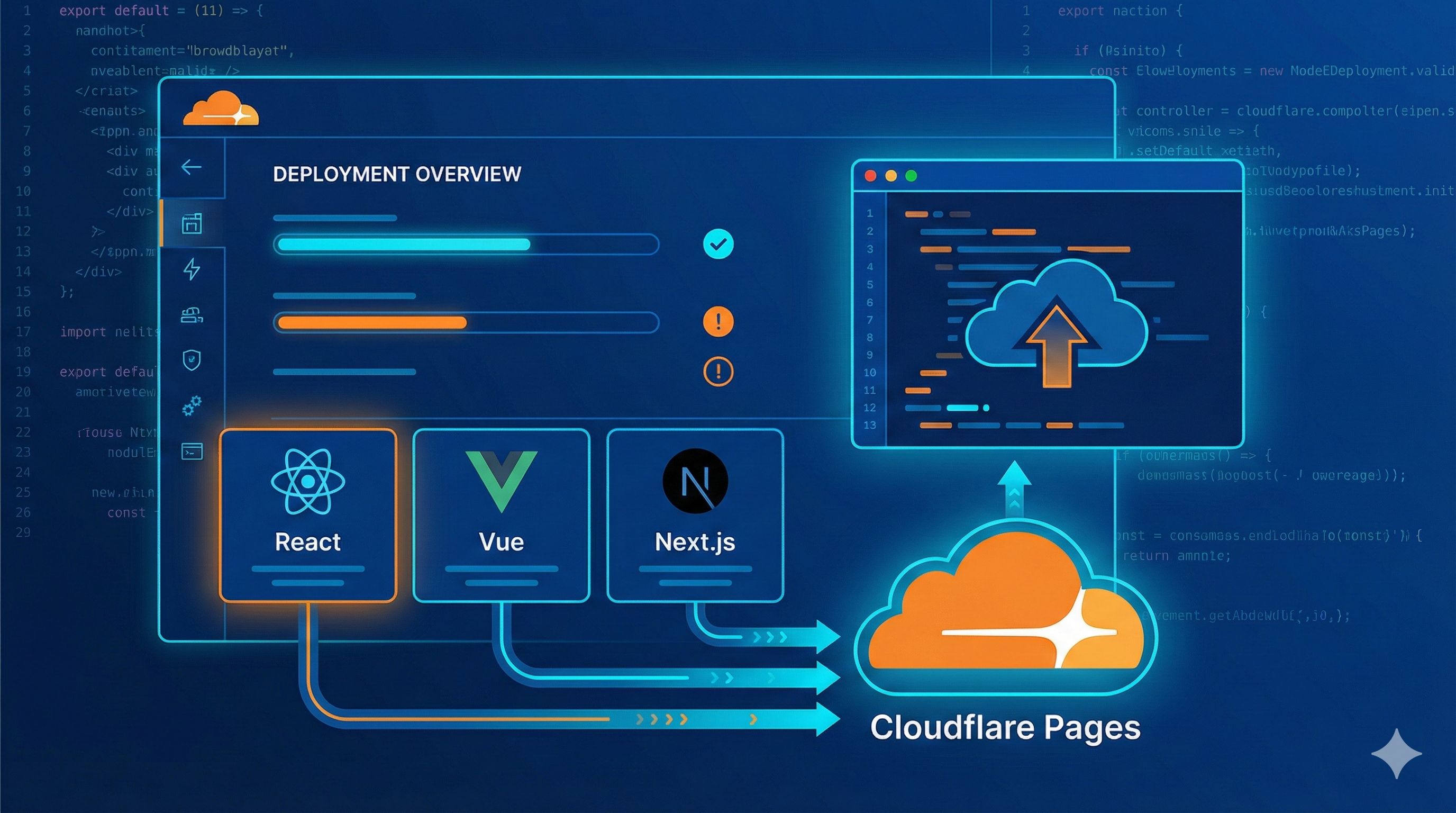
In this article, I’ll guide you through deploying React, Vue, and Next.js projects to Cloudflare Pages in the most down-to-earth way possible. Not only will I give you complete configuration checklists, but I’ll also share the pitfalls I’ve already fallen into, so after reading this, you can get started right away.
What you’ll learn from this article:
- Complete deployment configuration checklists for React, Vue, and Next.js (ready to copy and use)
- The correct way to set up environment variables (distinguishing between development and production)
- Solutions to 5 of the most common errors (especially Next.js’s
nodejs_compaterror) - My real-world deployment experiences and lessons learned
Why I Chose Cloudflare Pages
You might ask: with Vercel and Netlify already available, why use Cloudflare Pages?
To be honest, I started with Vercel. It’s not that Vercel isn’t good—it’s just that the free tier has some limitations. I built a few small projects, and together they exceeded 100GB of bandwidth in one month. That’s when Vercel started throttling.
After comparing the three platforms, I found that Cloudflare Pages is really attractive on the free tier:
| Feature Comparison | Cloudflare Pages | Vercel | Netlify |
|---|---|---|---|
| Free Bandwidth | Unlimited | 100GB/month | 100GB/month |
| Build Minutes | 500/month | 6000 minutes/month | 300 minutes/month |
| Commercial Projects | Supported | Limited | Supported |
| CDN Nodes | 300+ | Global | Global |
| Automatic HTTPS | Supported | Supported | Supported |
You see, unlimited bandwidth is really attractive. I now have several personal projects hosted on CF Pages, and I don’t have to worry about bandwidth at all.
Good use cases for Cloudflare Pages:
- Personal blogs, portfolio websites
- Small to medium-sized frontend projects (SPA, static sites)
- Projects that need global acceleration
- Projects with unpredictable traffic (unlimited free bandwidth is amazing)
Not ideal for:
- Large Next.js apps requiring complex SSR functionality (CF Pages’ Next.js support isn’t as complete as Vercel’s)
- Projects requiring frequent builds (500 builds/month limit)
- Projects needing Vercel-specific features (like Edge Middleware)
Pre-Deployment Preparation
Before starting, you’ll need:
Register for a Cloudflare account
- Go to Cloudflare’s website and register for a free account
- Verify your email and you’re ready to go
Prepare your code repository
- Push your code to GitHub or GitLab
- CF Pages will pull code directly from your Git repository to build
Understand your project’s build configuration
- Are you using Create React App or Vite?
- What’s the build command? (usually
npm run build) - Where’s the build output directory? (CRA is
build, Vite isdist)
Alright, prep work done. Let’s start with the actual deployment.
Complete React Deployment Process
React is one of the most commonly used frontend frameworks. I’ve deployed several React projects to CF Pages myself and put together a reliable configuration checklist.
Quick React Project Setup (if you don’t have a project yet)
If you want to follow along but don’t have a project ready, you can quickly create one:
# Method 1: Using Vite (recommended, faster builds)
npm create vite@latest my-react-app -- --template react
cd my-react-app
npm install

# Method 2: Using Create React App (classic approach)
npx create-react-app my-react-app
cd my-react-app
I personally recommend Vite—the build speed is significantly faster. CRA projects slow down quite a bit when they get larger.
Cloudflare Pages Configuration Checklist
Log into Cloudflare Dashboard, go to the Pages section, click “Create a project” → “Connect to Git”, and select your GitHub repository.
Then you’ll see the configuration page. This is key:
Configuration Details:
| Configuration | Vite Project | CRA Project |
|---|---|---|
| Framework preset | None | Create React App |
| Build command | npm run build | npm run build |
| Build output directory | dist | build |
| Root directory | / (default) | / (default) |
| Environment variables | VITE_* prefix | REACT_APP_* prefix |
Important Notes:
- For Vite projects, select “None” for Framework preset—CF Pages will auto-detect
- For CRA projects, you can select the “Create React App” preset, which auto-fills the configuration
- The output directory is the easiest to get wrong: Vite is
dist, CRA isbuild—don’t mix them up
Environment Variable Setup
React projects have a special requirement for environment variables: they must have a specific prefix to be accessible on the client side.
Vite Projects:
- Prefix must be
VITE_ - Examples:
VITE_API_URL,VITE_API_KEY
CRA Projects:
- Prefix must be
REACT_APP_ - Examples:
REACT_APP_API_URL,REACT_APP_API_KEY
How to Set Up:
In Cloudflare Pages (recommended):
- Go to project → Settings → Environment variables
- Click “Add variable”
- Select environment: Production or Preview
- Enter variable name and value
Using in code:
// Vite project
const apiUrl = import.meta.env.VITE_API_URL;

// CRA project
const apiUrl = process.env.REACT_APP_API_URL;
Local Development Environment Variables:
Create a .env.local file in your project root:
# Vite project
VITE_API_URL=https://api.example.com
VITE_API_KEY=your-api-key-here

# CRA project
REACT_APP_API_URL=https://api.example.com
REACT_APP_API_KEY=your-api-key-here
Important Reminder:
- Don’t commit
.env.localto Git! Add.env*.localto your.gitignore - After modifying environment variables, you must redeploy for changes to take effect
Fixing SPA Routing 404 Issues
If your React project uses React Router, you might encounter a pitfall after deployment: refreshing the page results in a 404.
This is because all routes in an SPA need to point to index.html, but the server defaults to looking for the corresponding file.
Solution:
Create a _redirects file in your project’s public directory:
/* /index.html 200Just this one line tells the server: redirect all paths to index.html and return a 200 status code.
Save and redeploy, and routing will work normally.
Verifying Successful Deployment
After clicking “Save and Deploy”, CF Pages will start building. You can view the build logs in the “Deployments” page.
Signs of successful build:
- Log shows “Success: Deployed to…”
- You’re given a
xxx.pages.devaccess link - Clicking the link shows your project
If build fails:
- Check the log for error messages
- Common causes:
- Wrong output directory (wrote
buildfor Vite, ordistfor CRA) - Node version too low (need to set
NODE_VERSION=18environment variable) - Dependency installation failed (check package.json)
- Wrong output directory (wrote
Complete Vue Deployment Process
Vue deployment is similar to React, but there are some details to note.
Quick Vue Project Setup (optional)
# Method 1: Using Vite (recommended)
npm create vite@latest my-vue-app -- --template vue
cd my-vue-app
npm install

# Method 2: Using Vue CLI
vue create my-vue-app
cd my-vue-app
Again, Vite is recommended for better performance.
Cloudflare Pages Configuration Checklist
| Configuration | Vite Project | Vue CLI Project |
|---|---|---|
| Framework preset | None | Vue |
| Build command | npm run build | npm run build |
| Build output directory | dist | dist |
| Root directory | / (default) | / (default) |
| Environment variables | VITE_* prefix | VUE_APP_* prefix |
Key Reminder:
- Both Vue CLI and Vite output to
dist(different from React) - Different environment variable prefixes: Vite uses
VITE_, Vue CLI usesVUE_APP_
Environment Variable Setup
Vite + Vue Project:
# .env.local
VITE_API_BASE_URL=https://api.example.com
VITE_APP_TITLE=My Vue App
Vue CLI Project:
# .env.production
VUE_APP_API_BASE_URL=https://api.example.com
VUE_APP_TITLE=My Vue App
Using in Code:
// Vite project
const apiUrl = import.meta.env.VITE_API_BASE_URL;

// Vue CLI project
const apiUrl = process.env.VUE_APP_API_BASE_URL;
Vue Router Configuration
If you’re using Vue Router, especially History mode, you must configure redirects, otherwise refreshing pages will result in 404s.
Method 1: Using _redirects file (recommended)
Create a _redirects file in the public directory:
/* /index.html 200Method 2: Configure in vite.config.js (Vite projects)
If your project isn’t deployed at the root, you need to configure base:
// vite.config.js
export default {
  base: '/', // Ensure it's the root path
}
Common Issue Troubleshooting
Issue 1: Static Assets 404
Check publicPath or base configuration in vue.config.js (Vue CLI) or vite.config.js (Vite):
// vue.config.js (Vue CLI)
module.exports = {
  publicPath: '/', // Ensure it's the root path
}
Issue 2: Vite Build Error “Unknown file extension”
This is usually caused by a Node version that’s too old. Add to CF Pages environment variables:
NODE_VERSION=18Then redeploy.
Complete Next.js Deployment Process (Important!)
Next.js deployment on Cloudflare Pages is, honestly, the most complex of the three frameworks. The first time I deployed, I was stuck on the nodejs_compat error for an entire afternoon. I had to search through tons of resources to figure it out.
To be honest, if your Next.js project requires a lot of SSR functionality, I’d recommend using Vercel. But if it’s a static site or simple SSR, CF Pages is totally sufficient, and the unlimited free bandwidth is really attractive.
Next.js Deployment Specifics
Before starting, you need to know a few important points:
- Cloudflare Pages wasn’t designed specifically for Next.js (unlike Vercel), so it needs some extra configuration
- There are two deployment methods: static export (simplest) and SSR mode (requires adapter)
- If you want SSR, you need to use the
@opennextjs/cloudflareadapter (the old@cloudflare/next-on-pagesis deprecated)
Method 1: Static Export (Simplest, Recommended for Beginners)
If your Next.js project doesn’t need server-side rendering, API Routes, ISR, etc., static export is the simplest approach.
Suitable Scenarios:
- Personal blogs
- Documentation sites
- Pure display websites
- Projects that don’t need dynamic data
Configuration Steps:
- Modify
next.config.js:
/** @type {import('next').NextConfig} */
const nextConfig = {
  output: 'export', // Key: enable static export
  images: {
    unoptimized: true, // CF Pages doesn't support Next.js Image Optimization
  },
}

module.exports = nextConfig- Cloudflare Pages Configuration:
| Configuration | Value |
|---|---|
| Framework preset | Next.js (Static HTML Export) |
| Build command | npm run build |
| Build output directory | out |
| Root directory | / (default) |
- Deploy:
Save the configuration and deploy directly. After a successful build, you’ll have a static site.
Limitations:
- ❌ No API Routes support
- ❌ No ISR (Incremental Static Regeneration) support
- ❌ No Server Components support
- ❌ No server-side rendering for dynamic routes
If you can accept these limitations, static export is perfectly adequate.
Method 2: SSR Mode (Using OpenNext Adapter)
If you need API Routes, SSR, dynamic routes, etc., you’ll need an adapter. This part is a bit more complex, but I’ll try to explain it clearly.
Install Adapter:
npm install @opennextjs/cloudflareConfigure next.config.js:
/** @type {import('next').NextConfig} */
const nextConfig = {
  // No need to set output: 'export'
  images: {
    unoptimized: true,
  },
}

module.exports = nextConfig
Cloudflare Pages Configuration:
| Configuration | Value |
|---|---|
| Framework preset | None |
| Build command | npx @opennextjs/cloudflare |
| Build output directory | .worker-next |
| Root directory | / |
Important! Set Compatibility Flags (this is where most errors occur):
This step is crucial—many people get stuck here. The first time I deployed, I kept getting nodejs_compat is not defined errors because I didn’t set this up.
- Go to your project → Settings → Functions
- Find the Compatibility flags section
- Click Configure Production compatibility flag
- Add flag:
nodejs_compat - Set Compatibility Date: at least
2024-09-23(or newer)
Note:
- Set for both Production and Preview environments
- Without this flag, deployment will result in immediate 500 errors
Edge Runtime Requirements:
If you use API Routes or Server Components, you must add Edge Runtime declarations:
// app/api/hello/route.js
export const runtime = 'edge'; // Key! Must add this line

export async function GET(request) {
  return new Response(JSON.stringify({ message: 'Hello from CF Pages' }), {
    headers: { 'content-type': 'application/json' },
  });
}
// pages/api/hello.js (Pages Router)
export const config = {
runtime: 'edge', // Key! Must add this line
};
export default function handler(req) {
return new Response(JSON.stringify({ message: 'Hello from CF Pages' }), {
headers: { 'content-type': 'application/json' },
});
}All files that need to run server-side must have this declaration, otherwise deployment will fail.
Next.js Environment Variable Setup
Next.js environment variables come in two types:
1. Client-side variables (must have prefix):
# .env.local
NEXT_PUBLIC_API_URL=https://api.example.com
NEXT_PUBLIC_SITE_NAME=My Next.js Site
2. Server-side variables (no prefix needed):
# .env.local
DATABASE_URL=postgresql://...
API_SECRET=your-secret-key
Setting in Cloudflare Pages:
Go to Settings → Environment variables, add variables and select the appropriate environment (Production/Preview).
Using in Code:
// Client-side
const apiUrl = process.env.NEXT_PUBLIC_API_URL;

// Server-side (API Route or Server Component)
const dbUrl = process.env.DATABASE_URL;
Common Next.js Errors and Solutions (Important!)
This section covers pitfalls I’ve fallen into. Here are the 5 most common errors and how to fix them.
Error 1: nodejs_compat is not defined or 500 Error
Error Message:
Error: The global scope does not support nodejs_compatOr deployment succeeds but opening the site shows a 500 error.
Cause: Missing nodejs_compat compatibility flag.
Solution:
- Go to project → Settings → Functions
- Find Compatibility flags
- Add
nodejs_compatto both Production and Preview environments - Redeploy
This one stuck me for a long time—once I set it up, everything worked immediately.
Error 2: Deployment Success but Page Shows 404
Symptoms:
- Build log shows success
- Visiting
xxx.pages.devshows 404 - Or only the homepage works, other pages 404
Cause:
- Edge Runtime not properly configured
- Or Build output directory is wrong
Solution:
- Check that all API Routes and Server Components have added
runtime = 'edge' - Confirm Build output directory is
.worker-next(with adapter) orout(static export) - If static export, check if
_redirectsfile was created
Error 3: FinalizationRegistry is not defined
Error Message:
ReferenceError: FinalizationRegistry is not definedCause: Compatibility Date is too old and doesn’t support new JavaScript features.
Solution:
- Go to Settings → Functions
- Update Compatibility Date to
2024-09-23or newer - Redeploy
Error 4: Build Takes Too Long or Fails
Symptoms:
- Build takes over 10 minutes without completing
- Or shows “Build exceeded maximum duration”
Cause:
- Using Turbopack (
next dev --turbo) - Or project is too large with too many dependencies
Solution:
- Check Build command, ensure it’s
npx @opennextjs/cloudflare, don’t use--turboparameter - Clean unnecessary dependencies:
npm prune - Consider using static export method (if possible)
Error 5: Image Optimization Error
Error Message:
Error: Image Optimization using Next.js' default loader is not compatible with `output: 'export'`.Cause: Cloudflare Pages doesn’t support Next.js’s Image Optimization API.
Solution:
Disable in next.config.js:
module.exports = {
  images: {
    unoptimized: true,
  },
}
If you need image optimization, you can use:
- Cloudflare Images (paid service)
- Third-party CDN (like Cloudinary)
- Handle images yourself (compress before uploading)
Advanced Environment Variable Management
I was pretty confused about environment variables at first, especially how to distinguish between development, preview, and production environments. Later I worked out a fairly clear management approach.
Distinguishing Three Environments
Cloudflare Pages supports three environments:
| Environment | Trigger | Purpose |
|---|---|---|
| Production | Push to main branch (e.g., main) | Production environment for users |
| Preview | Push to other branches or PRs | Preview environment for testing new features |
| Development | Local development | Development environment, only on your computer |
Setting in Cloudflare Dashboard
Go to project → Settings → Environment variables
You’ll see two tabs:
- Production: Production environment variables
- Preview: Preview environment variables
Recommended Setup:
Production environment variables (real API keys, database connections, etc.):
- Choose type Secret (encrypted storage, doesn’t show in logs)
- Example:
API_KEY=prod-key-12345
Preview environment variables (test API keys):
- Can choose Plain text
- Example:
API_KEY=test-key-67890
Local Development Environment Variables
Recommended File Structure:
my-project/
├── .env.local          # Local dev variables (don't commit to Git)
├── .env.example        # Variable template (commit to Git)
├── .gitignore          # Ignore sensitive files
.env.local Example:
# API Configuration
VITE_API_BASE_URL=http://localhost:3000/api
VITE_API_KEY=local-dev-key

# Feature Flags
VITE_ENABLE_DEBUG=true
VITE_ENABLE_ANALYTICS=false

# Third-party Services
VITE_GOOGLE_ANALYTICS_ID=G-XXXXXXXXXX
.env.example Example:
# API Configuration
VITE_API_BASE_URL=your-api-url-here
VITE_API_KEY=your-api-key-here

# Feature Flags
VITE_ENABLE_DEBUG=false
VITE_ENABLE_ANALYTICS=true
Important Reminder:
- Don’t commit
.env.localto Git - Commit
.env.exampleto Git for team reference - Add to
.gitignore:.env*.local
Environment Variable Prefix Quick Reference
Different frameworks have different prefix requirements. I’ve organized a table for easy reference:
| Framework/Tool | Client Variable Prefix | Server Variable Prefix |
|---|---|---|
| Vite (any framework) | VITE_ | No prefix (but client can’t access) |
| Create React App | REACT_APP_ | No server variables |
| Vue CLI | VUE_APP_ | No server variables |
| Next.js | NEXT_PUBLIC_ | No prefix |
Memory Tip:
- If a variable needs to be accessed in the browser, it must have a prefix
- If a variable is only used server-side (API keys, database passwords), no prefix needed
Troubleshooting Non-Working Environment Variables
I’ve encountered several cases where environment variables were set but didn’t work. Here’s a troubleshooting checklist:
Troubleshooting Steps:
Check if prefix is correct
- Vite project using
REACT_APP_prefix? (should useVITE_) - Next.js client variable missing
NEXT_PUBLIC_?
- Vite project using
Confirm redeployment
- After modifying environment variables, must trigger new deployment to take effect
- Can push a small change to Git, or click “Retry deployment” in Dashboard
Verify correct environment
- Did you change Production environment but access Preview link?
- Or vice versa?
Check build logs
- Search for variable name in build logs
- Confirm variable is being read correctly (note: Secret variables won’t show values)
Check reference method in code
// ❌ Wrong (Vite project)
const apiUrl = process.env.VITE_API_URL;

// ✅ Correct (Vite project)
const apiUrl = import.meta.env.VITE_API_URL;
Advanced Tips and Best Practices
Successful deployment is just the first step. These advanced tips will make your projects more professional.
Custom Domain Binding
Using the xxx.pages.dev domain always feels less professional. Binding your own domain is simple.
Steps:
Add domain in Cloudflare Pages:
- Go to project → Custom domains
- Click Set up a custom domain
- Enter your domain (e.g.,
blog.example.com)
Configure DNS records:
- If domain is already on Cloudflare, it will automatically add CNAME record
- If domain is with another provider, manually add:
CNAME blog your-project.pages.dev
Wait for SSL certificate generation:
- Cloudflare automatically applies for free SSL certificate
- Usually takes 5-10 minutes
Then you can access via your own domain, with automatic HTTPS support.
Preview Deployments
This feature is especially good for team collaboration. Every time you push code to a non-main branch or create a Pull Request, CF Pages automatically creates a preview environment.
How to Use:
Create new branch:
git checkout -b feature/new-buttonModify code and push:
git add .
git commit -m "Add new button"
git push origin feature/new-button
CF Pages automatically builds and generates preview link:
https://abc123.your-project.pages.devView preview link in PR to test new features
After merging to main branch, automatically deploys to production
Benefits:
- Each feature branch has independent preview environment
- Product managers and designers can directly see results
- Doesn’t affect production environment
Build Cache Optimization
If your project’s builds are consistently slow, try optimizing build cache.
Add cache configuration to project:
Cloudflare Pages automatically caches node_modules, but you can optimize further:
Use pnpm (faster than npm):
# Add .npmrc to project
echo "package-manager=pnpm" > .npmrc
Set in CF Pages:
- Change Build command to:
pnpm install && pnpm build
- Change Build command to:
Remove unnecessary dependencies:
npm prune
My Experience: After switching to pnpm, build time dropped from 5 minutes to 2 minutes—quite noticeable.
Configure Custom Headers
If you want to add custom HTTP Headers (like security policies, cache control), create a _headers file in your project root:
# _headers file example

/*
  X-Frame-Options: DENY
  X-Content-Type-Options: nosniff
  Referrer-Policy: no-referrer-when-downgrade

/static/*
  Cache-Control: public, max-age=31536000, immutable

/api/*
  Cache-Control: no-cache
Save and redeploy, and the headers will take effect.
Conclusion
After all that, it really comes down to three core points:
1. Understand your project’s build configuration
- What’s the build command? (usually
npm run build) - Where’s the output directory? (Vite is
dist, CRA isbuild, Next.js depends) - What environment variables are needed? (note prefix requirements)
2. Focus on common pitfalls
- Next.js’s
nodejs_compatflag (no setup = 500 error) - Environment variable prefixes (Vite uses
VITE_, Next usesNEXT_PUBLIC_) - SPA routing 404 issues (remember to add
_redirectsfile)
3. Make good use of Preview environments
- Don’t test directly in production
- Use branches to create Preview environments
- Merge to main branch only after testing is successful
Honestly, Cloudflare Pages isn’t that hard to use. It mainly takes some time during the initial configuration. Once it’s set up, it’s just Git Push for automatic deployment—super convenient.
And the unlimited free bandwidth is really amazing. I now have several personal projects all hosted on CF Pages, with absolutely no bandwidth anxiety.
If you run into issues:
- Check the “Common Errors” section of this article first—I’ve hit most of these pitfalls
- Check build logs—error messages will tell you what’s wrong
- The official docs are in English but quite detailed: Cloudflare Pages Docs
Next steps you can take:
- Deploy your first project to Cloudflare Pages right away
- Try binding a custom domain
- Experience the convenience of Preview Deployments
Feel free to leave comments if you have questions—I’ll reply when I see them. Good luck with your deployment!
Published on: Dec 1, 2025 · Modified on: Dec 4, 2025

Related Posts

Complete Guide to Deploying Astro on Cloudflare: SSR Configuration + 3x Speed Boost for China

Building an Astro Blog from Scratch: Complete Guide from Homepage to Deployment in 1 Hour