
n8n Workflow Building: From Node Connections to Automation Scenario Design
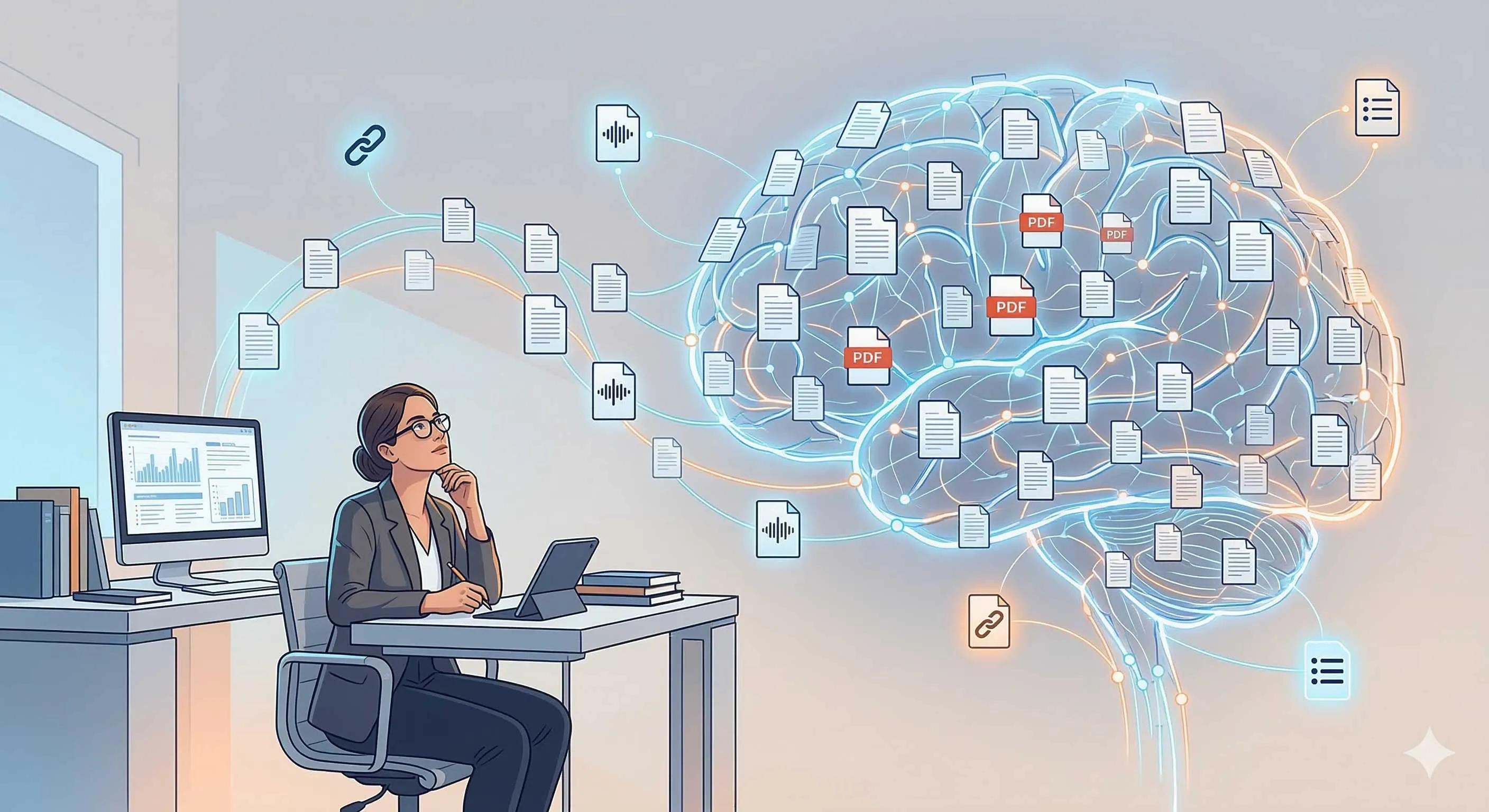
It’s 3 AM, and I’m manually copying data again. From Notion tables to TickTick, then to Feishu docs—more than 20 records need syncing. The keyboard clatters away, and suddenly I pause. I did this last week. And the week before that. It feels like I haven’t stopped since the year began.
Honestly, I hate repetitive work. Not that I’m lazy (okay, maybe a little), but these mechanical copy-paste tasks require zero brainpower, yet I still have to do them. Then I discovered n8n, an open-source workflow automation tool. After tinkering with it for a few days, I managed to hand off all that annoying data syncing to machines.
This article walks through how to use n8n, from node concepts to real scenarios, laying bare all the pitfalls I’ve encountered. If you’re also tortured by repetitive work, you might find some inspiration here.

1. What is n8n? Understanding the Core Concepts
To be honest, the first time I saw n8n’s interface, I was confused. The canvas was full of small squares with messy connections—I had no idea where to start. Later I realized those squares are nodes, and when connected, they form workflows.
1.1 Open Source, Visual, Low-Code
n8n positions itself as an “open-source automation tool.” Simply put, it lets you drag and drop different services together to automatically complete tasks. You might have heard of Zapier or IFTTT—they do automation too, but n8n has a few differences:
- Open Source & Free: Self-hostable, your data stays in your hands
- Rich Nodes: 400+ nodes supporting various APIs and services
- Visual Editor: Build workflows by dragging—no coding required (but coding is supported)
For me, the open-source part matters. Some automation scenarios involve sensitive data, like internal company API calls. Putting that on a cloud platform like Zapier feels unsettling. Self-hosting n8n means data flows through your own servers—much more reassuring.
1.2 Node Types: Triggers, Actions, Logic
n8n nodes fall into roughly three categories. Understanding this classification makes building workflows much smoother.
Trigger Nodes—The starting point of a workflow.
Think of dominoes. The first tile falls, then the rest follow. A trigger is that first tile. Common ones include:
Schedule Trigger: Time-based trigger, like running every day at 7 AMWebhook: External trigger, starts when receiving an HTTP requestManual Trigger: Manual trigger, click a button to start
I started with Manual Trigger for debugging convenience—run it whenever I want. Later when going live, I switched to Schedule Trigger.
Action Nodes—The worker nodes.
These nodes handle specific operations, like:
HTTP Request: Request APIs, fetch or send dataSet: Data transformation, rename fields, format valuesGmail / Slack / Notion: Connect third-party services, send emails, messages, write docs
Action nodes are the most commonly used—about 90% of workflows run on these.
Logic Nodes—Control flow direction.
Sometimes workflows aren’t linear and need different branches based on conditions. Examples:
If: Condition check—if true, go route A; if false, go route BMerge: Combine multiple branchesSwitch: Multi-condition branching, like switch-case in code
Used well, logic nodes make workflows very flexible. When I did data syncing later, I relied on the If node to check if data exists—update if yes, create if no.
1.3 How Does Data Pass Between Nodes?
Once nodes are connected, data flows automatically. One node’s output becomes the next node’s input.
In n8n, data passes in JSON format. After each node executes, it generates a JSON object with various fields. To use these fields in the next node, use the {{ $json.fieldName }} syntax.
For example, an HTTP Request node calls a weather API and returns something like:
{
  "temperature": 18,
  "weather": "Clear",
  "city": "Beijing"
}
In the next node, to use the temperature data, write {{ $json.temperature }}. n8n automatically fills in 18.
This syntax takes some getting used to, but after a few tries it becomes natural. I recommend trying it directly in a node—type {{ $json. and check the dropdown menu to see available fields at a glance.
2. Starting from Scratch: Building Your First Workflow
Concepts covered, let’s get hands-on. My first successful workflow was “fetch weather daily and send email”—pretty simple, but covers most core operations.
2.1 Environment Setup
The fastest way to try it is the cloud version: n8n.cloud. Register an account and start using it—the free tier supports basic features.
If you want to self-host (like someone who enjoys tinkering), one Docker command does it:
docker run -it --rm \
  --name n8n \
  -p 5678:5678 \
  -v ~/.n8n:/home/node/.n8n \
  n8nio/n8n
Once running, open http://localhost:5678 in your browser to see the editor interface.
One pitfall I hit with deployment: data persistence. The first time I didn’t add the -v flag, and after the container restarted, all my workflows were gone. Adding -v ~/.n8n:/home/node/.n8n saves data to a local directory.
2.2 Example 1: Daily Weather Email Alert
Goal: Automatically fetch Beijing weather at 7 AM daily, then send an email reminder.
Step 1: Add Schedule Trigger
Click the ”+” button on the canvas and search for “Schedule Trigger”. After adding, configure the trigger time:
- Trigger Interval: Days
- Days between triggers: 1
- Trigger at Hour: 7
Step 2: Add OpenWeatherMap Node
Continue clicking ”+”, search for “OpenWeatherMap” (this is the weather API node). Configure:
- Operation: Get current weather
- City: Beijing (or your city)
- API Key: Register at OpenWeatherMap’s website to get one
Once you have the API Key, just fill it in.
Step 3: Add Gmail Node
Search for “Gmail”, add an action node to send email. Configure:
- Operation: Send
- To: Your email address
- Subject: Daily Weather Reminder
- Message Type: HTML
- Message: Use template syntax here to fill in weather data
The email content can be written like:
Today's Beijing Weather: {{ $json.weather }}
Temperature: {{ $json.temperature }}℃

Don't forget to check the weather before heading out!
Step 4: Connect Nodes
Drag the output of Schedule Trigger to the input of OpenWeatherMap, then drag OpenWeatherMap to Gmail. Now three nodes are connected, forming a linear flow.
Step 5: Test Execution
Click the “Execute Workflow” button in the top right. If configured correctly, you should see each node execute in sequence, with Gmail sending an email at the end. Check your inbox—did you receive the weather reminder?
The moment it ran successfully, honestly, I was a bit excited. Even though it’s just a simple workflow, that feeling of “the machine is doing my work” is really satisfying.
2.3 Example 2: Form Submission Auto-Notification
The second scenario is form auto-notification. Say you have a website where users submit forms, and you want to get notified on Slack.
Webhook Trigger
Add a “Webhook” node, select “Webhook URL”. This URL is the target address for form submissions. Put it in your form’s action attribute, or use JavaScript to send a POST request.
Slack Node
Add a “Slack” node, configure:
- Operation: Post message
- Channel: The channel where you want notifications
- Message: Also use template syntax to fill in form data
Message content:
New form submission received:
Name: {{ $json.name }}
Email: {{ $json.email }}
Message: {{ $json.message }}
After connecting, every time someone submits a form, Slack receives a message. Later I connected our company website’s inquiry form to this workflow—the response speed improved noticeably. No more manually checking the backend.
3. Advanced Practice: Multi-Scenario Automation Design
Basics mastered, let’s discuss some more complex scenarios. These are workflows I actually use, refined after hitting various pitfalls.
3.1 Data Sync: Notion and TickTick Bidirectional Sync
The background for this scenario: I use Notion for task planning and TickTick for daily to-dos. Data needs to sync between them, otherwise things get messy.
Approach: Two triggers separately listen for changes in Notion and TickTick, then use an If node to check if data exists—update if yes, create if no.
Architecture Design:
Notion Trigger → If (exists in TickTick?) →
  - Yes: Update TickTick
  - No: Create TickTick task

TickTick Trigger → If (exists in Notion?) →
  - Yes: Update Notion
  - No: Create Notion entry
Key Points:
- Unique Identifier: Both sides need a unique field, like
taskId, to determine if it’s the same data - Prevent Infinite Loops: Update operations might trigger a new sync round, add conditional checks to avoid loops
- Error Handling: API calls occasionally fail, configure retry mechanism (Retry on Error), max 3 retries
This workflow took me a while to debug—mainly because bidirectional sync logic is easy to mess up. Later I added a Merge node to combine update results from both sides before unified processing, and finally got it working smoothly.
3.2 Content Distribution: Blog Publish Multi-Platform Push
This scenario suits friends doing content operations. After publishing a blog post, automatically push to multiple platforms.
RSS Monitor + Multi-Channel Distribution:
RSS Feed Trigger → HTTP Request (fetch article details) →
  → Slack (team notification)
  → Gmail (email subscription)
  → WeChat Push (need to build your own interface)
Content Template Processing:
Different platforms have different formats. Slack can use concise cards, emails need full body text. I added a Set node in the workflow to extract article title, link, and summary separately, then generate different formats for each platform.

The WeChat push part is slightly more complex, requiring you to build an interface yourself (I used enterprise WeChat’s robot Webhook). But once set up, all pushes are automated—saved quite a bit of time.
3.3 AI Integration: Smart Customer Service Auto-Reply
n8n recently introduced the AI Agent node, which can connect to large language models. This scenario builds a simple smart customer service that auto-replies to user questions.
Configure AI Agent Node:
- Model: Choose OpenAI or Claude (API Key required)
- System Prompt: Define customer service behavior, like “You are a friendly customer service assistant answering product questions”
- Memory: When enabled, the agent remembers conversation history
Connect to Trigger:
Use Webhook to receive user messages, pass to AI Agent, then return the reply to the user.
I tried this scenario—the reply quality is decent, but complex questions still need human intervention. Good for handling common queries like “how to use the product” or “what’s the pricing.”
3.4 Monitoring & Alerting: API Health Check
The last scenario is commonly used in technical operations. Periodically check if APIs are healthy, automatically alert on anomalies.
Workflow Design:
Schedule Trigger (every 10 minutes) → HTTP Request (check API) →
  → If (status code == 200?) →
    - Yes: End
    - No: Slack alert + log error details
Key Configuration:
- HTTP Request URL set to target API
- If node checks
$json.statusCode == 200 - In the exception branch, Slack sends alert message, while
Setnode logs error details
I deployed this workflow on a company test API—ran for a few months and indeed caught several anomalies. Simple monitoring, but way more reliable than manual checks.
4. Debugging & Optimization Tips
Workflows rarely run smoothly on the first try—debugging is inevitable. Here are some lessons learned from hitting pitfalls.
4.1 Viewing Execution History
After each execution, n8n records the history. Click the “Executions” tab on the left to see all execution records.
Locating Failed Nodes:
If a node fails, the history marks it red. Click the failed node to see specific error information. Common error types:
- API call timeout
- Data format mismatch
- Credential expired (API Key expired)
Checking Output Data:
Click each node to see its output data. During debugging, I check node by node to see if data passes as expected. Sometimes a field name is wrong, and subsequent nodes can’t retrieve the value.
4.2 Common Error Handling
API Timeout Retry:
In node configuration, you can set “Retry on Error”. Generally configure 3 retries with 1-2 second intervals. Most temporary failures can be resolved through retries.
Data Format Mismatch:

This is the most common issue. For example, an API returns a string, but the node expects a number. Solution: add a Set node before it and convert with JavaScript:
{{ Number($json.temperature) }}Or use the Edit Fields node to directly modify field types.
Credential Expiration Check:
n8n’s credential management is in the left menu. If API calls keep failing, check if credentials have expired. Sometimes services update permissions, requiring credential reconfiguration.
4.3 Performance Optimization Suggestions
As workflows run more, you might encounter performance issues. A few optimization suggestions:
Batch Processing:
For larger data volumes, don’t process one by one. Use the Split In Batches node to divide data into batches, processing 100 items per batch (adjust based on API limits).
Sub-workflow Splitting:
Complex workflows can be split into multiple sub-workflows. Main workflow calls sub-workflows—clearer logic and easier to debug individually. Use the Execute Workflow node to call another workflow.
Caching Mechanism:
Some data doesn’t need to be fetched every time. For example, getting a static config file—you can cache it after the first request using the Cache node, then read from cache subsequently.
5. Summary & Next Steps
Having said all this, n8n’s core logic is actually quite simple: nodes are building blocks, connections are logic, data flows between nodes. Master these concepts and you can build any workflow.
Learning Path Suggestions:
- Start with simple linear workflows (like that weather reminder)
- Gradually add branches and conditional logic
- Then try AI integration and bidirectional sync
Community Resources:
n8n has an official template library at n8n.io/templates with many ready-made workflow templates. When you encounter a scenario you want to build, search first—copy and modify an existing template.
Advanced Directions:
If existing nodes aren’t enough, you can develop custom nodes. n8n is open-source with well-documented node development guides. This requires some TypeScript foundation, suitable for friends with development experience.
The biggest gain from tinkering with automation tools isn’t how much time you save—it’s that after offloading those annoying repetitive tasks to machines, your brain can think about more important things. If you have similar pain points, give n8n a try. You might find a new breakthrough in efficiency.
Build Your First n8n Workflow
Start from scratch to build a scheduled weather alert workflow
⏱️ Estimated time: 15 min
- 1
Step1: Deploy n8n Environment
Choose deployment method:
• Cloud version: Register at n8n.cloud to start
• Local deployment: Docker command `docker run -p 5678:5678 n8nio/n8n`
• Remember to add `-v` flag for data persistence - 2
Step2: Add Trigger Node
Configure Schedule Trigger:
• Click "+" and search for Schedule Trigger
• Set Trigger Interval to Days
• Set Trigger at Hour to 7 (7 AM daily) - 3
Step3: Add Action Nodes
Connect OpenWeatherMap + Gmail:
• OpenWeatherMap: configure city and API Key
• Gmail: configure recipient, subject, content template
• Use `{{ $json.weather }}` to reference data in content - 4
Step4: Connect Nodes and Test
Complete the workflow:
• Drag to connect the three nodes
• Click Execute Workflow to test
• Check email to confirm receipt
FAQ
What's the difference between n8n and Zapier?
What services does n8n support?
How does data pass between nodes?
How to debug failed workflow executions?
How to prevent infinite loops in bidirectional sync?
Can n8n integrate with AI models?
References
- n8n Official Documentation
- n8n Chinese Tutorial Repository
- n8n Template Library
- Zhihu: n8n Zero to One Guide
- Sspai: n8n Automation Practice
13 min read · Published on: Apr 5, 2026 · Modified on: Apr 5, 2026

Related Posts
GitHub Actions Basics: YAML Workflow Structure and Trigger Configuration

GitHub Actions Basics: YAML Workflow Structure and Trigger Configuration
Supabase Database Design: Tables, Relationships & Row Level Security Guide

Supabase Database Design: Tables, Relationships & Row Level Security Guide
Firewall Configuration: UFW, iptables, and Security Policy Design

Comments
Sign in with GitHub to leave a comment