
OpenClaw Smart Home Guide: Natural Language Voice Control via WhatsApp
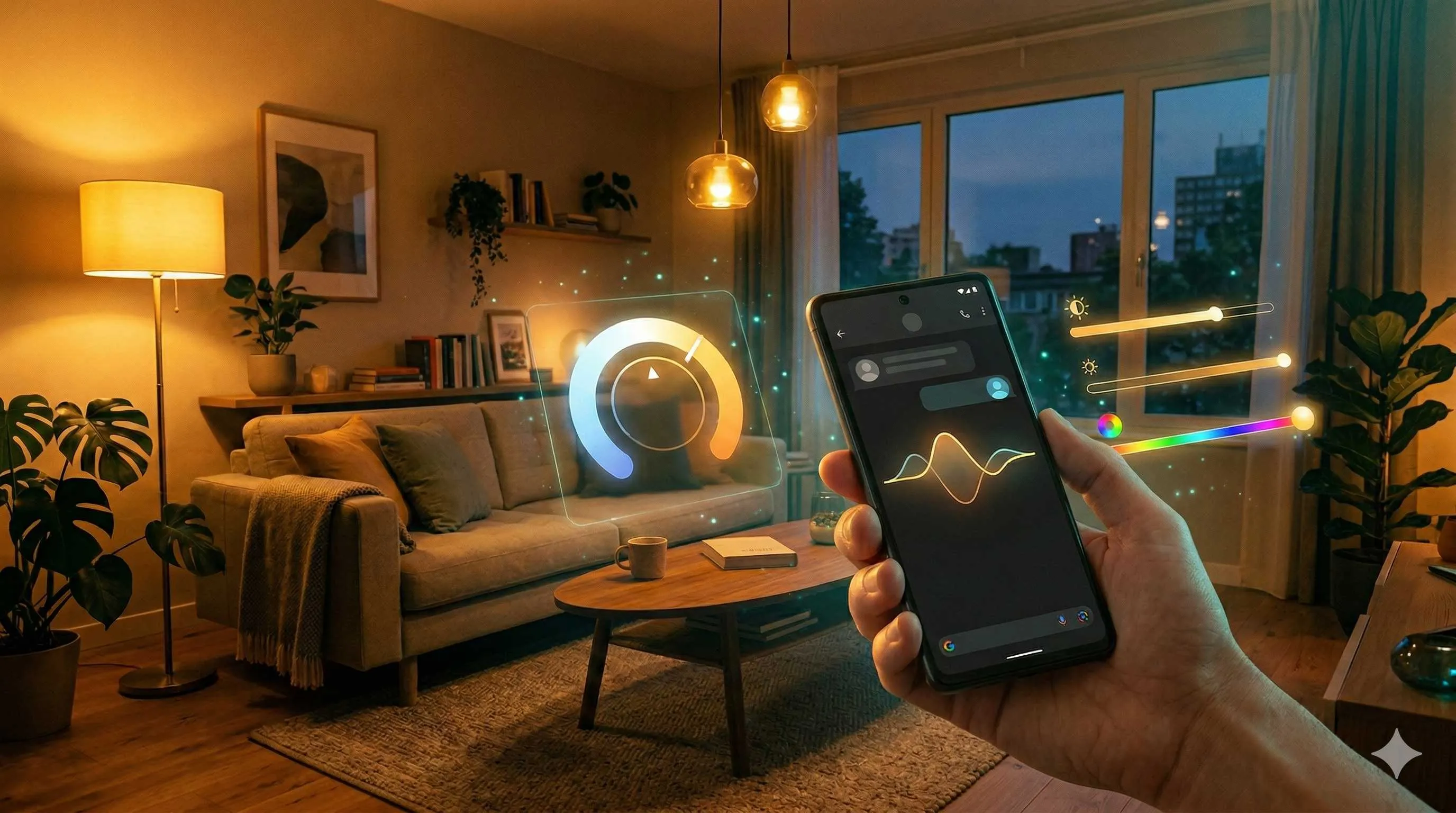
“Dim the bedroom light a bit.”
I repeated this to my phone for the third time, and Siri stubbornly replied: “Sorry, I didn’t quite get that.”
There I was, lying in bed, staring at the ceiling, suddenly realizing something absurd: I’d spent thousands on Philips Hue smart lighting, yet it couldn’t understand the most basic human request.

Honestly, you’ve probably been there too. We install all these smart home gadgets, download half a dozen apps, tinker with countless automation rules, only to discover—turning off a light still requires saying something robotic like “turn off master bedroom ceiling light.” Get even slightly vague, like “it’s too bright, make it dimmer,” and the system is lost.
That’s the fundamental flaw of traditional voice assistants: they’re doing keyword matching, not actually understanding your intent.
Then I discovered OpenClaw.
The first time I used it to control my lights, I casually sent a voice message on WhatsApp: “The living room light is a bit harsh, help me change it to warm yellow, maybe around 60% brightness.” Three seconds later, the light changed. Not some preset scene mode—the AI actually understood my description, calculated the color temperature and brightness values, and executed.
That felt pretty magical. Like suddenly having a knowledgeable butler at home. You don’t need to teach it every device name or memorize specific command formats. Just talk to it like you would normally.
Today, I want to show you how to bring this “butler” into your home.
What is OpenClaw? Why Choose It as Your Smart Home Brain?
OpenClaw (formerly Moltbot, ClawdBot) is essentially an always-on AI Agent. Think of it as a home version of Claude Code—it connects to your messaging apps (WhatsApp, Telegram, Discord), reads your calendar and email, and yes, takes over your smart home.
So what’s the biggest difference from voice assistants like Siri or Alexa?
Traditional voice assistants do “command mapping.” You say A, it looks for matching instruction B. If it can’t find one, it gives up. That’s why “dim it a bit” doesn’t work—it hasn’t seen that exact phrase before.
OpenClaw is different. It’s powered by Claude, a large language model that truly “understands” semantics. When you say “dim it a bit,” it reasons: the user finds the current lighting too bright, wants to reduce brightness, and probably needs to adjust color temperature to make it softer. Then it proactively calls the Home Assistant API, finds the living room light entity, calculates appropriate values, and executes.
These are completely different modes of thinking.
Dan Malone shared an interesting case in his blog: he gave OpenClaw a raccoon personality (yes, a Raccoon), and this AI not only controlled his smart home but also talked back. For instance, when he turned on lights late at night, the AI would reply: “Up this late? Fine, I’ll turn on the lights, but don’t stay up too long.”
Sounds a bit silly, right? But this kind of personalized interaction is exactly what traditional voice assistants can’t provide.
Oh, and OpenClaw runs locally. Your data doesn’t get mysteriously sent to some cloud server for analysis—which matters if you care about privacy.
Prerequisites and Environment Setup
Alright, after covering the what and why, let’s talk about how.
First, you’ll need these basics:
1. Home Assistant System
- Version 2024.1 or newer recommended
- Able to access other devices on your local network
- Already integrated with Philips Hue (or whatever smart devices you want to control)
If you haven’t installed Home Assistant yet, I’d suggest starting with the HassOS image for quick setup. Plenty of tutorials online, so I won’t go into details here.
2. OpenClaw Runtime Environment
Three installation options:

- Docker: Most flexible, great if you have a server
- HA Add-on: Easiest, install directly within Home Assistant
- Local install: Requires Node.js environment
Personally, I recommend Docker—easier to upgrade and manage.
3. Network Requirements
- Home Assistant needs to be accessible by OpenClaw (via local IP or domain)
- Suggest configuring a static IP or using mDNS hostname
4. Philips Hue Integration
Make sure your Hue Bridge is connected to Home Assistant through the official integration. Check under HA’s “Settings > Devices & Services” to see your Philips Hue device list.
Deep Dive: moltbot-ha Skill Configuration
This is the core piece. The moltbot-ha skill lets OpenClaw talk to Home Assistant.
Step 1: Get Your Home Assistant Access Token
Log into Home Assistant, click your username in the bottom left, then select “Long-Lived Access Tokens.”
Click “Create Token,” give it any name (like “openclaw-token”), and copy the generated long string. Important: this token only displays once, so save it securely.
Step 2: Configure Environment Variables
You need to set two environment variables:
export HA_URL="http://your-ha-address:8123"
export HA_TOKEN="that-long-string-you-just-copied"
If using Docker deployment, add this to docker-compose.yml:
environment:
  - HA_URL=http://192.168.1.100:8123
  - HA_TOKEN=eyJhbGciOiJIUzI1NiIs...
Step 3: Install the homeassistant skill
Enter your OpenClaw container or directory and run:
npx moltbot add skill homeassistantOr manually add to your config file’s skills array:
{
  "skills": [
    {
      "name": "homeassistant",
      "enabled": true
    }
  ]
}
Step 4: Verify the Connection
After restarting OpenClaw, send it a message on WhatsApp or Telegram:
“List all the lights in my home”
If configured correctly, it should return a device list like this:
Found the following light devices:
- light.living_room_main (Living Room Main Light)
- light.bedroom_ceiling (Bedroom Ceiling Light)
- light.kitchen_spotlights (Kitchen Spotlights)
See this, and congrats—your basic setup is complete!
Real-World Demo: WhatsApp Voice Control for Philips Hue
This is where it gets exciting. Let’s see what real natural language control looks like.
Basic Controls
Scenario 1: Simple On/Off
You: “Turn off the living room lights”
AI: “Done, living room main light is now off”

No need to say entity IDs like “light.living_room_main”—the AI automatically matches “living room” and “light” to find the corresponding device.
Scenario 2: Adjust Brightness and Color Temperature
You: “Dim the bedroom light a bit, something good for bedtime reading”
AI: “Bedroom ceiling light brightness set to 40%, color temperature adjusted to 2700K warm white”
Notice you didn’t specify exact values? The AI inferred appropriate parameters from “bedtime reading” context.
Scenario 3: Color Control
You: “Change the study light to pale blue, like outside on an overcast day”
AI: “Study light set to pale blue (RGB: 173, 216, 230)”
This kind of fuzzy description is impossible for traditional voice assistants to handle.
Complex Scenarios
Scenario 4: Multi-Device Automation
You: “I’m about to watch a movie”
AI: “Movie mode activated:
- Living room main light turned off
- Ambient light strip switched to cinema mode
- AC temperature set to 24°C”
This scenario requires pre-defining a “movie mode” script in Home Assistant, but the trigger becomes incredibly natural.
Scenario 5: Conditional Logic
You: “It’s getting dark, turn on the lights”
AI: “Detected outdoor illuminance at 50 lux, indeed quite dim. Turned on living room and hallway lights for you.”
The AI doesn’t just execute commands—it combines sensor data to make judgments.
Multi-Turn Conversations
The coolest part is this:
You: “That light is too bright”
AI: “Which room are you referring to?”
You: “Living room”
AI: “Living room main light brightness reduced from 80% to 50%. Want it dimmer?”
You: “A bit more, and it’s kinda yellow”
AI: “Brightness set to 30%, color temperature adjusted to 2200K. Is this lighting comfortable now?”
This conversational feel—isn’t it a bit like chatting with a household butler?
Advanced Tips and Troubleshooting
Custom Entity Aliases
Sometimes device names aren’t intuitive. You can set “friendly names” for entities in Home Assistant, or add alias mappings in OpenClaw’s config:
{
  "aliases": {
    "light.living_room_main": ["big light", "main light", "living room light"]
  }
}
Now whether you say “big light,” “main light,” or “living room light,” the AI knows you’re referring to the same device.
Security Recommendations
-
Token Permission Control
Suggest creating a read-only token first for testing, switch to read-write only after confirming everything works. -
Access Restrictions
If OpenClaw runs on a public server, ensure HA_URL uses HTTPS and consider firewall rules allowing only specific IPs. -
Log Monitoring
Regularly check OpenClaw’s operation logs for any unusual device control requests.
Common Issues
Issue 1: AI says it can’t find devices
- Check if HA_TOKEN has sufficient permissions
- Confirm entity ID exists in Home Assistant’s Developer Tools
- Try restarting OpenClaw service
Issue 2: Slow response
- Check network latency (OpenClaw to HA should be <50ms)
- Consider using a local Claude proxy to reduce API latency
- If you have many devices, limit the controllable entity scope in config
Issue 3: False triggers
- When using in group chats, suggest setting wake words or @mentions
- Configure blacklists to exclude sensitive devices (like door locks, cameras)
Conclusion
After all that, it really boils down to one sentence: AI is finally starting to understand human speech.
From “turn off light.living_room_main” to “dim the living room light a bit”—this isn’t just a change in command format, but a qualitative shift in interaction paradigm. We no longer need to learn machine language; we’re teaching machines to understand our expressions.
The OpenClaw + Home Assistant combo made me feel like my smart home devices are actually “smart” for the first time. It’s not executing preset programs—it’s understanding my needs and autonomously deciding how to fulfill them.
If you want to try this experience, start with the awesome-openclaw-skills repository on GitHub. It has complete documentation and community discussions. Got issues? Ask in the Home Assistant community’s OpenClaw section—people are pretty helpful there.
Honestly, the configuration process might have some hiccups, but that moment when you successfully control lights with natural language for the first time? Worth it.
After all, the future is already here—it’s just not evenly distributed. And we tinkerers always get to touch the edge of it a bit early.
Complete OpenClaw Smart Home Configuration Guide
Using moltbot-ha skill to connect OpenClaw to Home Assistant for natural language smart device control
⏱️ Estimated time: 20 min
- 1
Step1: Preparation: Verify Environment and Prerequisites
Ensure Home Assistant is installed (version 2024.1+ recommended)
• Confirm Philips Hue is connected to HA via official integration
• Prepare OpenClaw runtime environment (Docker / HA Add-on / Local)
• Ensure network connectivity: OpenClaw can reach HA port 8123 - 2
Step2: Get Home Assistant Access Token
Log into Home Assistant web interface
• Click username in bottom left → Long-Lived Access Tokens
• Click "Create Token," name it something like "openclaw-token"
• Copy the generated token immediately (only shown once)
• Store securely—you'll need it for the next step - 3
Step3: Configure Environment Variables
Set two required environment variables:
• HA_URL: Home Assistant address, e.g., http://192.168.1.100:8123
• HA_TOKEN: That long access token you just copied
Docker deployment example (docker-compose.yml):
• environment:
- HA_URL=http://192.168.1.100:8123
- HA_TOKEN=eyJhbGciOiJIUzI1NiIs... - 4
Step4: Install homeassistant skill
Enter OpenClaw container or local directory, run:
• npx moltbot add skill homeassistant
Or manually add to config file:
• {
"skills": [
{
"name": "homeassistant",
"enabled": true
}
]
} - 5
Step5: Verify Connection and Start Using
Restart OpenClaw service for changes to take effect
• Send test message in WhatsApp/Telegram: "List all lights in my home"
• If device list returns, configuration is successful
• Start controlling your smart home with natural language!
FAQ
What's the difference between OpenClaw and traditional voice assistants (Siri/Alexa)?
• Traditional voice assistants: Based on keyword matching, only recognize preset commands
• OpenClaw: Powered by Claude LLM, understands natural language semantics and context
For example, when you say "dim it a bit," traditional assistants might fail to recognize it, while OpenClaw understands your intent and proactively calculates appropriate brightness values to execute. Additionally, OpenClaw supports multi-turn conversations, letting you refine requests gradually like a normal chat.
How is moltbot-ha skill different from Home Assistant's official integrations?
Official integrations are typically provided by device manufacturers for HA to control specific brand devices. moltbot-ha enables natural language interaction with these devices—it doesn't directly control devices but lets AI understand your intent, then the AI calls HA's API.
Simply put: Official integrations = HA recognizes devices; moltbot-ha = AI understands your speech.
Can't control devices after setup—what could be wrong?
1. Check Token permissions: Ensure HA_TOKEN has read/write device permissions
2. Verify entity ID: Confirm device entity ID exists in HA's "Developer Tools > States"
3. Check network connectivity: From OpenClaw's host, curl test if HA_URL is reachable
4. Review logs: OpenClaw logs will show specific API call error messages
5. Restart service: Changes require OpenClaw restart to take effect
Is using OpenClaw to control smart homes safe?
• Local operation: OpenClaw runs locally, data isn't uploaded to third-party servers
• Token management: Use Long-Lived Access Tokens and rotate them regularly
• Permission control: Start with read-only permissions for testing, enable write access only after verification
• Network security: If exposing to internet, always use HTTPS and access controls
• Sensitive devices: Consider excluding door locks, cameras, etc. from control in configuration
Besides Philips Hue, what other smart devices are supported?
Home Assistant has 2500+ official integrations including:
• Lighting: Philips Hue, Yeelight, Xiaomi, TP-Link Kasa, etc.
• HVAC: Midea, Gree, Nest, Ecobee, etc.
• Switches/Outlets: Xiaomi, Sonoff, Tuya, etc.
• Curtains/Locks: Aqara, Zigbee devices, etc.
• Sensors: Temperature/humidity, motion, light sensors, etc.
Any device visible in HA can be controlled via OpenClaw using natural language.
9 min read · Published on: Feb 27, 2026 · Modified on: Mar 3, 2026

Related Posts
AI Marketing Automation Guide: Build a One-Click Content Pipeline with OpenClaw

AI Marketing Automation Guide: Build a One-Click Content Pipeline with OpenClaw
AI Tools for Developers: OpenClaw + Claude Code 24/7 Auto Bug Fix

AI Tools for Developers: OpenClaw + Claude Code 24/7 Auto Bug Fix
Building Your Second Brain: OpenClaw & Obsidian/Notion Deep Memory Sync Guide

Comments
Sign in with GitHub to leave a comment