
Hands-On Tutorial: Building Low-Latency Audio-Video AI Assistants with Gemini Multimodal Live API
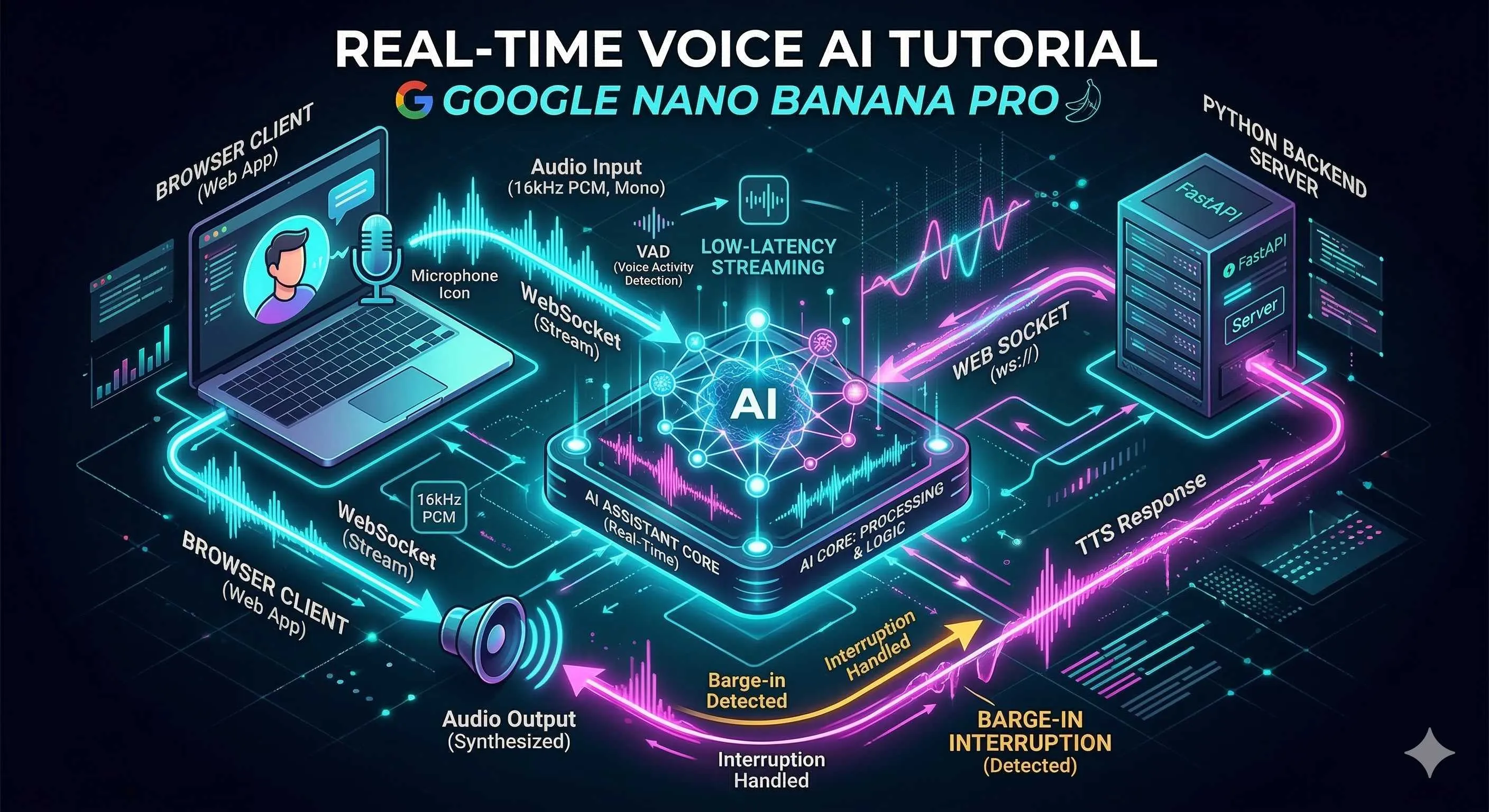
Honestly, when I first heard about Gemini’s Live API, I was skeptical—another new API, probably similar to those existing text interfaces, right? But after actually trying it out, well, it felt like opening the door to a whole new world. Today, I’ll share how to use this API to build an AI assistant that can truly converse in real-time.
What is Gemini Multimodal Live API?
Let’s get this straight first. How does the traditional Gemini API work? You send text, it returns text—simple and direct. But if you want voice interaction, you have to integrate ASR (Automatic Speech Recognition) and TTS (Text-to-Speech) yourself, adding middleware that significantly increases latency.
The difference with Gemini Multimodal Live API is that it natively supports audio input and output. This means the sound captured by your microphone can be sent directly to it, and what it returns is pure audio stream—no format conversion needed on your end. This end-to-end architecture keeps latency under 500ms.

I tried this feature in a smart home project. When the user says “dim the living room lights,” the AI responds almost immediately after the voice finishes—the流畅感 is so smooth you might forget you’re talking to a program.
The currently supported model is gemini-2.0-flash-native-audio-preview. Note this version number; Google is rapidly iterating, so check for updates regularly.
Architecture Design and Technology Selection
Now let’s talk about how to build this system. I recommend a frontend-backend separated architecture for one simple reason: API Keys must not be exposed in the frontend.
The overall data flow looks like this:
[Browser] --WebSocket--> [Python Backend Proxy] --WebSocket--> [Gemini Live API]
   |                           |                           |
Microphone capture          Relay + business logic      AI processing
Speaker playback            VAD detection/interruption  Audio generation
You might wonder, why not let the browser connect directly to Gemini? Technically possible, but that means putting the API Key in JavaScript—anyone opening developer tools can grab your key. I made this mistake once; the next day’s bill was shocking. Lesson learned.
So our tech stack is:
| Layer | Technology | Purpose |
|---|---|---|
| Frontend | Vanilla JavaScript + Web Audio API | Audio capture, playback, AudioWorklet real-time processing |
| Backend | Python 3.9+ + websockets library | WebSocket proxy, VAD detection, session management |
| Protocol | WebSocket + JSON | Bidirectional communication with Gemini |
AudioWorklet in the Web Audio API is great—it processes audio in a separate thread without blocking the main thread. I’ll provide specific implementation code later.
WebSocket Connection Establishment and Session Management
Alright, let’s start coding. First, we need to solve how to connect to Gemini’s service.
The Live API WebSocket endpoint looks like this:
wss://generativelanguage.googleapis.com/ws/google.ai.generativelanguage.v1alpha.GenerativeService.BidiGenerateContent?key=YOUR_API_KEYNote that v1alpha—this is still a preview version, interfaces may change, so be cautious in production.
After establishing the connection, the first thing is to send a Setup message telling Gemini how you want to chat:
import asyncio
import json
import websockets

GEMINI_API_KEY = "your-api-key-here"
GEMINI_WS_URL = (
    f"wss://generativelanguage.googleapis.com/ws/"
    f"google.ai.generativelanguage.v1alpha.GenerativeService.BidiGenerateContent"
    f"?key={GEMINI_API_KEY}"
)

CONFIG = {
    "setup": {
        "model": "models/gemini-2.0-flash-native-audio-preview",
        "generation_config": {
            "response_modalities": ["AUDIO"],
            "speech_config": {
                "voice_config": {
                    "prebuilt_voice_config": {
                        "voice_name": "Charon"  # Options: Charon, Aoede, etc.
                    }
                }
            }
        },
        "system_instruction": {
            "parts": [{"text": "You are a helpful AI assistant, answering concisely and naturally."}]
        }
    }
}

async def connect():
    async with websockets.connect(GEMINI_WS_URL) as ws:
        # Send setup configuration
        await ws.send(json.dumps(CONFIG))

        # Wait for setup complete response
        response = await ws.recv()
        data = json.loads(response)

        if "setupComplete" in data:
            print("✅ Connection established, ready to chat")
            return ws
        else:
            raise Exception(f"Setup failed: {data}")
A few parameters worth noting:
response_modalities: Set to["AUDIO"]means we only want voice responses. If you want text too, change to["AUDIO", "TEXT"]voice_name: Gemini offers several preset voices; I personally preferCharonfor its沉稳 tone
For connection drops and reconnection, I recommend exponential backoff—don’t retry crazily right away, or you might overwhelm the service:
async def connect_with_retry(max_retries=5):
    for attempt in range(max_retries):
        try:
            return await connect()
        except Exception as e:
            wait_time = min(2 ** attempt, 30)  # Max 30 seconds
            print(f"Connection failed ({e}), retrying in {wait_time} seconds...")
            await asyncio.sleep(wait_time)
    raise Exception("Unable to connect after multiple retries")
16kHz PCM Audio Stream Capture and Transmission
Alright, connection established. Now we need to solve where audio comes from and how to send it.
First, why 16kHz? Human voice frequency range is generally 85Hz to 255Hz (lower for male, higher for female). According to the Nyquist sampling theorem, 8kHz would theoretically suffice. But in practice, you need to preserve some details, and 16kHz is a sweet spot—ensuring audio quality without too much data. Gemini officially recommends this sampling rate too.

The frontend capture code looks like this:
class AudioRecorder {
  constructor() {
    this.sampleRate = 16000;
    this.bufferSize = 1024;
    this.audioContext = null;
    this.workletNode = null;
    this.stream = null;
    this.onAudioData = null; // Callback function
  }

  async start() {
    // Request microphone permission
    this.stream = await navigator.mediaDevices.getUserMedia({
      audio: {
        sampleRate: 16000,
        channelCount: 1,
        echoCancellation: true,
        noiseSuppression: true
      }
    });

    // Create AudioContext, force specific sample rate
    this.audioContext = new AudioContext({
      sampleRate: 16000
    });

    // Load AudioWorklet processor
    await this.audioContext.audioWorklet.addModule('pcm-processor.js');

    const source = this.audioContext.createMediaStreamSource(this.stream);
    this.workletNode = new AudioWorkletNode(this.audioContext, 'pcm-processor');

    // Process audio data
    this.workletNode.port.onmessage = (event) => {
      const float32Data = event.data;

      // Convert to Int16 PCM
      const int16Data = this.float32ToInt16(float32Data);

      // Base64 encode and send
      const base64Data = btoa(String.fromCharCode(...new Uint8Array(int16Data.buffer)));

      if (this.onAudioData) {
        this.onAudioData(base64Data);
      }
    };

    source.connect(this.workletNode);
    console.log('🎤 Audio capture started');
  }

  float32ToInt16(float32Array) {
    const int16Array = new Int16Array(float32Array.length);
    for (let i = 0; i < float32Array.length; i++) {
      // Float32 (-1.0 ~ 1.0) -> Int16 (-32768 ~ 32767)
      const s = Math.max(-1, Math.min(1, float32Array[i]));
      int16Array[i] = s < 0 ? s * 0x8000 : s * 0x7FFF;
    }
    return int16Array;
  }

  stop() {
    if (this.workletNode) {
      this.workletNode.disconnect();
    }
    if (this.audioContext) {
      this.audioContext.close();
    }
    if (this.stream) {
      this.stream.getTracks().forEach(track => track.stop());
    }
    console.log('🛑 Audio capture stopped');
  }
}
AudioWorklet requires a separate file pcm-processor.js:
// pcm-processor.js
class PCMProcessor extends AudioWorkletProcessor {
  process(inputs, outputs, parameters) {
    const input = inputs[0];
    if (input && input[0]) {
      // Send to main thread
      this.port.postMessage(input[0].slice());
    }
    return true; // Keep processor active
  }
}

registerProcessor('pcm-processor', PCMProcessor);
After receiving data, the backend forwards it to Gemini:
async def send_audio(ws, base64_pcm_data):
    """Send audio data to Gemini"""
    message = {
        "realtime_input": {
            "media_chunks": [{
                "mime_type": "audio/pcm;rate=16000",
                "data": base64_pcm_data
            }]
        }
    }
    await ws.send(json.dumps(message))
One pitfall to watch out for: some browsers’ getUserMedia ignores your specified sampleRate, actually returning 44.1kHz or 48kHz. To be safe, it’s best to resample in AudioContext, or use a third-party library like audiobuffer-to-wav.
VAD Voice Activity Detection Implementation
Now we face a problem: if we send all audio to Gemini regardless of whether someone is speaking, we’re wasting bandwidth and money during silence. This is where VAD (Voice Activity Detection) comes in.
VAD’s job is simple: determine if there’s human speech in this audio segment. Only send when someone’s talking; rest when silent.
I recommend Google’s open-source WebRTC VAD—lightweight, fast, and works well. Python has a wrapper library webrtcvad:
import webrtcvad
import collections
import numpy as np

class VADProcessor:
    def __init__(self, aggressiveness=2, frame_duration_ms=20):
        """
        aggressiveness: 0-3, higher is stricter (more likely to classify speech as silence)
        frame_duration_ms: 10, 20, or 30
        """
        self.vad = webrtcvad.Vad(aggressiveness)
        self.frame_duration_ms = frame_duration_ms
        self.sample_rate = 16000

        # Ring buffer for smoothing
        self.ring_buffer = collections.deque(maxlen=30)  # 600ms
        self.triggered = False

    def process_frame(self, pcm_bytes):
        """
        Process one frame of audio, return whether to send
        """
        is_speech = self.vad.is_speech(pcm_bytes, self.sample_rate)

        if not self.triggered:
            # Not triggered: accumulate voice frames
            self.ring_buffer.append((pcm_bytes, is_speech))
            num_voiced = sum(1 for _, speech in self.ring_buffer if speech)

            # If 90% of frames are speech, trigger
            if num_voiced > 0.9 * self.ring_buffer.maxlen:
                self.triggered = True
                # Send buffered data together
                return b''.join([f for f, _ in self.ring_buffer])
            return None
        else:
            # Triggered state
            if is_speech:
                self.ring_buffer.append((pcm_bytes, True))
                return pcm_bytes
            else:
                self.ring_buffer.append((pcm_bytes, False))
                num_unvoiced = sum(1 for _, speech in self.ring_buffer if not speech)

                # If 90% is silence, end trigger
                if num_unvoiced > 0.9 * self.ring_buffer.maxlen:
                    self.triggered = False
                    self.ring_buffer.clear()
                return pcm_bytes
Usage looks like this:
vad = VADProcessor(aggressiveness=2)

async def handle_client_audio(websocket, gemini_ws):
    async for message in websocket:
        data = json.loads(message)

        if 'audio' in data:
            pcm_bytes = base64.b64decode(data['audio'])

            # VAD detection
            result = vad.process_frame(pcm_bytes)

            if result:
                # Someone is speaking, forward to Gemini
                await send_audio(gemini_ws, base64.b64encode(result).decode())
The aggressiveness parameter is quite nuanced. Set it too low, and background noise gets classified as speech; set it too high, and quiet speech might be missed. My experience: start with 2 and fine-tune based on your actual scenario.
If you can’t install webrtcvad in your deployment environment, you can use simple energy threshold detection as a fallback:
// Frontend fallback: simple RMS energy-based detection
function detectVoiceActivity(audioData, threshold = 0.015) {
    const sum = audioData.reduce((acc, val) => acc + val * val, 0);
    const rms = Math.sqrt(sum / audioData.length);
    return rms > threshold;
}
Natural Barge-in (Interruption) Functionality Implementation
You know that feeling when chatting with some voice assistants—once they start talking at length, you can only wait helplessly, unable to interrupt? It’s frustrating.
The Barge-in (interruption) feature solves this. When the AI is speaking, users can directly cut in, and the AI immediately stops current output to listen to the user.
The good news is Gemini Live API natively supports this feature, and it’s quite smart. You just need to enable automatic activity detection in the configuration:

CONFIG = {
    "setup": {
        "model": "models/gemini-2.0-flash-native-audio-preview",
        "generation_config": {
            "response_modalities": ["AUDIO"],
        },
        "realtime_input_config": {
            "automatic_activity_detection": {
                "disabled": False,
                "start_of_speech_sensitivity": "START_SENSITIVITY_HIGH",
                "end_of_speech_sensitivity": "END_SENSITIVITY_LOW"
            }
        }
    }
}
The sensitivity configuration is a bit nuanced:
start_of_speech_sensitivityset toHIGHmeans the AI is more sensitive to users starting to speak, making interruption easier to triggerend_of_speech_sensitivityset toLOWmeans the AI waits a bit longer to confirm the user has really finished speaking, avoiding false triggers
On the client side, you need to listen for the interrupted event and stop playback immediately:
class GeminiClient {
  constructor() {
    this.audioQueue = [];
    this.isPlaying = false;
    this.currentSource = null;
  }

  async handleMessage(event) {
    const message = JSON.parse(event.data);

    // Handle interruption signal
    if (message.server_content?.interrupted) {
      console.log('⚡ User interrupted, stopping playback');
      this.stopPlayback();
      return;
    }

    // Handle AI returned audio
    if (message.server_content?.model_turn) {
      const parts = message.server_content.model_turn.parts;

      for (const part of parts) {
        if (part.inline_data?.mime_type.startsWith('audio/')) {
          const audioData = base64ToArrayBuffer(part.inline_data.data);
          this.queueAudio(audioData);
        }
      }
    }
  }

  stopPlayback() {
    // Clear playback queue
    this.audioQueue = [];
    this.isPlaying = false;

    // Stop currently playing audio
    if (this.currentSource) {
      try {
        this.currentSource.stop();
      } catch (e) {
        // May have already stopped
      }
      this.currentSource = null;
    }
  }

  async queueAudio(audioData) {
    this.audioQueue.push(audioData);
    if (!this.isPlaying) {
      this.playNext();
    }
  }

  async playNext() {
    if (this.audioQueue.length === 0) {
      this.isPlaying = false;
      return;
    }

    this.isPlaying = true;
    const audioData = this.audioQueue.shift();

    // Decode and play
    const audioBuffer = await this.audioContext.decodeAudioData(audioData.slice());
    this.currentSource = this.audioContext.createBufferSource();
    this.currentSource.buffer = audioBuffer;
    this.currentSource.connect(this.audioContext.destination);

    this.currentSource.onended = () => {
      this.playNext();
    };

    this.currentSource.start();
  }
}
One detail to note: the stop() method may throw an exception if the audio has naturally finished playing. So I added try-catch to prevent the console from turning red.
Performance Optimization and Latency Control
Finally, let’s talk about how to push this system’s latency to the minimum.
First, we need to know where latency comes from:
- Network transmission: Round-trip time for data packets from browser to server to Gemini
- Audio codec: PCM compression/decompression time (though PCM itself is lossless, so this overhead is minimal)
- Buffer accumulation: Buffer depth set for smooth playback
To address these points, my optimization experience is:
Reduce Buffer Depth
Don’t set playback buffers too large; just enough is fine. I generally use 100-200ms:
// Set smaller buffer
const audioContext = new AudioContext({
  sampleRate: 16000,
  latencyHint: 'interactive'  // Low-latency mode
});
Adaptive Bitrate (actually mainly adaptive buffering here)
If network jitter is detected as relatively large, you can appropriately increase the buffer a bit; reduce it when the network is stable.
Local Echo Cancellation
If users have speakers on instead of headphones, AI voice gets picked up by the microphone, creating a loop. Fortunately, getUserMedia comes with echo cancellation:
navigator.mediaDevices.getUserMedia({
  audio: {
    echoCancellation: true,
    noiseSuppression: true,
    autoGainControl: true
  }
})
Monitoring Metrics
How do you know if your optimization is working? Use the Performance API to mark timestamps:
// Record latency metrics
class LatencyMonitor {
  constructor() {
    this.metrics = [];
  }

  recordSendTime() {
    this.lastSendTime = performance.now();
  }

  recordReceiveTime() {
    const latency = performance.now() - this.lastSendTime;
    this.metrics.push(latency);

    // Keep last 100 records
    if (this.metrics.length > 100) {
      this.metrics.shift();
    }

    // Calculate average latency
    const avg = this.metrics.reduce((a, b) => a + b, 0) / this.metrics.length;
    console.log(`📊 Average latency: ${avg.toFixed(2)}ms`);
  }
}
My test environment measurements are roughly:
- End-to-end latency: 300-500ms (depending on network conditions)
- First packet response time: 200-400ms
- Continuous conversation latency: 150-300ms
If your latency is significantly higher than these numbers, check this list:
- Is the WebSocket connection using HTTPS/WSS? HTTP has additional overhead
- Where is your server deployed? Closer to Google’s data centers is better
- Is VAD detection introducing too much latency? Try reducing frame length
- Is the frontend playback buffer set too large?
Another pitfall about audio context: Chrome requires user interaction before playing sound, so remember to add a “Start Conversation” button on the page—don’t auto-play right away.
Summary
At this point, we’ve walked through a complete Gemini Live API application development process. From the initial concept introduction to architecture design, WebSocket connection, audio capture, VAD detection, interruption functionality, and finally performance optimization—at each step, I’ve tried to share the pitfalls I’ve encountered.
Honestly, real-time voice interaction is still rapidly evolving, and Gemini Live API itself is continuously updating. But I believe this foundational architecture can stand the test of time—at least my own project has been running for several months with decent stability.
If you encounter any issues in actual development, feel free to reach out. After all, technology moves faster when we discuss it together rather than figuring it out alone.
FAQ
Why must frontend-backend separation architecture be used?
Why choose 16kHz sampling rate?
How to tune VAD aggressiveness parameter?
Does Barge-in functionality require additional development?
8 min read · Published on: Feb 27, 2026 · Modified on: Mar 18, 2026

Related Posts
OpenClaw 2026.3 Advanced Practice: Core Features and Best Practices

OpenClaw 2026.3 Advanced Practice: Core Features and Best Practices
OpenClaw Practical Guide: From Beginner to Master

OpenClaw Practical Guide: From Beginner to Master
Don't Be a Prisoner of a Single Model: Flexibly Switching Between Gemini 3, Claude 4.5, and GPT-OSS in Antigravity

Comments
Sign in with GitHub to leave a comment