
OpenClaw Remote Control Guide: Turn Your Phone into a Personal AI OS Remote
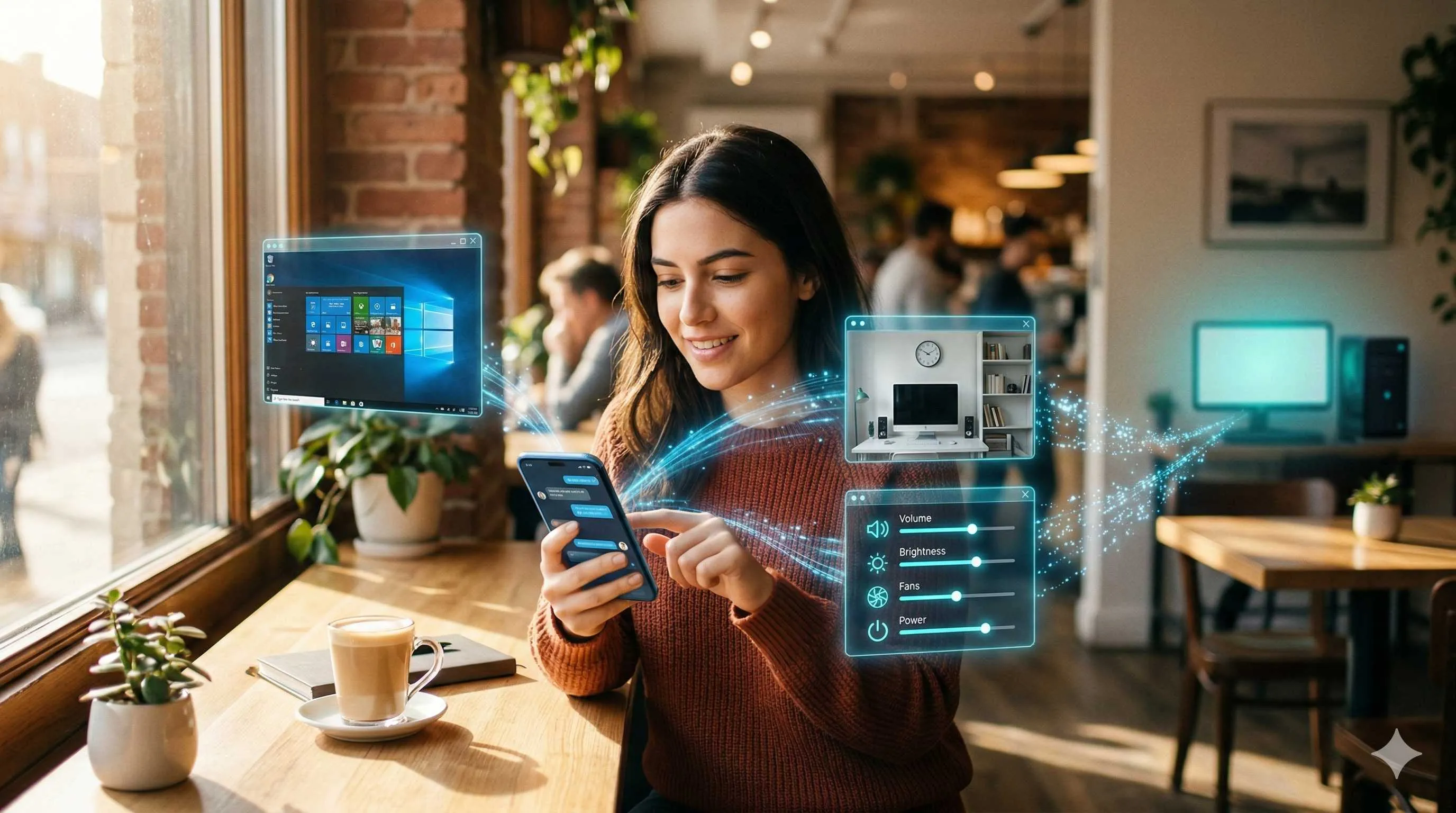
Last Wednesday, I was sitting by the window in a café, sunlight falling diagonally across my MacBook keyboard. I had an urgent task that required checking a PDF sitting on my desktop computer at home, and I was out. So I pulled out my phone and sent a message to “ClawBot” on Telegram: “Screenshot my desktop for me.”
Ten seconds later, a crisp desktop screenshot popped up on my phone screen. I spotted the PDF file immediately. I sent another message: “Open this file and tell me what page 3 says.” Two minutes later, the AI sent back a summary of the key points from that page.
The friend sitting across from me stared wide-eyed: “How’d you do that?”

Honestly, this kind of scenario has become routine for me over the past six months. Ever since configuring OpenClaw as my personal AI operating system, my iPhone has become a true “remote control” — it can access my home computer’s camera, get location data, take remote screenshots. Most importantly, all of this is achieved through open-source tools, with data completely under my own control.
If you’ve ever wanted your phone to become the real console for your AI agent instead of being limited to manufacturer-provided features, then this OpenClaw remote control guide is written for you. No fluff, let’s get hands-on.
Understanding OpenClaw Gateway Protocol (Layer 1 Basics)
To turn your phone into an OpenClaw remote, you first need to understand how this system works. Don’t be intimidated by terms like “gateway protocol” — at its core, it’s just a set of “secret handshakes” that let different devices recognize each other.
OpenClaw uses the Gateway WS Protocol (Gateway WebSocket Protocol). The name sounds fancy, but the principle is simple: all devices — whether it’s the main controller on your computer, nodes on your phone, or chat interfaces in Telegram — connect through a WebSocket persistent connection to a unified control plane. When each device connects, it must report its “identity” and “capabilities.”
For example, when your iPhone connects, it says: “I’m an iOS node, I can use the camera, take screenshots, and access location.” Your computer says: “I’m the gateway, I coordinate everything.” The Telegram Bot says: “I’m the client, I receive user commands.”
There are three core roles in this mechanism. Understanding them makes the rest of the configuration smooth:
Gateway: This is the “brain” of the entire system, running on your primary device (usually a computer or server). All commands come here first, then get distributed to various nodes for execution.
Node: The terminal device that executes specific tasks. Your iPhone, Android phone, or even an old phone can register as a node. Each node must declare its caps (capabilities), such as camera, screen, location, voice.
Client: The interface you use to send commands. This could be a Telegram chat, Discord channel, dedicated iOS app, or web interface.
At this point, you might wonder: Is it safe to give my phone so many permissions?
To be honest, this was my biggest concern initially. OpenClaw handles this reasonably well. Connections require Token authentication, devices need signature verification, and transmission uses TLS encryption. More importantly, there’s fine-grained permission control — your node can declare “I have camera capability,” but the gateway can configure “this client can only call screenshots, not camera.”
[Image: OpenClaw gateway protocol architecture diagram showing relationship between Gateway, Node, and Client]
Prompt: Technical architecture diagram showing Gateway central node connecting multiple iOS and Android devices, blue tech style, clean and clear, high quality
In actual configuration, you’ll see JSON snippets like this in the node’s connection parameters:
{
  "role": "node",
  "caps": ["camera", "screen", "location"],
  "commands": ["camera.snap", "screen.record", "location.get"],
  "permissions": {
    "camera.capture": true,
    "screen.record": false
  }
}
This configuration is clear: this node can take photos, screenshots, and access location, but whether these actually work depends on gateway permissions. This way, even if your phone node gets compromised, what attackers can do is limited to a very small scope.
Mobile Node Configuration in Practice (Layer 2 Advanced)
Once you understand the protocol principles, it’s time to get your hands dirty. Let’s cover iOS and Android separately since their configuration paths differ quite a bit.
iOS Node Configuration
Starting with iPhone. OpenClaw isn’t on the App Store officially, so be prepared — you’ll either need TestFlight (if you have beta access) or self-sign the IPA. I use AltStore for self-signing, resigning once a month. Not too troublesome.
After installation, open the app and you’ll see the node configuration interface. Several key fields need to be filled correctly:
Gateway URL: Your gateway’s WebSocket address. If testing on LAN, it might be ws://192.168.1.100:8080. For external access, you’ll need reverse proxy configuration with the wss:// protocol. I use Cloudflare Tunnel so I don’t expose my public IP.
Client ID: Give this node a name, like “iphone-15-main.”

Auth Token: The authentication token generated on the gateway side. Copy and paste it.
Capabilities: Check the capabilities you want to enable. I recommend starting with just location for testing, then enabling camera and screen after it works. Don’t enable everything at once — hard to troubleshoot if issues arise.
After filling in, hit connect. If you see green “Connected” status, congratulations — your node is now attached to the gateway.
By the way, there’s a gotcha with iOS I should mention upfront: background restrictions. iPhone is strict about apps running in the background. OpenClaw nodes get killed by the system if left in the background too long. Two solutions: enable “Background App Refresh” or occasionally open the app to keep it active. I usually put nodes on a spare phone while using my main phone normally.
Android Node Configuration
Android is much more flexible here. You have two options: use the official APK, or run the Node version in Termux.
The APK approach is similar to iOS: install the package, fill in configuration, connect to gateway. Android’s background policies are looser than iOS, so node survival rates are higher. However, domestic ROMs each have their own battery-saving strategies — Huawei, Xiaomi, OPPO all need manual “allow background running” settings, otherwise they’ll freeze your app in minutes.
The Termux approach is for those who like to tinker. Install Node.js in Termux, then npm install openclaw, and launch the node from command line. Benefit is you can see detailed logs for easier troubleshooting. Downside is Termux background also gets killed, so you’ll need Termux:Boot and Tasker or similar tools to keep it alive.
[Image: Screenshot of Android Termux running OpenClaw node]
Prompt: Mobile phone screenshot showing Termux terminal interface with OpenClaw node connection success log, dark mode, green text, high quality
Whether iOS or Android, security configuration follows the same principle: principle of least privilege. Does your node really need camera permission? If it’s just for location and occasional screenshots, don’t enable camera. Fewer permissions mean smaller attack surface.
One more thing: device signatures. OpenClaw supports device signature verification using public-private key pairs. Generate a key pair during configuration, put the public key on the gateway, private key on the node. This way even if someone gets your Token, they can’t connect without the private key. I enforce device signature requirements on my gateway — Token leaks aren’t a concern.
Telegram Remote Control in Practice
Node is connected, how do you control it? The most direct way is Telegram. Honestly, this is my favorite method — no extra apps to install, just open Telegram and go.
Configuring a Telegram Bot is actually simpler than you’d think. First go to @BotFather to apply for a new Bot, get the Token. Then add the Telegram plugin to OpenClaw’s channel configuration, paste in the Token. Restart the gateway and your Bot is live.
channels:
  telegram:
    token: "YOUR_BOT_TOKEN"
    mode: polling
Polling mode is the easiest, suitable for personal use. Webhook mode requires a public address and HTTPS, slightly more trouble but faster response.
Once the Bot is connected, you can send it messages. OpenClaw forwards all messages to AI processing by default, but we’re doing remote hardware control, so we need specific command formats.
In OpenClaw’s skills configuration, you can bind commands to node capabilities. Like this:
skills:
  remote_control:
    commands:
      camera:
        target: "iphone-15-main"
        action: "camera.snap"
      screenshot:
        target: "iphone-15-main"
        action: "screen.capture"
      where:
        target: "iphone-15-main"
        action: "location.get"
After configuration, type /camera in Telegram and the Bot will have the specified iPhone take a photo and send it back. Type /where and it replies with current GPS coordinates.
The first time I successfully had my home phone take a photo and send it back, honestly I was pretty excited. It felt like suddenly having an on-call assistant that was completely my own.
[Image: Telegram chat screenshot showing /camera command and returned photo]
Prompt: Telegram chat interface screenshot showing user sending /camera command, Bot replying with captured photo, mobile interface style, English, high quality
Another benefit of Telegram is group support. You can add the Bot to a group with just yourself for easier history viewing. You can also share with family so they can call your node capabilities through the Bot — of course, set permissions properly so they don’t screenshot you at midnight (don’t ask how I know).
Telegram also supports sending images and documents to the Bot. For example, send an image to your idle home phone, and the Bot can have OpenClaw analyze the image or save it to a specified directory. This achieves a sort of “cross-device clipboard” effect.
Dedicated Apps and Advanced Scenarios
Telegram is convenient, but after all it’s a chat interface. Some scenarios aren’t smooth enough. Like when you want to quickly glance at your home camera feed, or see all node statuses in one interface. That’s when you need dedicated apps.
OpenClaw has an official Web UI, defaulting to http://localhost:3000. Open this on your phone browser and you’ll see a dashboard interface. However, it only listens locally by default; external access requires reverse proxy configuration.
I set one up with Nginx, added HTTP Basic Auth, bookmarked it on my phone browser, and it works fine. The Web UI shows all online nodes, their capability status, recent logs. Click a node to manually trigger capabilities — hit the Camera button and it has the corresponding phone take a photo.
There are also third-party control panels developed by the community with fancier features. For example, there’s a project called ClawDash that supports custom layouts, putting frequently used control buttons on the homepage. But evaluate security yourself for third-party tools since they connect to your gateway.
Automation Workflows
Here’s a more advanced play: automation. OpenClaw supports event-triggered skill execution, which gets interesting.
For example, I configured a geofence: when my phone node (the one I carry) enters the “home” geographic area, it automatically triggers my home computer to execute “open music player.” This way music is already playing when I get home.
Another example: scheduled screenshots. I have an idle Android phone take a screenshot every morning at 8 AM, then AI analyzes if there’s anything abnormal in the screenshot (like whether appliances were left on), and sends me a Telegram alert if so.
These automation rules are written in OpenClaw’s configuration file, format looks like this:

automations:
  - name: "arrive_home"
    trigger:
      type: "geofence"
      device: "iphone-15-main"
      location: "home"
    action:
      target: "macbook-pro"
      skill: "music.play"
  - name: "morning_check"
    trigger:
      type: "schedule"
      cron: "0 8 * * *"
    action:
      target: "android-spare"
      skill: "screen.analyze"
Troubleshooting
Configuration inevitably runs into issues. Here are the pitfalls I stepped in:
Can’t connect to gateway: First check if the WebSocket address is correct, if the port is open. Test with curl ws://gateway-ip:port. If using wss, make sure certificates are OK.
Node shows offline but app shows connected: Most likely the role declaration is wrong. Check if the role in node configuration is "node", not "client".
Commands get no response: Check gateway logs to confirm commands are routed to the correct node. Sometimes the device ID is wrong and commands go to non-existent nodes.
Permission denied: Check the node’s permissions configuration and gateway permission policies. OpenClaw permissions are bidirectional — nodes declare capabilities, but the gateway must also allow this client to call them.
Conclusion
So that’s really three things:
First, OpenClaw’s Gateway Protocol provides a unified device connection standard, letting your phone and computer talk on the same “control plane.” This isn’t black magic — it’s WebSocket plus a clean role and capability declaration mechanism.
Second, by configuring your phone as a node, you get a portable sensor and execution terminal. Camera, location, screen — hardware capabilities that originally belonged only to phones can now be called by your AI agent.
Third, Telegram or dedicated apps as control interfaces let you command your home AI system from anywhere. This experience, honestly, is more tangible than any cloud-based “smart assistant” — because data and decision rights are completely in your own hands.
If you haven’t tried it yet, my suggestion is: find a spare phone tonight and configure it following Chapter 2’s steps. Even just implementing a “remote photo” feature — that feeling of “having eyes anytime” is pretty magical.
The open-source community keeps iterating on OpenClaw, with new skills and integrations constantly being added. Right now it’s just Layer 2 hardware control, who knows what else might be controllable in the future?
At least for now, my phone is no longer just a phone. It’s the remote control for my AI operating system. Yours can be too.
Complete OpenClaw Mobile Node Configuration Guide
Step-by-step guide to configure iOS or Android devices as OpenClaw nodes, including gateway connection, permission settings, and Telegram Bot control
⏱️ Estimated time: 30 min
- 1
Step1: Preparation: Install OpenClaw Node Application
iOS users:
• Install OpenClaw iOS client via TestFlight or AltStore self-signing
• Enable "Background App Refresh" to keep node online
Android users:
• Option A: Install official APK, set "allow background running"
• Option B: Run npm install openclaw in Termux
Note: Spare phones are better for long-term node hosting; main phones may be affected by background restrictions - 2
Step2: Configure Node Connection Parameters
Fill in key fields:
• Gateway URL: ws://LAN-IP:port or wss://public-domain
• Client ID: unique identifier like "iphone-15-main"
• Auth Token: authentication token generated by gateway
• Capabilities: check location/camera/screen as needed
Security configuration recommendations:
• First generate device key pair, public key on gateway, private key on node
• First configuration only open location capability, test passed before opening others
• Use principle of least privilege, smaller attack surface is better - 3
Step3: Configure Telegram Bot Control
Create Bot:
• Contact @BotFather in Telegram, execute /newbot
• Save the obtained Bot Token
Configure OpenClaw:
• Add telegram plugin in channels configuration
• Select polling mode (personal use) or webhook (faster response)
• Bind commands to node capabilities in skills, like /camera triggers camera.snap
Test commands:
• /camera - remote photo
• /where - get location
• /screenshot - screen capture - 4
Step4: Advanced: Set Up Automation Workflows
Geofencing triggers:
• Configure automatic skill execution when entering/leaving specific areas
• Example: auto-play music when arriving home
Scheduled tasks:
• Use cron expressions to set timed triggers
• Example: screenshot check every morning at 8 AM
Troubleshooting:
• Can't connect: check WebSocket address and TLS certificates
• Node offline: confirm role is "node" not "client"
• No command response: check gateway logs confirm correct routing
FAQ
What technical background is needed for OpenClaw node configuration?
• Basic command line operation skills
• Understanding of WebSocket and Token authentication concepts
• Ability to configure yaml files
For iOS users, you'll also need familiarity with TestFlight or self-signing installation workflows. Android users using the Termux approach need basic Linux command knowledge. Overall, users with general developer skills can complete configuration within 30 minutes.
Will having my phone as a node drain battery?
• Only location capability enabled: very low power consumption, almost unnoticeable
• Camera and screen enabled: only consumes power when in use, no impact when idle
• WebSocket persistent connection: heartbeat power consumption is minimal
Recommendation: Use a spare phone for node hosting, main phone for normal use. Or only enable the node when remote control is needed, turn off when done. iOS users note background restrictions; Android users note power-saving policy settings.
Is OpenClaw remote control secure?
• Token authentication: valid token required for connection
• Device signatures: supports public-private key verification to prevent unauthorized use after Token leak
• TLS encryption: wss protocol for external access, encrypted data transmission
• Fine-grained permissions: nodes declare capabilities, gateway controls client calling permissions
• Local deployment: data doesn't pass through third-party servers, completely self-controlled
Best practices: enforce device signatures + principle of least privilege + regularly rotate Tokens.
Which is better: Telegram Bot or dedicated app?
Telegram Bot:
• Pros: no additional app installation, available anywhere anytime, supports group sharing
• Cons: chat interface not intuitive enough, complex operations inconvenient
Dedicated App / Web UI:
• Pros: visual interface, one-click capability triggers, easy node status viewing
• Cons: requires reverse proxy configuration for external access, may need additional app installation
Recommendation: Telegram Bot is sufficient for daily use; Web UI for complex scenarios or frequent operations.
Besides phones, what other devices can be controlled?
• Computers (macOS/Windows/Linux): as main gateway or other nodes
• Raspberry Pi: ideal for low-power long-term operation
• Android TV / TV boxes: remote control home media center
• Old phones/tablets: repurposed as dedicated monitoring nodes
Key limitation is device needs to run Node.js or have OpenClaw client, and support WebSocket connections. As the community grows, more device types will be supported.
12 min read · Published on: Feb 26, 2026 · Modified on: Mar 3, 2026

Related Posts
AI Marketing Automation Guide: Build a One-Click Content Pipeline with OpenClaw

AI Marketing Automation Guide: Build a One-Click Content Pipeline with OpenClaw
AI Tools for Developers: OpenClaw + Claude Code 24/7 Auto Bug Fix

AI Tools for Developers: OpenClaw + Claude Code 24/7 Auto Bug Fix
Building Your Second Brain: OpenClaw & Obsidian/Notion Deep Memory Sync Guide

Comments
Sign in with GitHub to leave a comment